 Trawler
Similar images
Visually alike images, even after a resize, a re-save or a light edit. Compare side by side or overlaid, and keep the best one. Cropped copies may not be found.
How image matching works →Not just another duplicate finder
Trawler finds files that resemble each other — images, documents, audio and video — not only the ones that match byte for byte. Put any two side by side, see exactly what differs, and decide what stays.
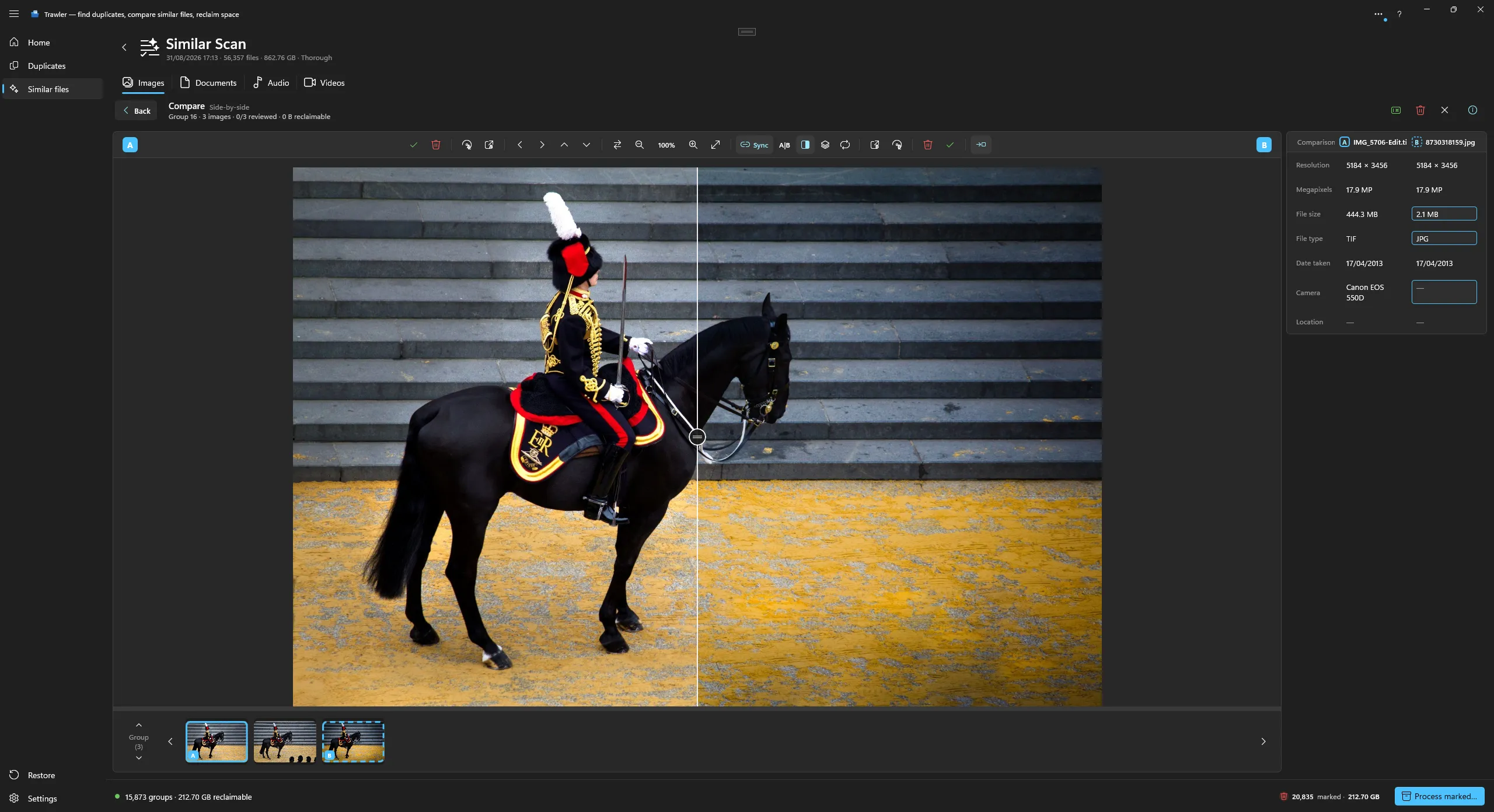 View full size ↗
Exact copies are the easy part. Trawler also groups the files that merely resemble each other, then gives you the tools to tell them apart.
Visually alike images, even after a resize, a re-save or a light edit. Compare side by side or overlaid, and keep the best one. Cropped copies may not be found.
How image matching works →Compared on their words, not their bytes — so two drafts group together across formats. With a line-by-line diff of any pair.
How document matching works →Two ways: an acoustic fingerprint of the sound itself, or the tags — loose enough to survive typos and “(Remastered)”.
How audio matching works →The same clip at two resolutions or in two containers, matched on its frames rather than its bytes.
How video matching works →No rules to write and nothing to configure. Point it at a drive, then work through what it found.
Point Trawler at your drives and it groups what belongs together. These seven files are one photograph — bracketed exposures, a tone-mapped edit, a TIFF and a JPEG. Not one byte-identical pair among them.
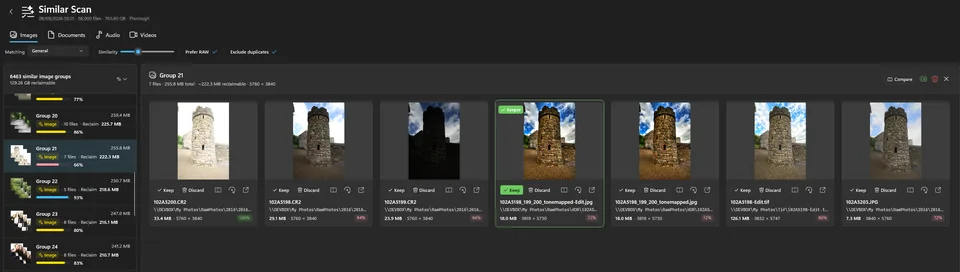
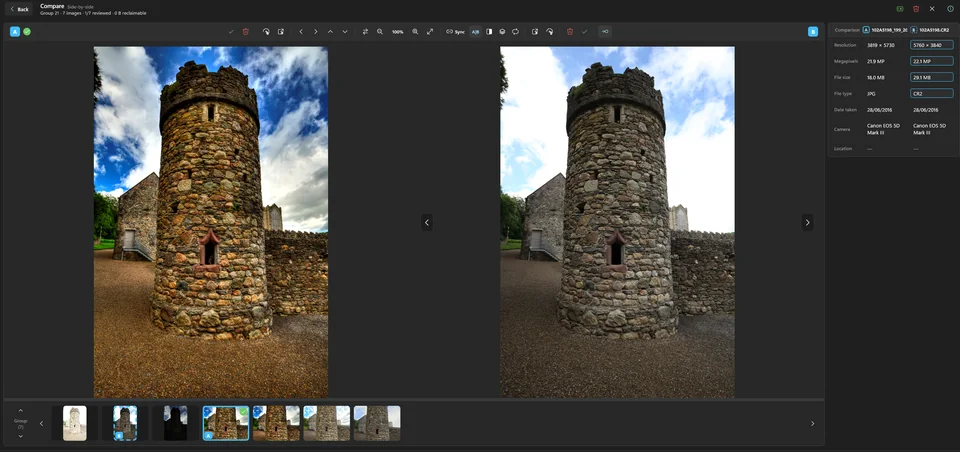
Put two side by side and the differences are the point: resolution, megapixels, file size, format, camera and date, read out of the files themselves. You keep one because you looked, not because of its name.
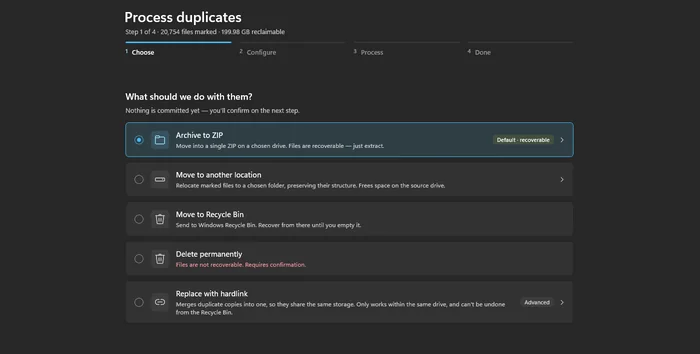
Then choose what happens, once, to everything you marked. Archiving to a single ZIP is the default because it is the one you can walk back; permanent deletion is there, named plainly, and never picked for you.
Four matchers, each reading the format properly rather than guessing from the name.
And every other file on the drive: exact copies, folder sizes and largest-file reports work on anything at all.
Byte-identical copies fall out of the same scan — found by content rather than by
name, so report.docx and report (1).docx land in one group.
What happens to them is yours to decide.
The point of comparing files properly is that you decide on purpose. The point of everything below is that deciding wrong is not the end of it.
Not everything can be undone, and Trawler does not pretend otherwise. Archiving and moving are reversible from inside the app. Recycling hands the file to Windows, so the Recycle Bin is your undo. Deleting is permanent — which is exactly why it is never the default.
Free to scan and preview your results. Nothing is removed unless you say so.
Coming to the Microsoft Store Free to scan and preview Your first scan End to end, in four steps
A one-time purchase, not a subscription. Scanning, matching and comparing are free. The full version unlocks the actions that change files — and once bought it never expires. What the full version unlocks