 Trawler
When something goes wrong
The answers to the questions people ask most, and how to read Scan report — the list of everything Trawler couldn't process.
Scan report lives at Settings → Scan report. Its own subtitle says what it is:
"Files and items Trawler couldn't process during scanning or matching. These don't affect your results — they're just a record of what got skipped."
Why didn't it find my OneDrive files?
Because Trawler skips them on purpose. A file that OneDrive, Google Drive or Dropbox has moved to the cloud leaves only a placeholder on your disk. Opening one makes the provider download the whole file. A scan opens everything it finds, so scanning your cloud folder would pull your entire cloud storage back down.
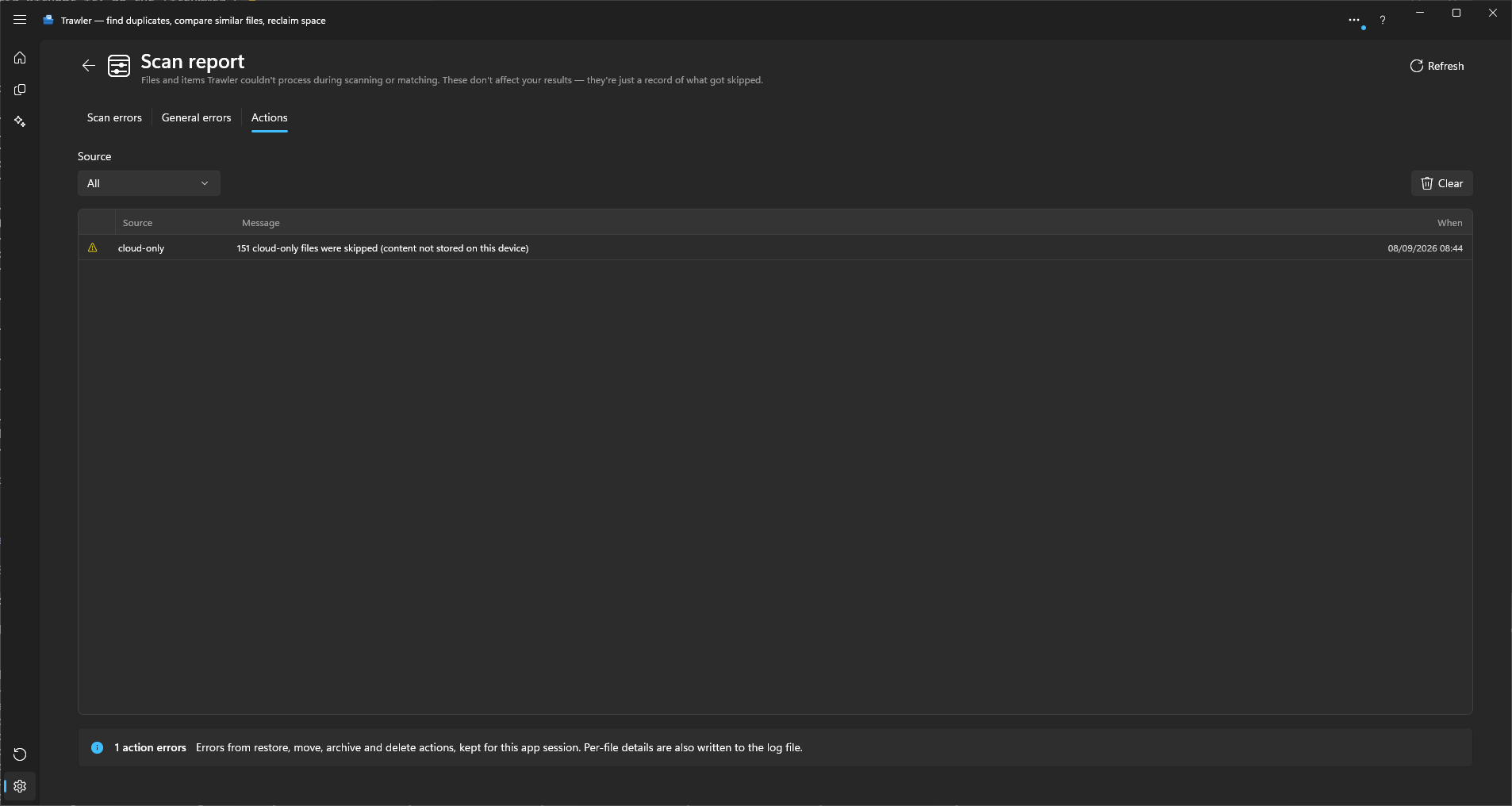
Trawler leaves those files alone and tells you how many it left. Look in Scan report → Actions for a line like:
12,481 cloud-only files were skipped (content not stored on this device)
The same count appears at the end of the scan progress line.
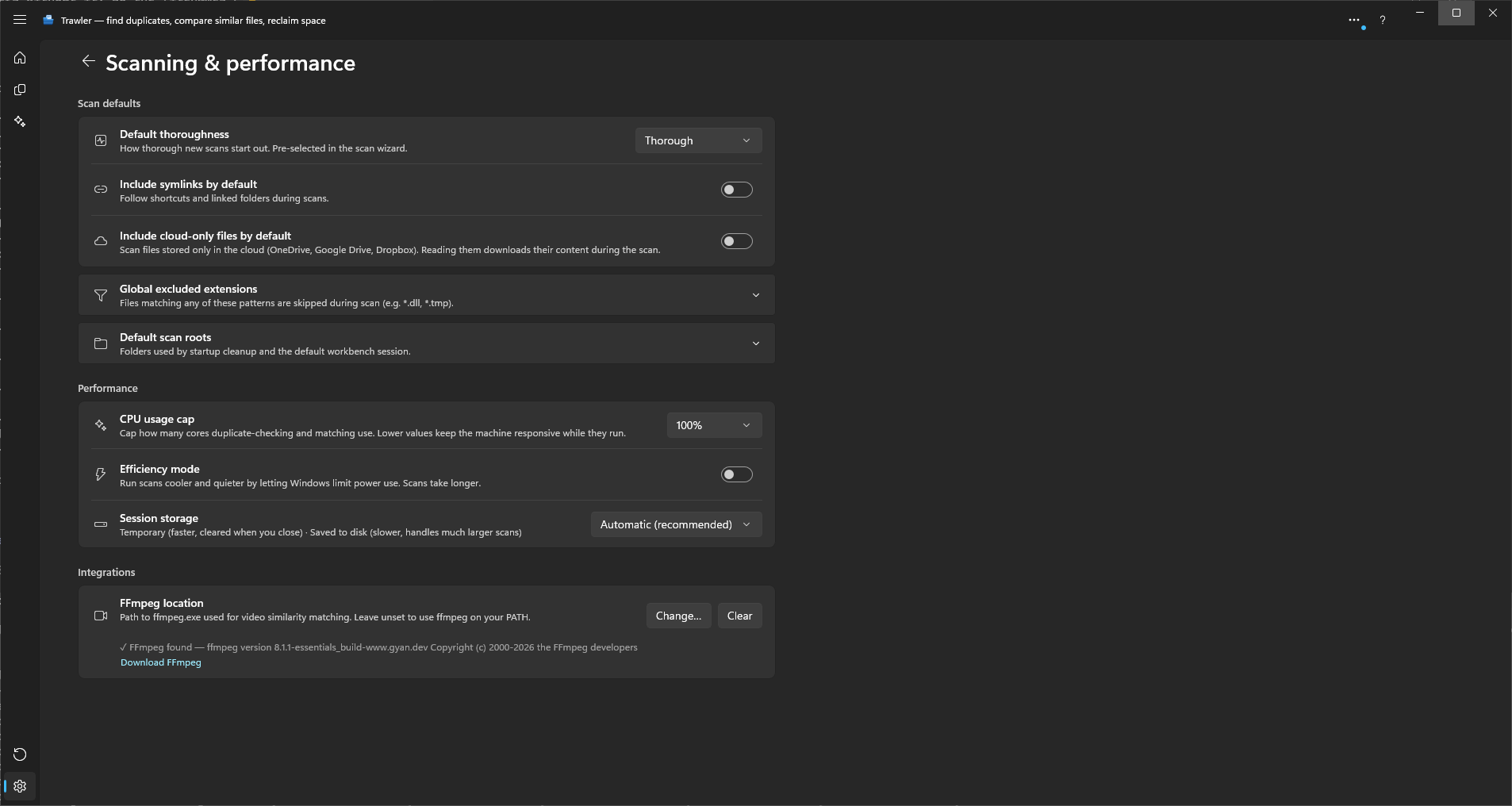
To scan them anyway, turn on Settings → Scanning & performance → Include cloud-only files by default. The setting warns you what that costs:
"Scan files stored only in the cloud (OneDrive, Google Drive, Dropbox). Reading them downloads their content during the scan."
Files that are already downloaded to your PC are scanned normally — this only affects the ones stored solely in the cloud.
The setting applies to every scan, including one using a filter you saved yourself. A filter carries no choice of its own here, so it cannot quietly turn the setting back off — which also means a filter shared with you from another PC cannot change it.
Why is the scan slow?
Three things dominate, in this order:
| Cause | What to do |
|---|---|
| What you asked it to do | Find duplicates reads every byte of every possible match; Index files reads none of them and only lists what is there. You can pick Index files now and run the duplicate check later, from the Duplicates tab. |
| Where you pointed it | A whole drive takes far longer than the folders you actually care about. Narrow it in Where should we look? |
| A network location | A slow share is usually the whole answer. See Big scans. |
Two settings trade speed for a usable machine: CPU usage cap and Efficiency mode, both under Settings → Scanning & performance. Turning Efficiency mode on makes scans slower by design — its own description says so.
Why did the scan stop?
Two different failures, with two unrelated fixes. Read which message you got:
| Message | What ran out | Fix |
|---|---|---|
| "The drive ran out of space. Free up some space, then try again." | Disk | Free space on the drive, then run again. Trawler discards the part-finished scan data itself, so it isn't still sitting there taking up room. |
| "The scan ran out of memory and stopped. Try scanning one folder instead of a whole drive. Or change Session storage to Saved to disk in Settings — that setting needs the full version." | Memory | Scan less, or switch Session storage to Saved to disk (see Big scans). |
Freeing disk space will not fix the second one, and scanning a smaller folder will not fix the first. That is why the wording differs.
If you cancelled it yourself, nothing is broken. Work already finished is kept; only the piece in flight is lost. Run it again and it picks up cheaply.
What the entries in Scan report mean
Three tabs, holding three different things:
| Tab | What's in it | Kept |
|---|---|---|
| Scan errors | Files skipped or unreadable during a scan or a Similar match. | With the session |
| General errors | Failures during an action that couldn't be tied to a scan. | With the session |
| Actions | Errors from restore, move, archive and delete. | This app session only, newest 2,000 |
Scan errors
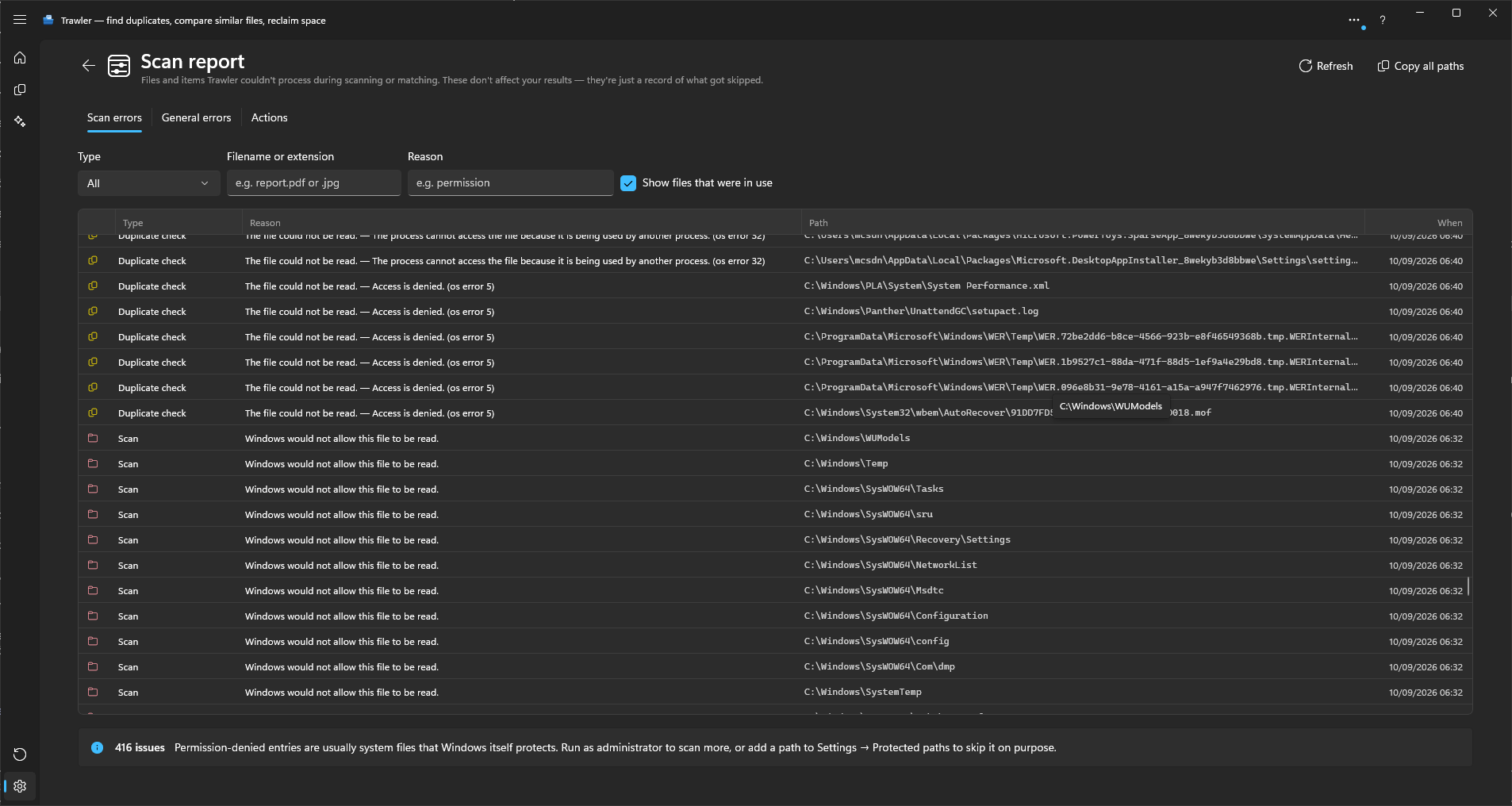
Every row has a Type, a Reason, a path and a time. Filter by any of them.
| Type | Where it came from |
|---|---|
| Scan | Walking your folders |
| Duplicate check | Comparing files against each other |
| Images · Audio tags · Acoustically similar · Video · Documents | The matching pass named |
| File actions | Deleting, recycling, moving, archiving or linking a file |
The Type column uses the same names the filter offers, so what you read in a row is what you pick from the dropdown.
The reasons you'll actually see:
| Reason | What happened | Does it matter? |
|---|---|---|
| "Windows would not allow this file to be read." | A permission denial — nearly always a file Windows protects. | Usually no. |
| "The file could not be read." | The read itself failed. Windows' own words follow the dash, often to say another program has the file open. | Only if it's a file you care about. |
| "The name or path is too long for Windows." | The path is past the 255-character Windows limit. | No. |
| "The file was no longer ticked when the action reached it, so it was left alone." | You un-ticked it between choosing the action and running it. | No — the action honoured your latest choice. |
A permission denial is the common one, and the panel itself explains it:
"Permission-denied entries are usually system files that Windows itself protects. Run as administrator to scan more, or add a path to Settings → Protected paths to skip it on purpose."
Which ones matter: almost none. Skipped files were not compared, so they cannot appear as a false match — the risk is only that a duplicate went unnoticed. Scan report exists so you can check whether anything you cared about was among them, not as a list of things to fix.
Why can't I click a button?
Three reasons, in order of how often they're the answer:
| What you see | Why | Fix |
|---|---|---|
| A button does nothing, or "Cannot start … is still running." | Trawler runs one long job at a time. | Wait for it, or cancel it. |
| A dialog appears offering to unlock the full version | The action is Pro-only — processing, saving, opening a saved session, exporting, and copying paths all are. | Unlock, or use what Free covers. |
| Replace with hardlink is greyed out in the processing list | It is off until you allow it. | Settings → Safety & protection → Allow Replace with hardlink. |
There is a fourth, specific to starting a scan. On the free version, pointing a scan at a network
location — a mapped network drive, or anything starting \\ — is refused with:
Unlock the full version — "“Scanning a network location” is a Pro feature. Unlock the full version to use it."
Local drives are not refused. Big scans explains why the line is drawn there.
Why are there leftover files on my drive?
Files ending .trawler-tmp or .trawler-movetmp are working files left behind by a crash
part-way through Replace with hardlink or a Move. They are safe to leave, and Trawler
normally clears them at startup — but only in places it has been told about, and only when it can
prove the file is its own. Do not delete one by its ending: the ending alone is not proof of where
a file came from.
That has its own page: Recovering an interrupted hardlink job.
Where the log files are
If support asks for logs, open Settings → General → Open logs folder. That opens File Explorer at:
%LOCALAPPDATA%\trawler\logs
One file per day, named log-YYYYMMDD.txt, and the last 7 are kept. Send the most recent —
or the one for the day the problem happened.
Trawler also notices if it closed unexpectedly and says so on the next launch, with the folder path in the message. If it was part-way through a scan when it closed, you are also offered that scan back — see Sessions.
The log file is a separate thing from Scan report. Scan report is the per-file record you can read and export; the log is the diagnostic trail, and it is the only place some per-file action failures are written in full.
What a Similar match records
Each run of Images, Videos, Audio or Documents writes two lines to the log: one when it starts, saying how many files it is looking at and how many of them it already had answers for, and one when it finishes, saying how many groups it found and how long it took. If a match did nothing at all — no files of that kind, or FFmpeg missing for videos — it writes a single line saying so.
That is deliberately all it writes. A run over a large library is thousands of files, and a line
each would make the log unreadable and the match slower. If support needs more, they will ask you
to set an environment variable named TRAWLER_LOG_LEVEL to Debug and run the match once more,
which adds the timing of each stage.
Related
- Big scans — speed, memory, and network locations
- Recovering an interrupted hardlink job — the
.trawler-tmpfiles - What can be undone, and what cannot — before you process anything
- Terms — what the words on screen mean