 Trawler
While it's running
Step 4 of the wizard — "Step 4 of 4 · Scanning your selected locations." This page covers what the numbers mean, why the estimate moves, and what you keep if you stop.
You can stop at any point. The sub-line under the progress bar says so from the first second: "starting · cancel at any time".
What you're looking at
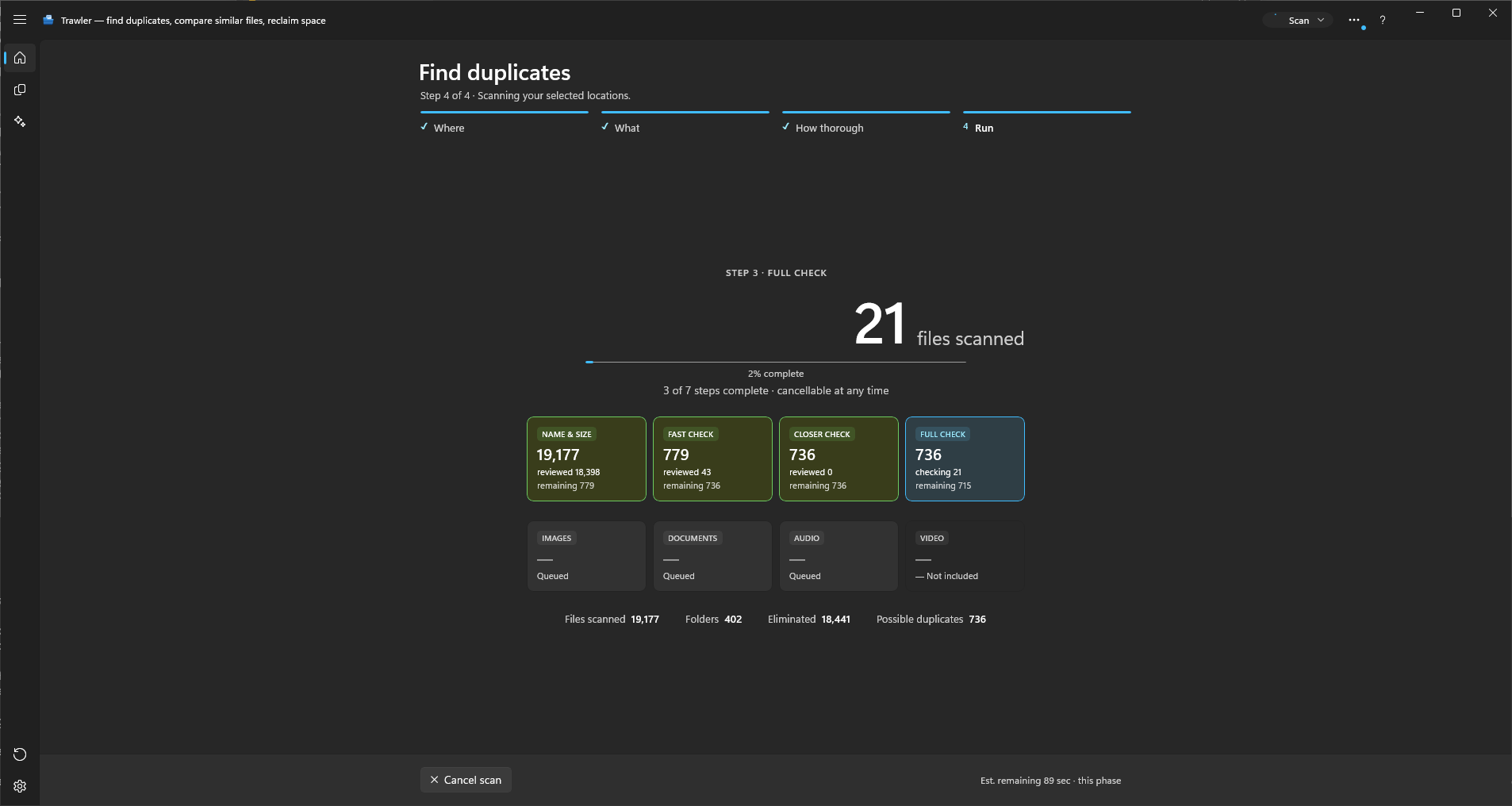
A large running count of files scanned sits at the top, with a phase chip above it naming what is happening right now: DISCOVERY, then STEP 1 · FAST CHECK, STEP 2 · CLOSER CHECK, STEP 3 · FULL CHECK, then GROUPING MATCHES and COMPLETE. The three checking steps only appear when you chose Find duplicates — see Index files, or find duplicates.
Under it, four numbers:
| Files scanned | Everything found so far |
| Folders | Folders visited |
| Eliminated | Ruled out — nothing else on disk is the same size |
| Possible duplicates | Still in contention |
Eliminated climbing fast is normal and good. Most files are dismissed on size alone, without ever being opened.
A card per step fills in beside them — INDEX, FAST CHECK, CLOSER CHECK, FULL CHECK — each showing how many files it took in and how many it passed on. A step that isn't part of this scan reads "not in this scan" rather than disappearing. If you included similar items, four more tiles track those through Queued and Scanning…, or sit at — Not included or Unavailable. A tile that is queued or scanning shows how many files that check has to look at, so you can see the size of each job before it starts.
The progress bar and the estimate
While Trawler is still finding files it cannot know how many there are, so the bar just moves. Once a checking step starts it knows how much it has to read, and the bar becomes a real percentage with an "NN% complete" caption.
The status bar along the bottom of the window follows the scan too. Its activity area shows the percentage, "Started" with the time the scan began, the time left, and "Total" with the time the scan has been running so far. When the scan ends, "Total" becomes "Took" and stops counting.
The time left is for one step only, and it names the step: "Step 2: about 4 min left". While Trawler has nothing to base it on it reads "Estimating…", then "Almost done…" under five seconds. Hover over it for the same note.
Read the step number. That estimate is for the step currently running, not for the whole scan. When a step finishes, the next one starts and the estimate resets — that is not a stall or a mistake, it is a new measurement of different work.
If you step off the Run step while the scan works, the footer shows the estimate, "Est. remaining about 4 min · this phase", beside the way back to the run.
After the last check
There is a window at the end where the file counter stops but the app is still working. The bars are replaced by a spinner and a FINALISING line naming what it is doing — finalising duplicate groups, auto-marking, preparing results — with a running count.
On a very large scan this can run for minutes. It is not frozen. The line changes as it moves.
Then the phase chip turns green and reads COMPLETE, and after a moment the wizard moves to the summary.
Cancelling
Cancel at the left of the footer stops the run. The status bar has no Cancel button of its own; each job is cancelled from its own screen. The button stops accepting clicks while the scan unwinds — the request has been taken, it just isn't instant. You land back on the How? step, ready to change something and run again.
What you keep
| Duplicate results | None. A cancelled run produces no groups at all — not a partial list. |
| The work already done | Kept. Files Trawler has already read stay read. Running again picks up from there rather than starting over. |
| Your ticks | Untouched. Marks you made are never cleared by a cancel. |
| Your files | Untouched. A scan never writes to them. |
The second row is the one that matters: cancelling a long run to add another drive and starting again does not mean paying for the same reading twice. At most a few seconds of in-flight work is lost.
Walking away from it
The scan keeps going if you move off the Run step — coming back returns you to the live view, not to a restarted scan. The title-bar selectors and ribbon stay usable throughout, so you can look at Settings or Restore while it works. On another screen, the ⋯ button at the right of the status bar's activity area lists the scan and the other jobs that are running, and each one has its own Cancel.
The scan's own screen leaves itself out of that list, because it already shows the scan.
Only one job runs at a time. Starting a second scan is refused with "A scan is already running — wait for it to finish or cancel it first."
To be told when it finishes, Settings → Notifications has Notify when a task finishes, plus a minimum duration so short scans don't become noise.
On the taskbar
Trawler's taskbar button shows the scan's progress, so you can follow it from another window. Match on the Similar tabs shows it the same way.
The bar under the icon follows the step that is running. It pulses when there is nothing yet to count, then fills as the step works through its files. Each step starts its own bar, so a bar that empties and fills again is the next step, not a restart.
A coloured dot in the corner of the button tells you which step it is:
| Dot | Step |
|---|---|
| Gold | Finding files, and each similar check getting ready |
| Green | The checking steps |
| Pink | Grouping matches between and after the checks |
| Light blue | Similar images |
| Blue | Similar videos |
| Purple | Similar audio |
| Orange | Similar documents |
Hover over the button while a scan or a Match is running, and the small preview shows the progress instead of the window, in three lines:
- the step's icon, in the same colour as the dot, and how far through the step it is
- a thin line with how many files have been found (or when it started) and the total time so far
- the time left, next to a clock, such as Step 8: about 2 min left, once Trawler can estimate it
When a scan finishes, a green dot with a tick replaces the step's dot. It stays until you leave the scan screen, so you can see from another window that the results are waiting.
If you're in another window when a scan finishes, the button flashes three times, then stays highlighted until you come back. If the scan stopped with an error, the bar also turns red, and clears when you switch back to Trawler.
Cancelling never flashes the button — you already know.
When it stops on its own
Files it cannot read do not stop the scan. They are collected in Scan report → Scan errors and have no effect on the results.
Two failures do end the run, and both say what to do:
- "The drive ran out of space. Free up some space, then try again."
- "The scan ran out of memory and stopped. Try scanning one folder instead of a whole drive. Or change Session storage to Saved to disk in Settings — that setting needs the full version."
The second is about memory, not disk. Session storage is in Settings → Scanning & performance, and saving to disk is a full-version feature.
Related
- Index files, or find duplicates — what each step reads
- Your first scan, end to end — the result screen
- Big scans — speed, memory, and network locations
- Troubleshooting — the scan report