 Trawler
Sessions
A session is one scan: the settings that produced it and, if you save them, the results. This page covers saving, reopening, and running the same scan again.
You never have to save the settings. Trawler writes those itself the moment a scan starts. What you choose to save is the results, so you can reopen them without scanning again.
Where sessions live
Documents\Trawler, unless you change Session folder under Settings → General — "Where saved sessions (settings + scan data) are stored."
Each session is a pair of files sharing one name, built from the date and the folders you scanned:
scan-2026-08-01-1435-C-Photos.json     the settings
scan-2026-08-01-1435-C-Photos.db       the results, once you save them
A drive becomes its letter, a folder becomes its last name (trimmed to 16 characters), and more
than three of them collapse to +N. A name that already exists gains -2, -3, and so on — an
existing session is never overwritten.
Saving the results
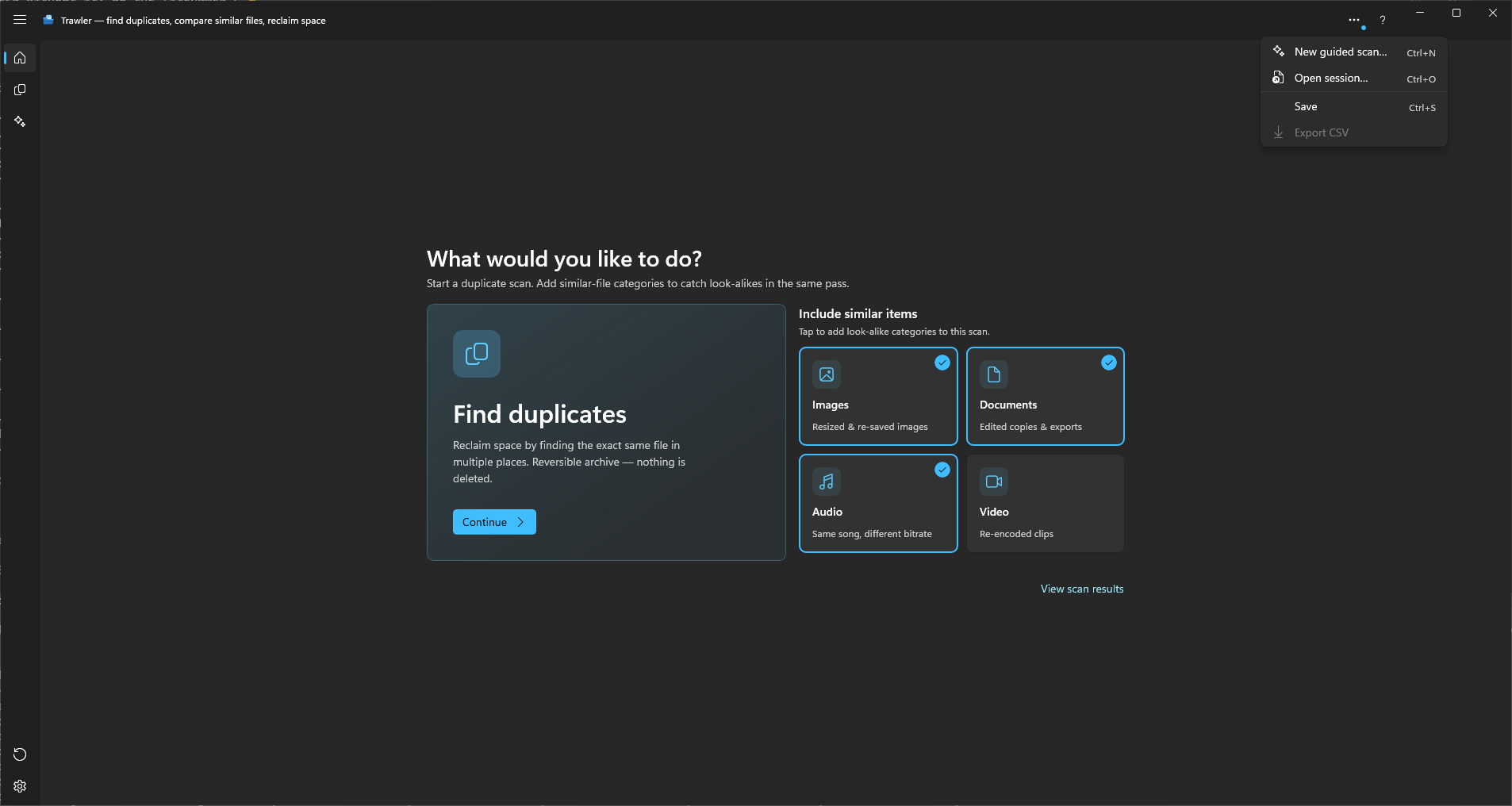
Select Scan in the title bar and choose Save in the ribbon, or press Ctrl+S — "Keep this scan's results so you can reopen them later without scanning again." There is no prompt and no file picker; the results land beside the settings file under the same name.
Save is unavailable when:
- nothing has been scanned yet;
- an operation is running — a save during a scan would cancel it. Wait or cancel first.
- the live results don't belong to the session you last opened. This happens after you open a session that had no saved results: the previous scan is still on screen, and saving it under the new session's name would produce a session whose settings and results describe different things.
If a save fails you get "Couldn't save the session" and "Saving the session failed — the file may be locked by OneDrive or you may not have permission to write there." The scan is still open, so you can fix the cause and try again.
Stopping a save yourself is not a failure. While the save runs the status bar shows it; open the ⋯ list at the right of its activity area and choose Cancel. Nothing is written, no half-finished results file is left behind, and no message appears — your results are still open and you can save again whenever you like.
The same wording appears for the automatic settings save at scan start, ending "Your scan is still open; try saving again."
Saving the results every time
Settings → General → Keep a copy of each scan's results automatically does the same Save for you whenever a scan finishes — "When a scan finishes, its results are kept in your scan data folder so you can open them again later. Each copy can be several gigabytes."
It starts off, and it needs the full version — on the free version, turning it on raises "Unlock the full version" and the switch goes back to off. The line under the title reads "Keeping results is a Pro feature."
Read that size warning before you turn it on. Every finished scan writes another copy, and none of them are cleared for you. Settings → General → Scan data folder is where they go, and you can point it at a different drive.
Only a scan that runs to the end is kept. A scan you cancel, and one that stops with an error, leave nothing behind.
Reopening a session
Scan → Open session… (or Ctrl+O) opens your saved sessions. Each row tells you what that session is, rather than making you recognise a filename:
- the folders it scanned;
- how many duplicate groups it found, and how much space you could reclaim;
- when you saved it, and how much room it takes up on disk.
That last figure is the one to look at before you remove anything — a saved session can run to several gigabytes.
Trawler remembers your last twenty, newest first. If the one you want is not there — it was moved,
renamed, or came from another computer — Browse… at the bottom opens a file picker for its
.json settings file.
Press Open on a row, and what happens next depends on whether that session has saved results:
| Situation | What Trawler does |
|---|---|
| Results saved and readable | Loads them and takes you straight to the results |
| Never saved | Opens the scan wizard filled in from the settings, so you can run it |
| Results file missing | "This session's saved results are missing. Opening its scan settings so you can run it again." |
| Results written by an older or newer version | "This session was saved by a different version of the app, so its results can't be reopened. Opening its scan settings so you can run it again." |
| You stop it while the results load | Nothing changes. Whatever you already had open stays open, and Trawler says nothing |
The two rows with a message are not errors you need to act on. The message appears in the scan wizard, just above the buttons at the bottom, so you can read why while you are looking at the settings you are being offered. Stopping the open yourself is not one of them: nothing is wrong and nothing has changed, so there is nothing to tell you.
Each of the three rows that opens the wizard fills it in from the session first. It arrives on How?, and the folders that session scanned are already ticked back on Where should we look?, so you can go straight to Run scan without picking them again.
You cannot open another session while something is running. Open and Rescan… in the picker stay unavailable until the job finishes or you cancel it.
Large saved results take a while to open, and the progress shows while they load. The status bar shows the job for as long as it runs; open the ⋯ list at the right of its activity area and choose Cancel to stop it. Automatic weighs the size of the saved results against the memory this PC has available: smaller ones are loaded into memory for speed, bigger ones are read from disk. Settings → Scanning & performance → Session storage overrides that choice — Automatic (recommended), Temporary, or Saved to disk. The last is a Pro option: "Saving to disk is a Pro feature."
Running the same scan again
Rescan… on a row in Open session… is the one to reach for when you have added files since you last scanned. It re-opens the scan wizard with that session's folders and filters already filled in, on How?, so you can adjust anything and then run it. It does not start scanning on its own — that is what the … in its name is telling you.
A rescan starts a new session — a new settings file, a new name — and leaves the old one on disk.
Rescan… works even when the results are gone. It only needs the settings, so a session you removed the results of to free up space can still be re-run. Those rows say "Results missing — you can still rescan", and their Open is greyed out while Rescan… is not.
⚠ A session you re-opened from disk does not bring the shortcut below with it. A saved results file holds the answers, not the working data that shortcut reuses, so re-running one of those looks at every file again.
The results themselves are not built from scratch. As long as you have not closed Trawler since the last run, files that have not changed keep the comparison work already done, so the re-run only has to look at what is new or changed. Adding another drive to a scan you have already run costs you the new drive, not both. See Big scans.
Rescanning is refused while something is running, with the same message as opening.
Removing a session
Saved sessions are never cleared for you, and a results file can be several gigabytes. The ⋯ button on a row in Open session… removes one.
It asks first, naming the session, and then sends both files to the Recycle Bin — so if you change your mind, they are still there to restore. If the files have already gone from disk, the button offers to take the row off the list instead, and says so.
The session you have open cannot be removed. Press ⋯ on it and Trawler tells you why: "This session is open. Close it first." Its results file is in use, and removing half a pair would leave the other half behind where you could no longer see it.
If Trawler closed unexpectedly
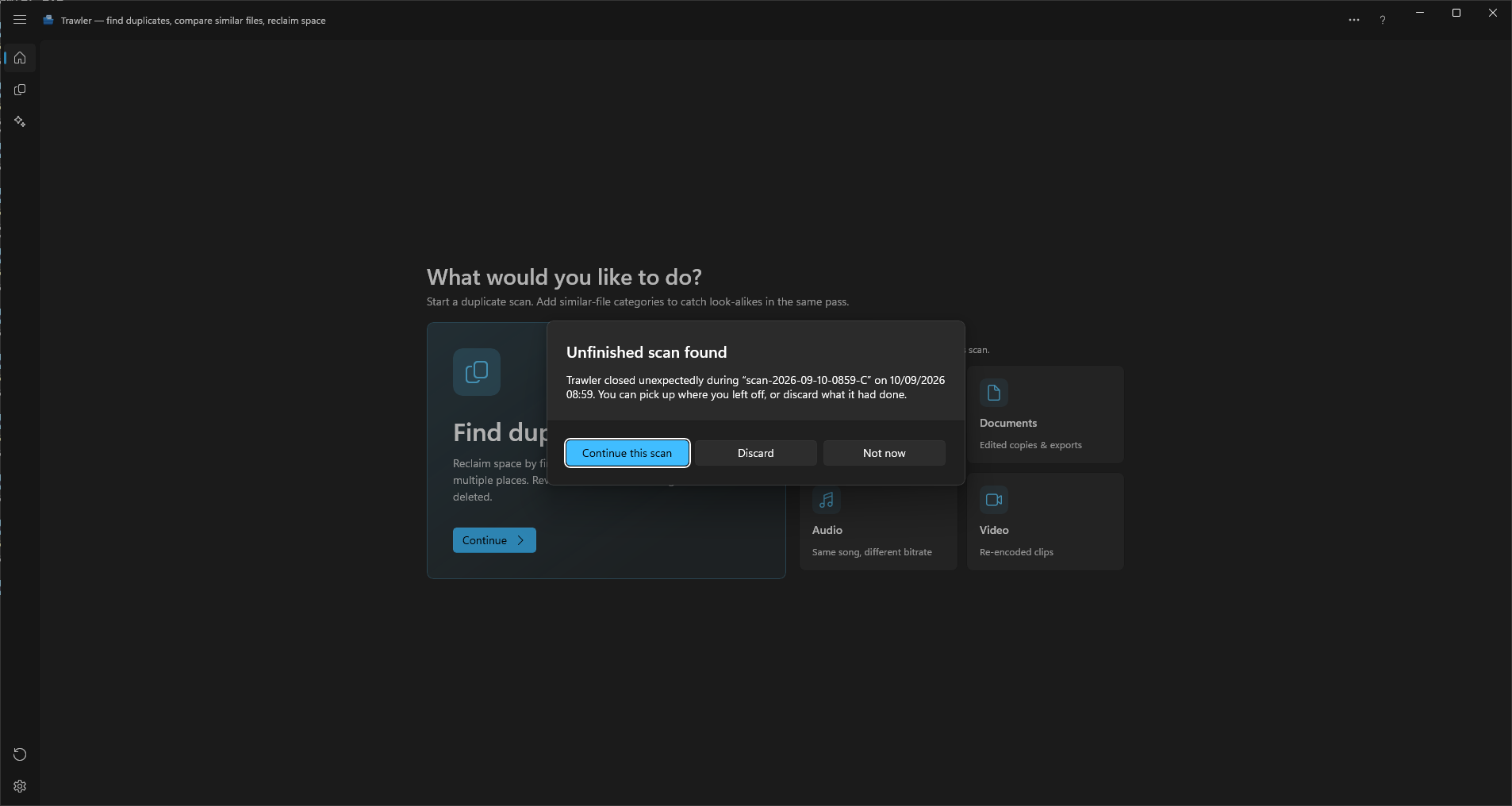
If Trawler is closed part-way through a scan — by a crash, a power cut, or Task Manager — the work it had done is still on disk. On the next launch you are asked what to do with it:
"Unfinished scan found"
"Trawler closed unexpectedly during "[name of the scan]" on [date]. You can pick up where you left off, or discard what it had done."
| Button | What happens |
|---|---|
| Continue this scan | Opens that scan again. If it got as far as producing results you land on them; if it was killed earlier, the wizard opens filled in from its settings and re-running it is cheap, because the finished work is still there. |
| Discard | Deletes the unfinished scan's data and reclaims the space. |
| Not now | Decides nothing. The unfinished scan is left alone and you are asked again next launch. |
This needs the full version. On the free version the unfinished scan is cleared at launch and you are not asked.
Nothing here is your saved sessions — those are separate files and are never touched by this. And a scan you cancel yourself is not "unfinished" in this sense: you are back at the wizard with the results you had, and no question is asked next launch.
If Continue this scan cannot read the data back, you get "The unfinished scan's data couldn't be reopened. Opening its scan settings so you can run it again." and the wizard opens instead. That is not something you need to act on.
On the free version
Open session…, Recent and Save all stay clickable and raise "Unlock the full version" when you press them — naming "Open saved session" or "Save session" as the feature. Nothing is opened or written either way.
Keep a copy of each scan's results automatically raises the same prompt, naming the switch by its own label, and goes back to off.
An unfinished scan is discarded at launch rather than offered back. That one is the exception: nothing is offered and nothing asks.
Related
- Reading your results — what the scan summary is telling you
- Processing — acting on a session's results
- Choosing what to remove — ticks are part of the session and are saved with it