 Trawler
Reviewing similar results
Nothing on the Similar tabs is ticked, chosen, or acted on for you. Similar matching makes no selections of its own; ticks you or a duplicate scan made elsewhere still show here. This page explains why, and what to do with the results once you have them.
Why nothing is picked for you
Similar files are not exact copies. Two images of the same scene, two encodes of the same clip, two drafts of the same report — they are alike, but they are not interchangeable, and only you know which one you want.
All four tabs — Images, Documents, Audio and Videos — say so in the same words, under the heading You choose what to remove:
"Similar files aren't exact copies. Mark each one you want to remove — nothing is selected for you, and Replace-with-hardlink isn't available here."
This is the difference between Similar files and Duplicates. On the Duplicates side Trawler has compared the contents, so it can pick which copy to keep. Here it cannot, so it does not try. A Find duplicates scan compares every byte, so its groups are exact copies. If Verify exact copies is showing on the Duplicates tab, those results came from sampling instead — run it before treating a group as identical.
Replace with hardlink does not apply to similar files. That action merges two files into one piece of storage, which is only ever safe when they are identical. Similar files are not, so it only ever reaches files a duplicate check has already grouped by content — where you ticked a file makes no difference to what it does with it. See What "similar" means for what that means in practice.
Keep and Discard
Every file in a group has two decisions available:
- Discard ticks the file for removal.
- Keep clears that tick and flags the file as the one you are keeping.
On Images and Videos, tick the checkbox below the picture to Discard and untick it to Keep. Full screen, Compare and the protection shield sit in the same action row, alongside Rotate on Images. The filename stays below the picture; the full path is available in the tooltip and Details. Audio tracks have the same Discard checkbox and protection marker beside each row, with playback controls alongside. The comparison surfaces retain their separate Keep and Discard controls.
Ticks are shared across the whole session. A file you discard here is the same tick as one made on the Duplicates tab or in the folder tree, it counts towards the marked total in the status bar, and it will be included when you process. The reverse is also true: a file already ticked elsewhere shows as discarded the first time you see it here.
Only files in the current scan can be discarded. If a file has fallen out of it, you will see "Discard dropped — path is not in the current scan: …" and nothing is ticked.
Which file comes first
Nothing is ticked for you, but the strongest copy is put at the top of each group — so Keep the first, discard the rest has something sensible to act on, and so the group reads best-first.
The idea is the same on every tab. A complete copy beats a partial one, and only then does quality decide:
| Tab | Complete means | Then it prefers |
|---|---|---|
| Images | full resolution | a RAW, when Prefer RAW is on; then the sharpest |
| Videos | full length | the highest resolution |
| Audio | full length | the better-quality file |
| Documents | the full text | the one changed most recently |
Still tied, the larger file wins. Still tied after that, the first by name — so scanning the same files twice puts the same one on top.
Length and size are checked in that order for a reason. A 45-second clip cut from a film can be a larger file than the film itself, and a ten-second sample can be a better encode than the whole track. Picking on size alone would keep the clip.
Two things this does not do. It does not tick anything, and it is not a claim that the top file is the one you want — a longer live version legitimately outranks the album cut, and only you know which you meant. And on Documents it deliberately does not lead with the most recent file: a copy is bumped to "modified today" by a sync, a backup or an antivirus scan, so a two-page extract touched this morning would otherwise beat the complete original.
The top file and the Reclaim figure are worked out when the match runs. Ticking boxes does not change either, so the saving you were reading stays put while you work.
Working through a group faster
Each group has three batch actions:
| Action | Result |
|---|---|
| Keep the first, discard the rest | Keeps the top file in the group, ticks every other one. |
| Discard all in this group | Ticks every file in the group, including the first. |
| Clear all | Undecides the whole group — nothing ticked, nothing flagged. |
The group list can be ordered by Reclaim (biggest saving first), Best match first (strongest matches first), or Count.
Exclude duplicates sits under Similar → Matching settings and is on by default. The app explains it as: "100% matches are already in the Duplicates pick list. Turn off to also show files you've already picked." Leave it on and this tab shows genuine near-matches only; turn it off to see everything.
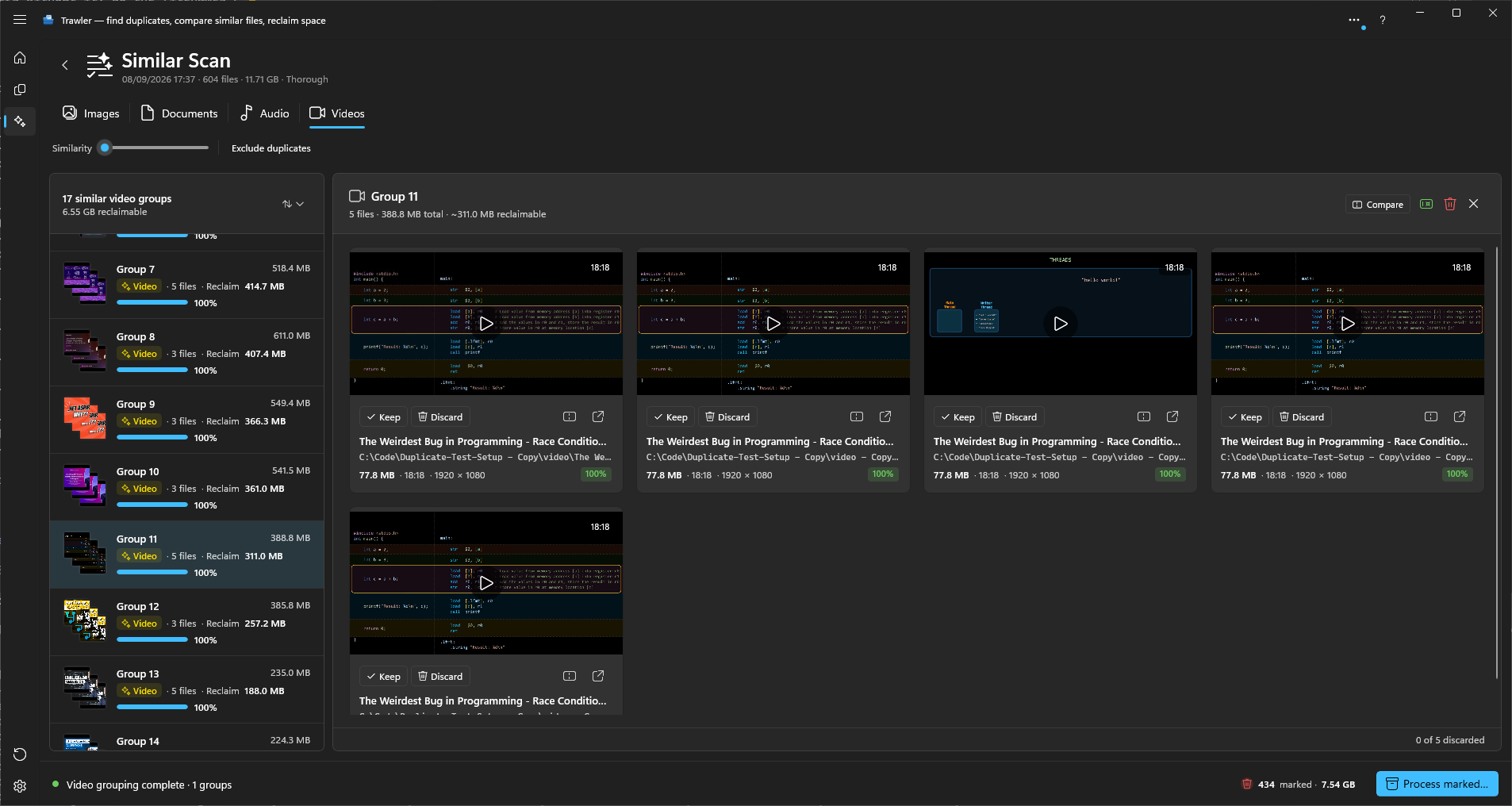
Acting on what you picked
Discarding a file marks it. It does not move, delete or change anything.
When you are done, use Process marked… in the status bar. That takes you to the same five actions the Duplicates side uses — Archive to ZIP, Recycle, Delete, Move, and Replace with hardlink — with your marked set from every tab combined into one job.
Because Similar and Duplicates share one marked set, check the total before you process: it includes ticks made anywhere, not just on the tab you are looking at.
Files that are actually removed drop out of the Similar lists afterwards.
Read What can be undone, and what cannot before you process. Archive and Move can be reversed; Recycle goes to the Windows Recycle Bin; Delete cannot be undone at all.
What you see on the free version
Each tab shows the first 10 groups, with a line reading "N more groups — unlock the full version to view all results". The group and reclaimable totals above the list count all matches, not just the visible ones, so the figure you see is the real one.
Related
- Similar videos — and the FFmpeg setup video matching needs
- Similar documents — and the side-by-side compare view
- What can be undone, and what cannot — read this before processing
- Processing — the five actions in full
- Comparing two files or two folders — the same compare views, for any A and B