 Trawler
Your first scan, end to end
What happens between opening Trawler and having a list of duplicates. It is four steps and one button, and none of it touches your files.
A scan only reads. It builds a list of what it found. Deleting, archiving, moving — every one of those is a separate decision you make afterwards, on the results. Nothing is removed because you ran a scan.
1 · Start from Home
Home opens on "What would you like to do?". The Find duplicates card is the way in — choose Continue. To come back to Home later, select Scan in the title bar and choose New guided scan….
Below it sits Include similar items, with four toggles: Images, Documents, Audio, Video. Those find files that merely resemble each other — a resized image, a re-encoded clip — and they are matched in the same pass as the exact copies. They also take considerably longer. Leave them off for a first run; you can add them later.
2 · The wizard's four steps
The header counts them: "Step 1 of 4" through "Step 4 of 4".
| Step | What you answer |
|---|---|
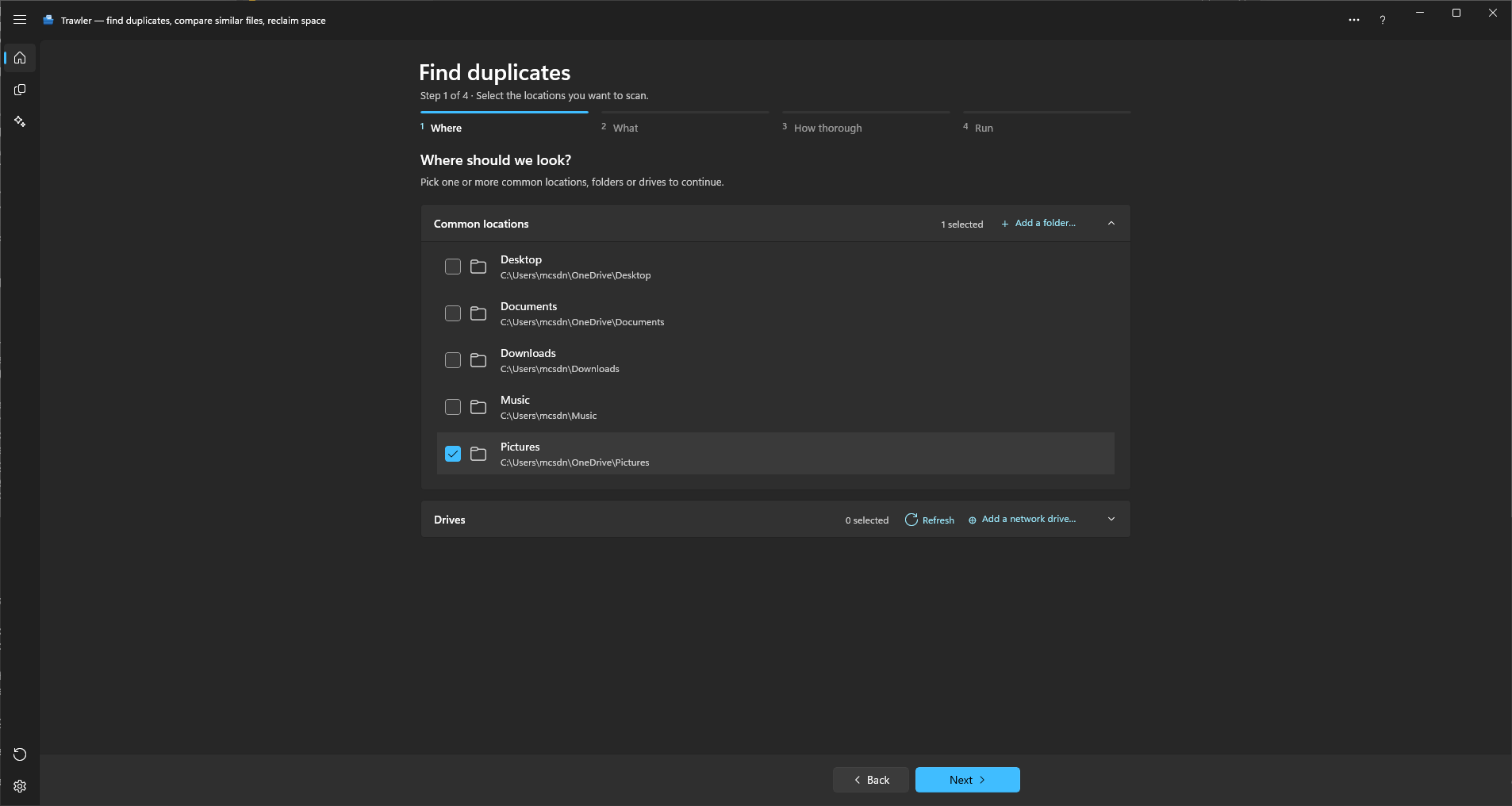
| Where should we look? | Which drives and folders to search. Nothing is pre-ticked, so Next stays disabled until you pick at least one. |
| What kind of files? | One filter from the list. A fresh install starts on Common file types. |
| How? | Index files or Find duplicates. Find duplicates is pre-selected and carries the Recommended badge. |
| Run | The live scan, then the summary. |
Each of the first three has its own page here — Where should we look, What kind of files, Index files, or find duplicates — but the defaults are reasonable, and picking a location and pressing on is a perfectly good first run.
On the How? step, choose Run scan.
3 · While it runs
A card per checking step fills in left to right, with a running file count and an estimate. You can stop at any moment — the sub-line says so: "starting · cancel at any time".
Details, including what a cancel costs you, are on While it's running.
4 · The result screen
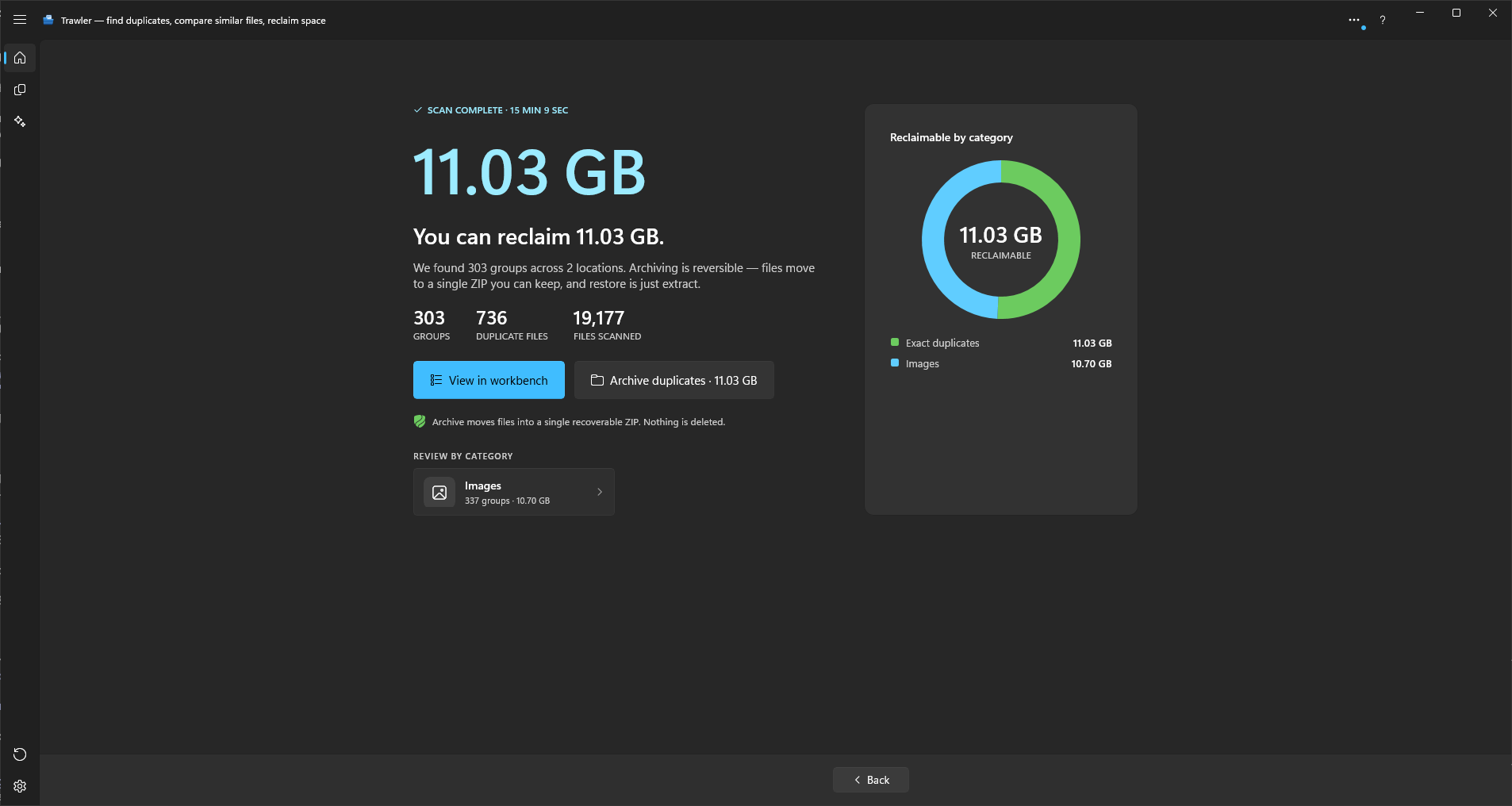
The run ends on a summary with three figures — GROUPS, DUPLICATE FILES and FILES SCANNED — a headline saying "You can reclaim …", and two ways on:
- View in workbench takes you to the full result list, where you choose what to remove.
- Archive duplicates ·
goes straight to processing with the automatic picks. It writes one archive, then removes the originals it successfully archived. Keep the archive — it is the only way back.
If you included similar items, a REVIEW BY CATEGORY section lists each category that found something, and each row jumps to that tab.
Beside the figures, a card holds a three-ring chart, drawn standing on a tilted plate. The inner ring has one slice for each file type: Images, Video, Audio, Documents, Archives, Apps and installers, System files and Other. Only types that hold something are drawn. The middle ring splits each type's duplicate files by family, such as JPEG, or by extension where a type has no families, and adds a pale slice labelled Similar for that type's similar matches. The outer ring splits each family by extension. Under the chart, a line reads "of {size} scanned", with the total size of everything the scan looked at.
Each slice stands as tall as its size against the largest type, so the largest type stands tallest. It is turned to the back, and the smaller types meet at the front, where nothing hides them.
- The chart can add up to less than the large figure. The chart adds up the duplicates that are ticked for removal, plus the similar matches. The large figure is everything reclaimable. A duplicate that is not ticked, such as one inside a protected folder, counts in the figure but is not drawn.
- Point at a slice and the line under the chart shows where it sits, such as "Images › JPEG › .jpg", with its size and its share of the whole chart.
- Select a slice to keep it in that line. The slice, the slices it sits in and the slices inside it keep their colour, and everything else fades. Select it again, or select an empty part of the chart, to clear it. Selecting a slice also scrolls the list to its row.
- Drag across the chart, left or right, to turn the rings. Use it to bring a slice hidden behind a taller one round to the front.
- The list under the chart names every slice with its size and share, indented under the slice it sits in. Select a row to select its slice.
- Slices too small to draw are gathered into "N smaller items" (a paler shade of the slice it sits in); the list still names each of them. A slice's label is left off when it doesn't fit, or when a taller slice in front hides it. Inside Other, each extension has its own muted colour, the same every time; the Other slice itself stays grey.
After an Index files scan that has no duplicate results there is nothing to reclaim yet. The result screen shows what the scan found instead. If you re-index a session that has already found duplicates, those results are kept, and the result screen still shows what you can reclaim.
- The large figure is the total size of everything scanned, and the headline reads "Here's what you scanned."
- The "of {size} scanned" line under the chart is not shown, because it would repeat the large figure.
- The inner ring has one slice for each file type, the middle ring splits each type by family or extension, and the outer ring splits each family by extension. Every file the scan listed counts, ticked or not. There are no Similar slices, even when you included similar items. Their categories still appear under REVIEW BY CATEGORY.
- Pointing, selecting, turning and the list work as they do above.
System files are system binaries such as .dll, .sys and .so. They appear only in charts,
to account for the space. Trawler never offers System files as a category to scan or to filter by.
This does not exclude them from a scan: a choice such as Everything still includes those files.
Coming back to the results later
The result list is also reachable at any time from Explore in the title bar: choose Files, Largest files, Duplicates or Folder sizes.
The scan's settings are saved for you the moment the run starts, so re-running the same scan later does not mean setting it up again.
What the free version does
You can scan and see everything the totals say. What is limited is detail and action:
- The Duplicates list is browsable for 10 groups. Above that a line tells you how many more there are — the counts and reclaimable totals themselves are never capped.
- Network locations can't be scanned. Local drives can, whole — the free version just keeps the results in memory, so a very large one can stop before it finishes. Trawler says so when you tick it.
See Free and Pro for the full split.
Related
- Where should we look — drives, folders, network shares, exclusions
- Index files, or find duplicates — what each option finds, and what it costs
- While it's running — progress, estimates, cancelling
- Reading results — the folder tree and the four result tabs