 Trawler
What kind of files?
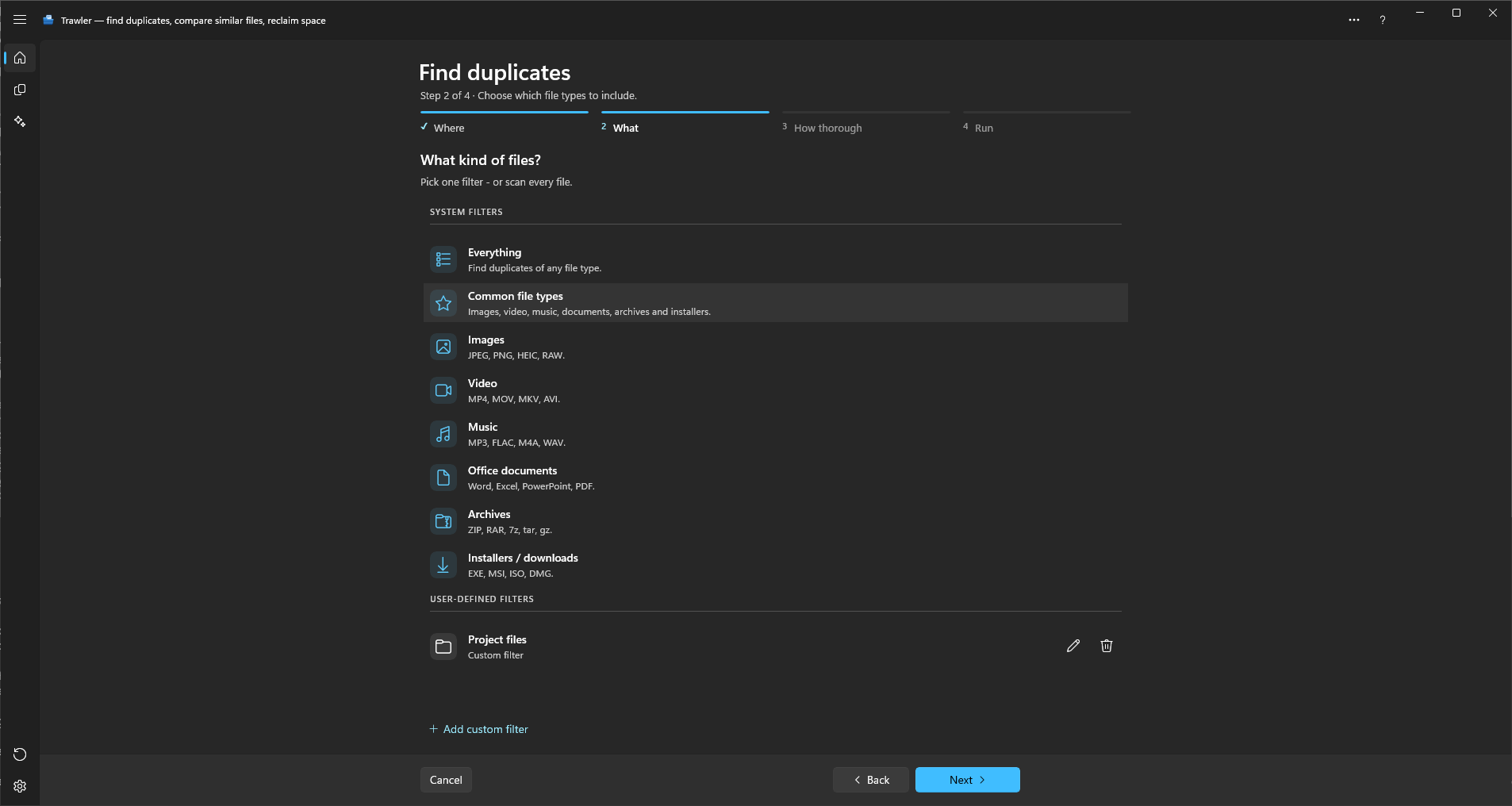
Step 2 of the scan wizard. "Pick one filter - or scan every file." It is a single-pick list, so choosing one clears the last.
Narrowing here is the cheapest speed-up there is. Fewer files found means fewer files to compare, and the saving compounds through every later step.
The shipped filters
They appear under SYSTEM FILTERS, in this order. A fresh install starts on Common file types.
| Filter | On screen | What it covers |
|---|---|---|
| Everything | "Find duplicates of any file type." | No type filter at all |
| Common file types | "Images, video, music, documents, archives and installers." | All six categories below, together |
| Images | "JPEG, PNG, HEIC, RAW." | bmp gif heic heif ico jpg jpeg png tif tiff webp, plus 40 camera RAW formats — full list |
| Video | "MP4, MOV, MKV, AVI." | mp4 mov mkv avi wmv flv webm m4v mpg mpeg |
| Music | "MP3, FLAC, M4A, WAV." | mp3 flac m4a wav ogg aac wma aiff |
| Office documents | "Word, Excel, PowerPoint, PDF." | doc docx docm xls xlsx xlsm ppt pptx pptm pdf rtf odt ods odp epub kepub fb2 fbz mobi azw azw3 prc kfx lit txt text csv tsv md markdown mdown mkd rst adoc asciidoc org tex |
| Archives | "ZIP, RAR, 7z, tar, gz." | zip rar 7z tar gz bz2 xz iso |
| Installers / downloads | "EXE, MSI, ISO, DMG." | exe msi iso dmg appx msix pkg |
The short descriptions on screen name the common cases, not the whole list — Images also
covers RAW formats and TIFFs, Office documents also covers plain text, Markdown and the other
lightweight writing formats, CSV, LaTeX, OpenDocument, RTF and ebooks (EPUB, Kindle, FictionBook and LIT), along with the
macro-enabled .docm, .xlsm and .pptm. (Old .doc/.ppt files are scanned for
duplicates but not compared for similar text — see
Similar documents.)
Filters you save yourself appear below, under USER-DEFINED FILTERS, each with a one-line summary of what it constrains — "Custom · type, size, dates".
Also scanned
A row marked Also scanned is scanned even though you did not pick it. That happens when you ticked its category under Include similar items on Home: similar matching needs files of that kind to compare, so the scan takes them in alongside your pick.
For example, pick Music with every similar category ticked, and Images, Video and Office documents all show Also scanned. The scan covers all four, and the similar results for images, video and documents come from it.
To keep the scan to your pick alone, untick those categories on Home first.
The marker never appears in these cases:
| Selected | Why nothing is marked |
|---|---|
| Everything or Common file types | These already cover every category, so nothing is added. |
| A filter under USER-DEFINED FILTERS | Your own filters are applied exactly as saved. Nothing is added, so similar matching only sees the file types the filter lets in. |
| The row you picked | It is scanned because you chose it. |
Building your own
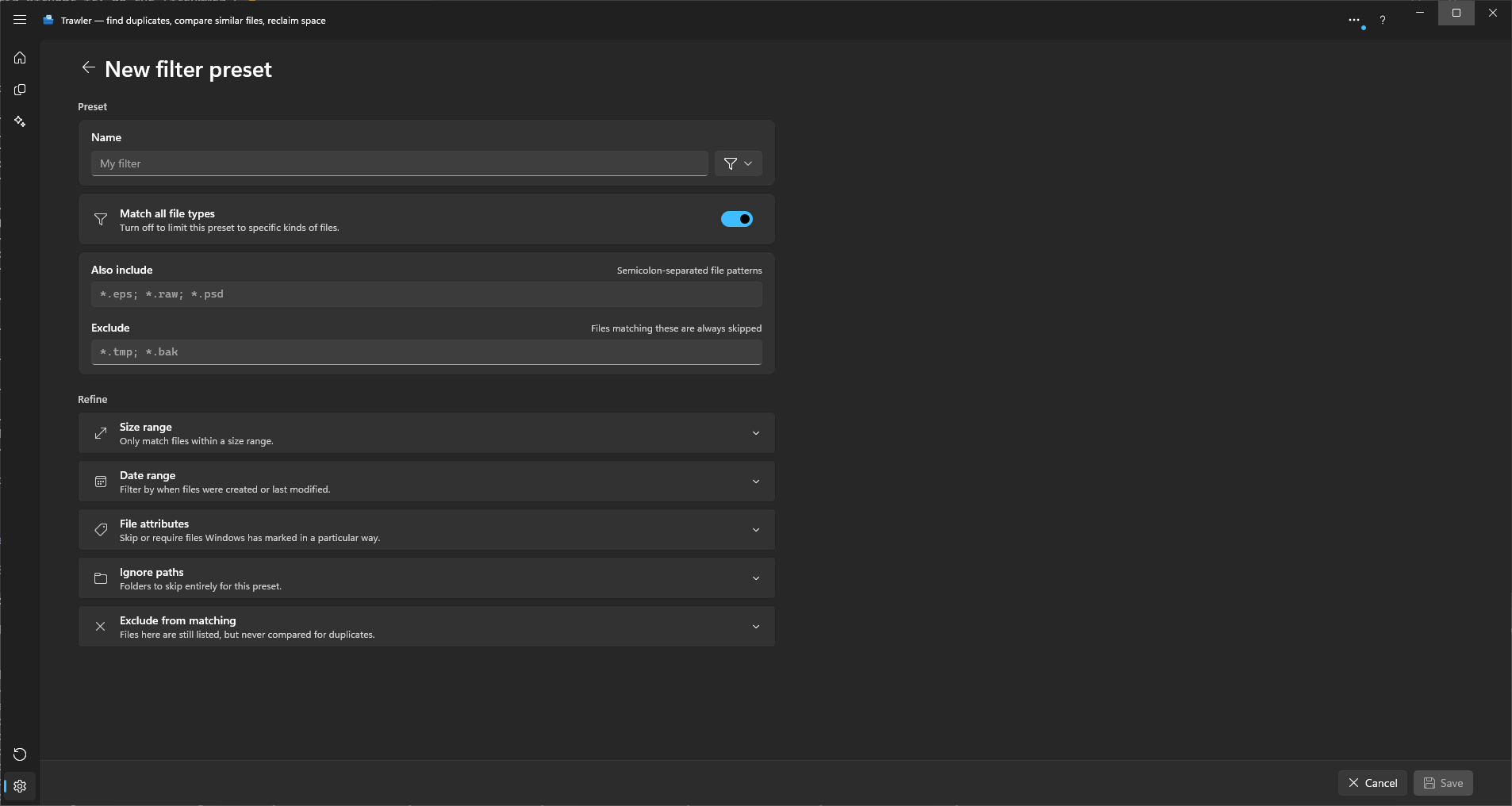
Add custom filter at the foot of the list opens the filter editor. The same page opens from Settings → Filter presets, and edits from either place go to the same list.
Give it a name and an icon, then set as much or as little as you want. Everything is optional — a preset that only sets a size range is perfectly valid.
File types
Match all file types is on by default, meaning no type restriction. Turn it off and six category chips appear — Images, Video, Audio, Documents, Archives and Apps & installers — the same lists as the table above. Tick any combination.
Also include takes extra patterns, semicolon-separated: *.eps; *.raw; *.psd. It only
accepts input while Match all file types is off, because with no type restriction there is
nothing to add to.
Exclude works the other way and always applies: "Files matching these are always skipped" —
*.tmp; *.bak. Exclude beats include, so a file matching both is skipped.
Patterns are forgiving. pdf, .pdf and *.pdf all mean the same thing, matching is
case-insensitive so DSC_0001.JPG matches *.jpg, and anything containing *, ? or [ is
taken literally as a pattern — so secret* works as written.
Size range
Under Refine. Minimum size and Maximum size, each with a unit of KB, MB, GB or TB. Leave a box empty for No min or No max. Values are whole numbers; a decimal is rounded.
If you set a maximum below the minimum, the other box moves to match rather than letting you save a range that can match nothing.
Date range
Also under Refine, with a separate dropdown for Date created and Date modified:
Any time · Newer than 7 days · Newer than 30 days · Older than 3 months · Older than 6 months · Older than 1 year · This year · After a date… · Before a date… · Between two dates…
The last three reveal On or after / On or before date pickers. The rolling options are measured from the moment the scan starts, so the same preset means something different next month — that is the point of them.
One trap: if you filter on Date created and a file has no creation date recorded, it is left out. Some files copied from other systems have none. Date modified does not have this problem.
File attributes
Also under Refine: "Skip or require files Windows has marked in a particular way." Three rows — Hidden, System and Read-only — each with the same three choices:
| Choice | What it does |
|---|---|
| Doesn't matter | The mark is ignored. This is where every row starts. |
| Only these files | Nothing is found unless it carries that mark. |
| Skip these files | Anything carrying that mark is left out. |
Because all three start at Doesn't matter, a filter you build yourself returns the same files as a shipped one covering the same types until you deliberately change a row.
Skip files and folders starting with a dot sits below them and is a separate rule: "Names like .git or .env are hidden by convention, but Windows does not mark them, so the choices above cannot reach them. This works on its own, whatever those are set to."
Ignore paths
"Folders to skip entirely for this preset." Add path picks a folder. These are pruned from the walk, so nothing under them is found, sized, or counted.
That is different from Exclude from matching further down the same page, which is app-wide rather than per-preset and much softer: "Files here are still listed, but never compared for duplicates." Use ignore paths to make a scan smaller; use exclude-from-matching to keep a folder visible in the results but out of the comparisons.
Saving
Save stores it and returns you to wherever you came from, with the new preset selected.
When you are editing an existing preset, Save as copy appears alongside and creates a new one
named "
Related
- Where should we look — the previous step, and the app-wide exclusions
- Index files, or find duplicates — the next step
- Settings — Filter presets, and the global excluded extensions