 Trawler
Settings
Every setting Trawler has, what it changes, and what it starts as. Select Settings in the title bar, then choose a page in the ribbon. General, Scan performance, Safety, Filter presets, Archive defaults, Notifications and Scan report open their pages. Scan performance opens Scanning & performance; Safety opens Safety & protection. Choose another ribbon command to switch settings pages. About Trawler is under Help. This page covers the settings in their existing order.
The ribbon also offers Classic ribbon and Simplified ribbon, plus Light, Dark and Use system setting. See Using the ribbon.
Settings save the moment you change them. There is no OK or Apply, and no way to cancel a change other than setting it back.
Settings pages
| Page | What lives there |
|---|---|
| General | Unlock, theme, language, session folder, logs, import / export / reset, tour |
| Safety & protection | Protected paths, the hardlink opt-in, the confirmation prompt |
| Scanning & performance | Scan defaults, exclusions, Default scan roots, CPU cap, session storage, FFmpeg |
| Filter presets | Your saved scan filters |
| Archive defaults | Compression format and split size for Archive to ZIP |
| Notifications | Windows notifications when a job finishes |
| Scan report | Not a settings page. It is the error log. |
| About | Version, licence, third-party licences |
Scan report appears in the Settings ribbon for convenience only — nothing on it is a setting. It lists files that were skipped or could not be read, under three tabs: Scan errors, General errors, and Actions. See Troubleshooting.
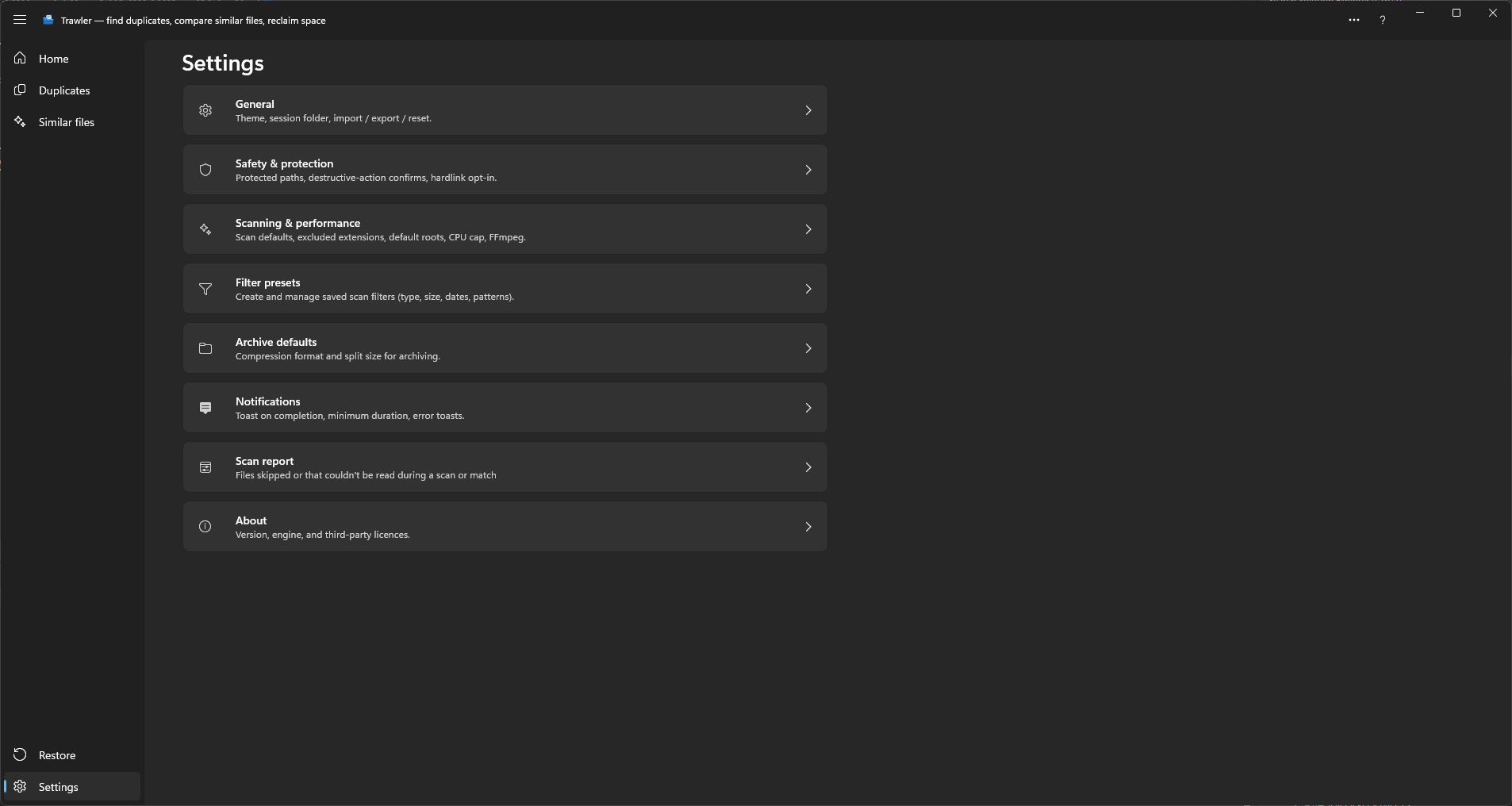
General
Text viewer sets the default Auto, Text or Hex mode for text previews. Auto uses text for readable files and hex for binary files. Text and hex have separate font choices; hex offers only monospaced fonts so its byte columns line up.
Show files with no viewer as hex is on to start with. A file that nothing else can show opens as hex, in Review and in full screen. Turn it off and a file that reads as text still opens as text, while any other file shows its icon, its size and "No preview", with Open with default app to open it in the app Windows uses for it. The file never opens in another app by itself. The Text viewer default above does not change this setting.
Cached pages limits how many reader pages stay in memory. Read size (KiB) changes how much is read at a time, from 32 KiB to 1 MiB. These settings do not limit the file size you can read.
| Setting | What it does | Starts as |
|---|---|---|
| License | Reads "Free version" or "Full version" — the same words as About. Unlock full version buys the one-time unlock through the Microsoft Store; once unlocked, the button is replaced by "Unlocked ✓". | Free version |
| Theme | System default, Light, or Dark. Takes effect immediately. | System default |
| Language | Picks from the languages shipped with the app. "Takes effect after restarting the app." | System default |
| Session folder | Where saved sessions are stored. Change… picks a folder; Reset returns to Documents\Trawler. |
Documents\Trawler |
| Scan data folder | Where the results half of a saved session is written. Change… picks a folder; Reset puts it back with the settings files. A single session can be several gigabytes, so this is how you keep the bulk off your system drive. | Same as Session folder |
| Keep a copy of each scan's results automatically | Saves every finished scan's results into the Scan data folder without being asked. Full version only. | Off |
| Open logs folder | Opens Trawler's log folder in File Explorer. Nothing is changed. | — |
| Export settings | "Save your settings to a file you can restore later." You pick where. | — |
| Import settings | Replaces your current settings with those from a file. There is no confirmation and no undo. | — |
| Reset to defaults | Restores every setting, the saved window layout and each screen's choice of list or tiles. Asks first. | — |
| Replay the tour | Restarts the guided tour and takes you to Home. | — |
| Show all tips again | Un-dismisses every one-time tip. | — |
Changing the language does not switch the app immediately. A yellow bar appears offering Restart now. If a scan is running or results are open, restarting is confirmed first — "Your current results will close and any unsaved work will be lost."
Import replaces, it does not merge. Every setting in the file wins, including your protected paths. Export first if you might want the old set back.
Keeping every scan's results adds up quickly. The switch warns that each copy can be several gigabytes, and nothing removes old ones for you. If you turn it on, point Scan data folder at a drive with room. A folder that OneDrive syncs is the wrong choice — Trawler says so on screen when you pick one, because every save re-uploads the whole file. See Sessions.
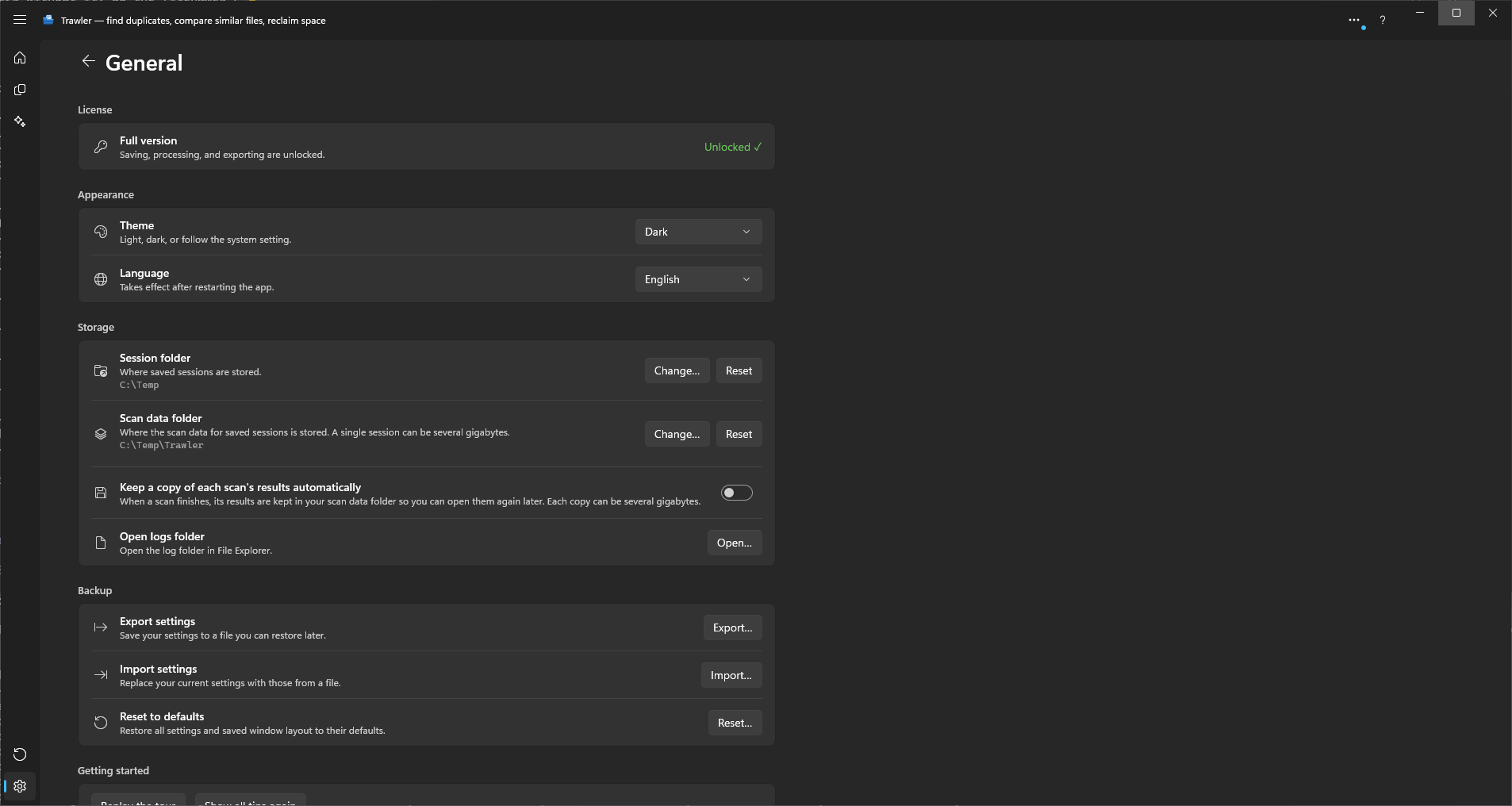
Safety & protection
| Setting | What it does | Starts as |
|---|---|---|
| Protected paths | Folders Trawler will not touch. Add a folder… picks one; Add default protected folders re-adds the Windows ones. | Seeded on first run |
| Allow Replace with hardlink | Makes Replace with hardlink selectable as a processing action. | Off |
| Confirm before destructive actions | Requires you to tick a confirmation before Delete, Move to Recycle Bin or Replace with hardlink can start. | On |
What protecting a folder actually does. On screen it reads "Trawler warns you before it touches anything under these paths, and leaves them out of scans." Both halves matter, and the second is the stronger one: a protected folder is skipped during the scan itself, so its files are never collected and never appear in your results. Nothing you cannot see can be ticked.
The warning is not a lock. If a file from a protected path does end up ticked, the action screen says so before you start — and then does what you asked. Trawler will not overrule you about your own files. Read the warning as information, not as a refusal: if it mentions files you do not remember ticking, stop and look, because something was ticked that you did not tick.
Your AppData folders are not on the list. They are searched like anywhere else, and duplicates inside them appear in your results. That is deliberate: AppData is where a lot of duplicated clutter collects — old logs, cached downloads, leftover installers — and it is one of the better places to reclaim space. Protect it yourself if you would rather not see it, and it will stop being scanned like any other protected folder.
On first run, Trawler seeds the list with four Windows system locations: the Windows folder, both Program Files folders, and ProgramData. This happens once. If you remove them they stay removed, and Add default protected folders puts them back.
Replace with hardlink is visible but unavailable until you allow it. That is deliberate — it cannot be undone, and not from the Recycle Bin either. See What can be undone, and what cannot.
Confirm before destructive actions guards the three actions you cannot undo. On screen it reads "Always ask before deleting, recycling, or replacing files with links." When it is on, those three steps add a tick box you must check before Start becomes available; when it is off, Start is live straight away.
Archive to ZIP and Move are not covered, and do not need to be — you can put those files back. See What can be undone, and what cannot.
The wording changes with the action, because the three are not equally final:
| Action | What you tick |
|---|---|
| Delete permanently | "I understand these files cannot be recovered." |
| Move to Recycle Bin | "I understand some files may skip the Recycle Bin and be gone for good." |
| Replace with hardlink | "I understand the duplicate copies cannot be recovered." |
Switching action clears the tick. Confirming one action never confirms another — you always tick the sentence that matches what is about to happen.
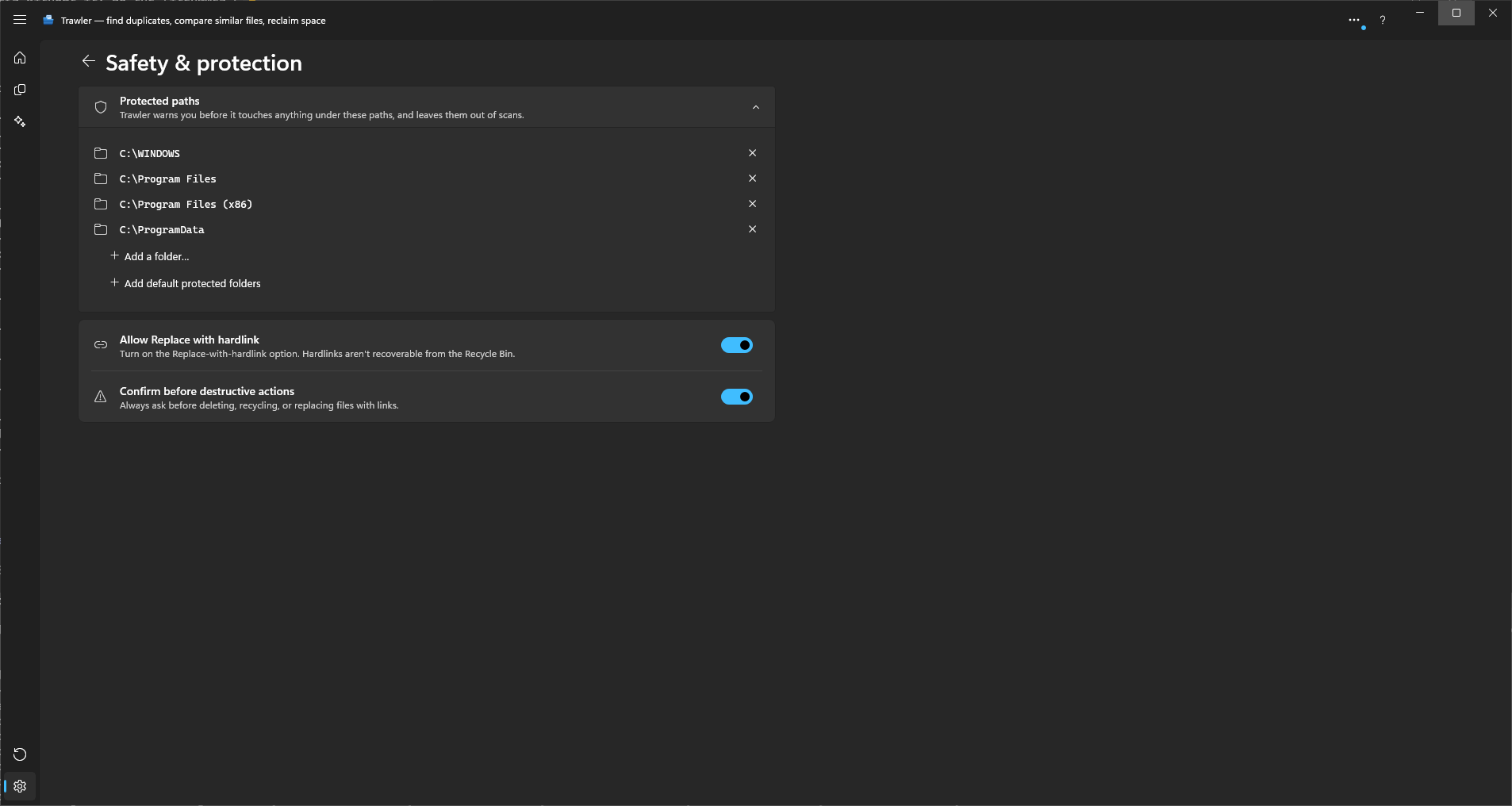
Scanning & performance
Scan defaults
| Setting | What it does | Starts as |
|---|---|---|
| Default scan type | "What new scans do by default. Pre-selected in the scan wizard." Either Index files or Find duplicates. | Find duplicates |
| Include symlinks by default | "Follow shortcuts and linked folders during scans." | Off |
| Include cloud-only files by default | Scans files that live only in OneDrive, Google Drive, or Dropbox. Reading them downloads their content. | Off |
Leaving Include cloud-only files by default off is why a scan of a synced folder can report far fewer files than Explorer shows. Turning it on will pull those files down over your internet connection, which takes time and may cost you storage on the local drive.
Global excluded extensions
Patterns like *.tmp or *.dll. Anything matching is skipped during the scan. Type a pattern,
press Add, and it applies to every scan from then on. The list starts empty.
Default scan roots
Described on screen as "Folders used by startup cleanup and the default workbench session." The list starts empty.
This one is easy to miss and worth setting. The startup cleanup looks in these folders and in the
last folder you moved files into. If neither is set, the cleanup that removes working files left
behind by an interrupted job has nowhere to look and does not run. That is one explanation for
.trawler-tmp files piling up on a drive — see
Recovering an interrupted hardlink job.
Performance
| Setting | What it does | Starts as |
|---|---|---|
| CPU usage cap | 25%, 50%, 75%, or 100% of your cores. 100% means no cap. | 100% |
| Efficiency mode | "Run scans cooler and quieter by letting Windows limit power use. Scans take longer." | Off |
| Session storage | Automatic (recommended), Temporary, or Saved to disk. | Automatic |
The CPU cap is a share of the cores your machine reports, rounded, never below one. On an eight-core machine, 25% gives two.
Session storage decides where a scan's results are held while you work on them. Temporary is faster and is cleared when you close the app. Saved to disk is slower but copes with far more results, because it is not limited by how much memory you have free — and if Trawler is closed unexpectedly mid-scan, it can offer the scan back next time. Automatic decides for you based on how much there is to scan and how much memory the machine has free — which is the right answer almost always.
Saved to disk is a full-version option. The app says so under the setting, and on the free version the option is greyed out in the list. Automatic never picks it on the free version either — it uses Temporary however large the scan is. See Free and full versions.
That matters for one case: a very large scan on the free version has to fit in memory, and if it does not, the scan stops and says so. Automatic (recommended) and Temporary are both fully available on the free version — it is only the disk option that is not.
Integrations
FFmpeg location points at ffmpeg.exe. It is only used for matching similar videos. Leave
it unset to use FFmpeg from your PATH. Change… picks the file, Clear unsets it, and the
line underneath reports what was found — "✓ FFmpeg found", or "✗ ffmpeg, ffprobe not found"
naming whichever is missing. Download FFmpeg opens ffmpeg.org in your browser.
Trawler needs both ffmpeg and ffprobe. Pointing at a folder holding only one of them
reports the other as missing and video matching stays unavailable.
Filter presets
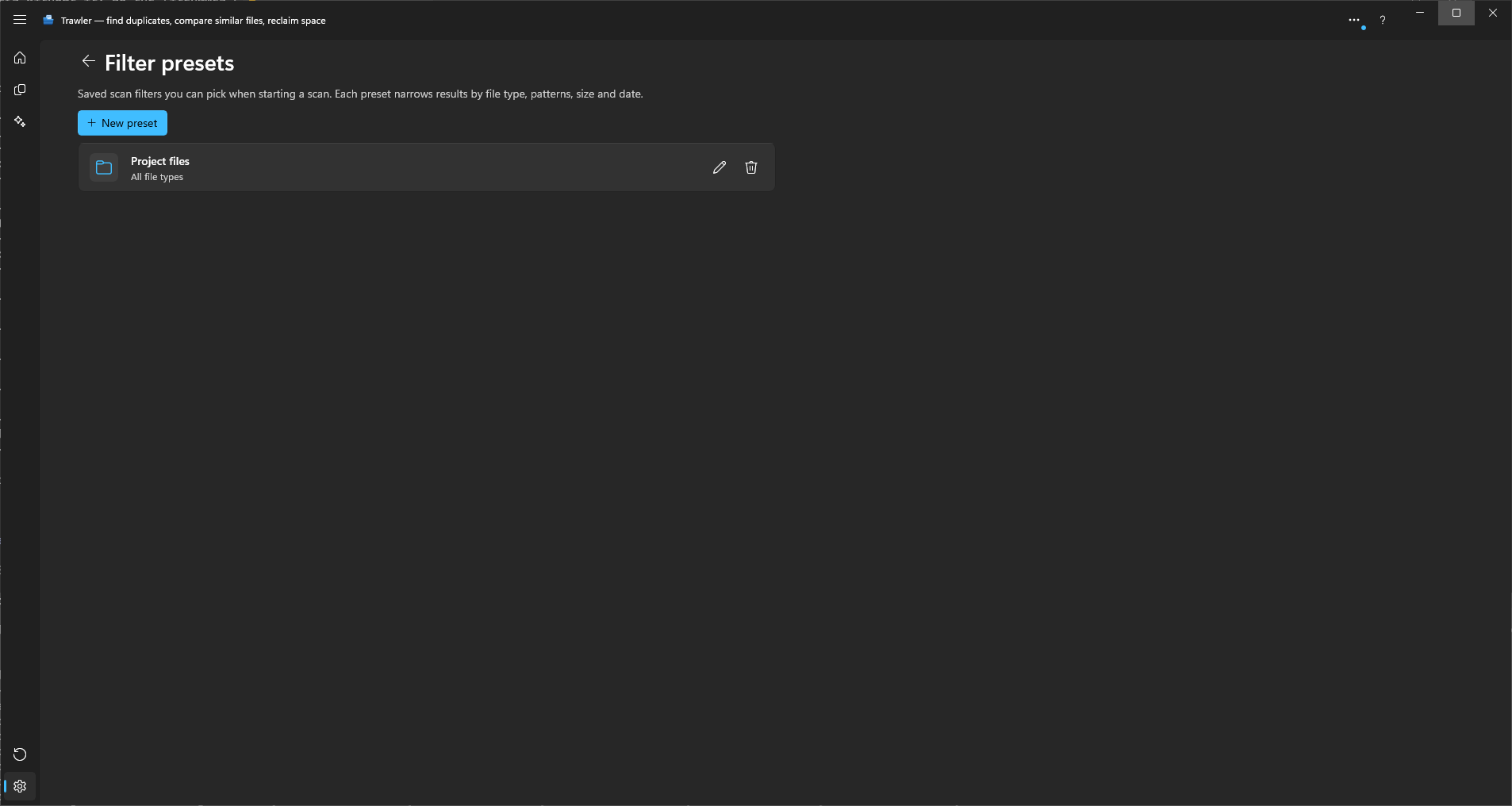
Your saved scan filters — "Saved scan filters you can pick when starting a scan. Each preset narrows results by file type, patterns, size and date."
| Action | What happens |
|---|---|
| New preset | Opens the filter editor on a blank preset. |
| Click a row | Opens that preset in the editor. |
| Edit | The same thing as clicking the row. |
| Delete | Asks first, then removes it permanently. |
This page lists only presets you saved. The built-in choices offered by the scan wizard are not here and cannot be edited or deleted. Presets are sorted by name.
Archive defaults
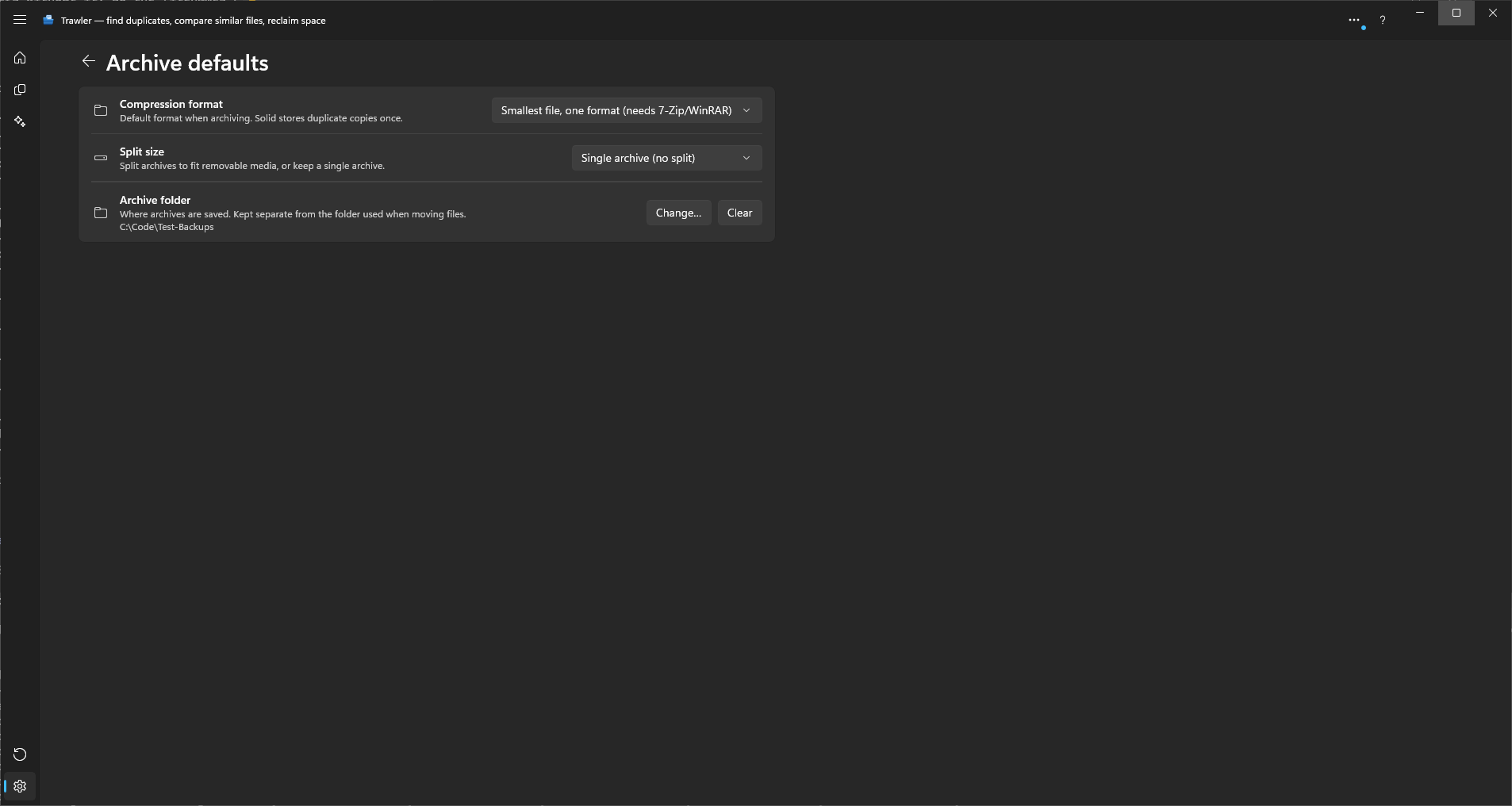
These are the starting values for Archive to ZIP; you can still change them for an individual job when you run it.
| Setting | Choices | Starts as |
|---|---|---|
| Compression format | Deflate (universal) · Zstd (modern tools only) · Solid (.tar.zst — stores duplicate copies once) | Deflate (universal) |
| Split size | Custom · CD (700 MB) · DVD (4.7 GB) · DVD DL (8.5 GB) · Blu-ray (25 GB) · BD DL (50 GB) · BD XL (100 GB) · Single archive (no split) | Single archive (no split) |
| Custom split size (bytes) | A number in bytes. Only appears when Split size is Custom. | 1073741824 |
Deflate is the only one Windows can open on its own. Zstd needs 7-Zip or WinRAR. Solid needs
a tool that understands .tar.zst, and will not open by double-clicking. Solid stores each
duplicate copy once, so it is much the smallest — but if the point of archiving is that you can
get files back without Trawler, Deflate is the safe choice.
Notifications
| Setting | What it does | Starts as |
|---|---|---|
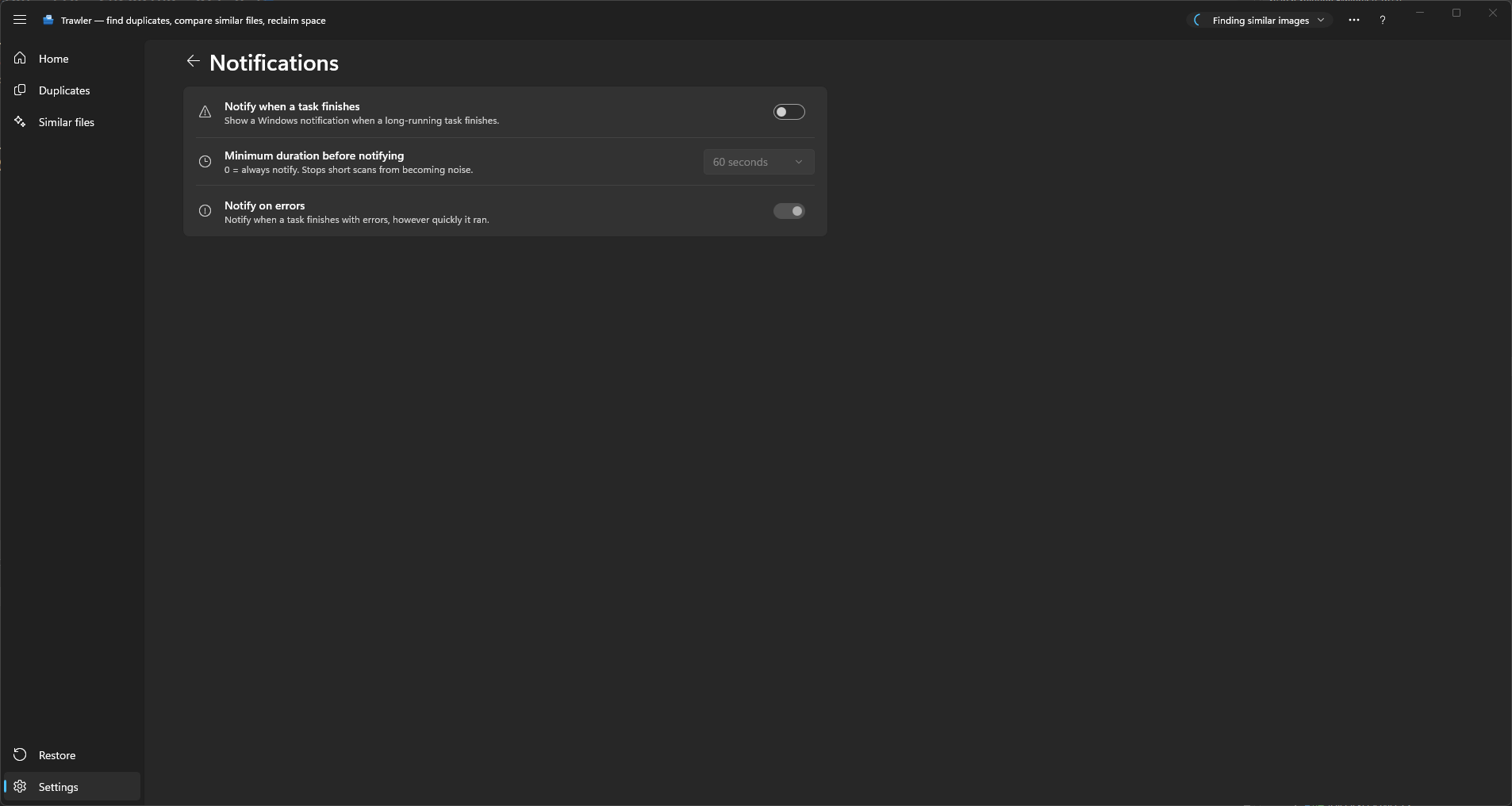
| Notify when a task finishes | Shows a Windows notification when a long-running task ends. | Off |
| Minimum duration before notifying | 0 seconds · 30 seconds · 60 seconds · 120 seconds. "0 = always notify. Stops short scans from becoming noise." | 60 seconds |
| Notify on errors | Notifies whenever a task finishes with errors, regardless of how long it took. | On |
Notifications are off out of the box, and the master switch governs both rows. Notify on errors is on by default, but it does nothing until Notify when a task finishes is turned on. What it changes once you do is that the minimum duration stops applying to failures.
About
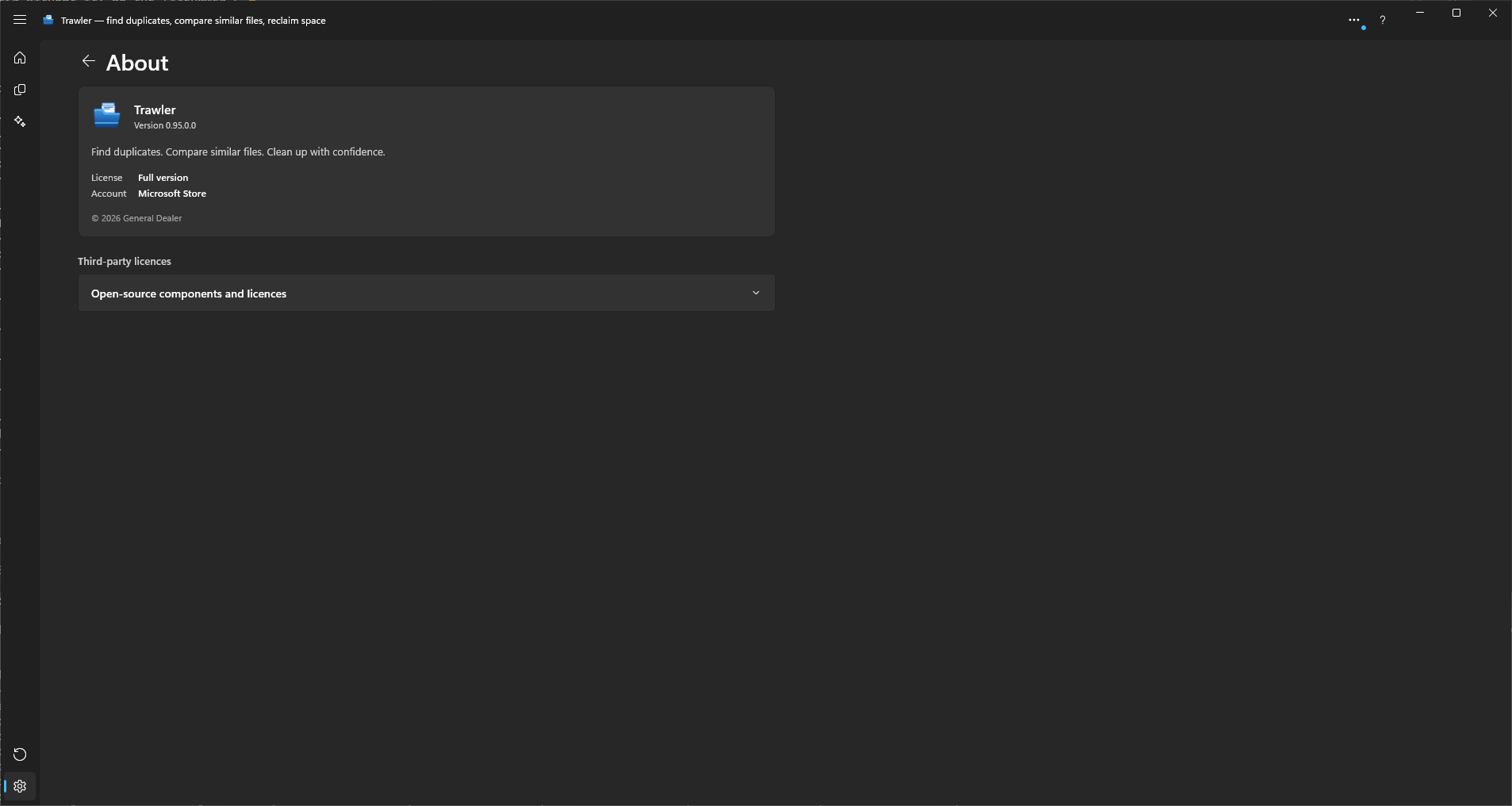
Nothing on this page changes anything. It shows the app name and version, a License row, an Account row, a copyright line, and an expander holding the full text of the open-source licences for the components Trawler uses. All of it can be selected and copied, which is useful when reporting a problem.
License and Account are how you check that a purchase went through. Between them they have three states:
| License | Account | What it means |
|---|---|---|
| Full version | Microsoft Store | The unlock is yours. Nothing is blocked. |
| Free version | No purchase found | The Store was asked and has no unlock for you. |
| Couldn't check | Couldn't reach the Microsoft Store | Trawler could not ask. This is not an answer either way. |
The third one matters if you have paid. Trawler asks the Store once, when it opens, and until it has an answer it behaves as the free version. So Couldn't check does not mean your purchase is gone — it means the question was never put. Get back online and start Trawler again; reopening this page on its own does not ask a second time.
Related
- Free and full versions — what the free version limits, and by how much
- Recovering an interrupted hardlink job — why Default scan roots matters
- Processing — the actions Safety & protection and Archive defaults govern
- Troubleshooting — the Scan report tile