 Trawler
Restoring from an archive
When you archive files, Trawler writes them into a single archive on a drive you choose and removes the originals. This page covers getting them back.
You can restore everything, or just one file. Nothing is all-or-nothing.
Open the archive
Select Restore in the title bar, then choose Open archive… in the ribbon.
The picker accepts everything Trawler writes. Three of the four Compression choices offered
when you archive produce an ordinary .zip; the fourth, "Smallest file, one format (needs
7-Zip/WinRAR)", produces a Solid archive. You do not need to tell Trawler which you picked —
it works that out from the file.
Large archives take a moment to open. A Solid archive can take considerably longer, because Trawler has to read through it to list what is inside.
If the archive was split into several parts, open any one of them — Trawler picks up the rest and tells you how many it read: "Opened 3 part(s), 12,481 files." If a part is damaged or missing, it says so and continues with the parts it could read.
Find what you want
The archive opens as a browsable tree.
- Folders on the left, the files in the selected folder on the right.
- Search files by name or .extension filters the file list — type
invoice, or type.pdfto see only PDFs. - Origin folder shows where each file was archived from.
- Exists at origin flags files that are already back in place. Those are the ones that will hit a conflict, so it is worth glancing at the column before you go further.
Selecting a file row does not tick it. Tick the files and folders you want. You can widen Origin folder and Size by dragging the edge of their column headers.
The running total at the bottom shows how many you have selected and how much space they will take — and, if any of them clash, how many conflicts you are heading into.
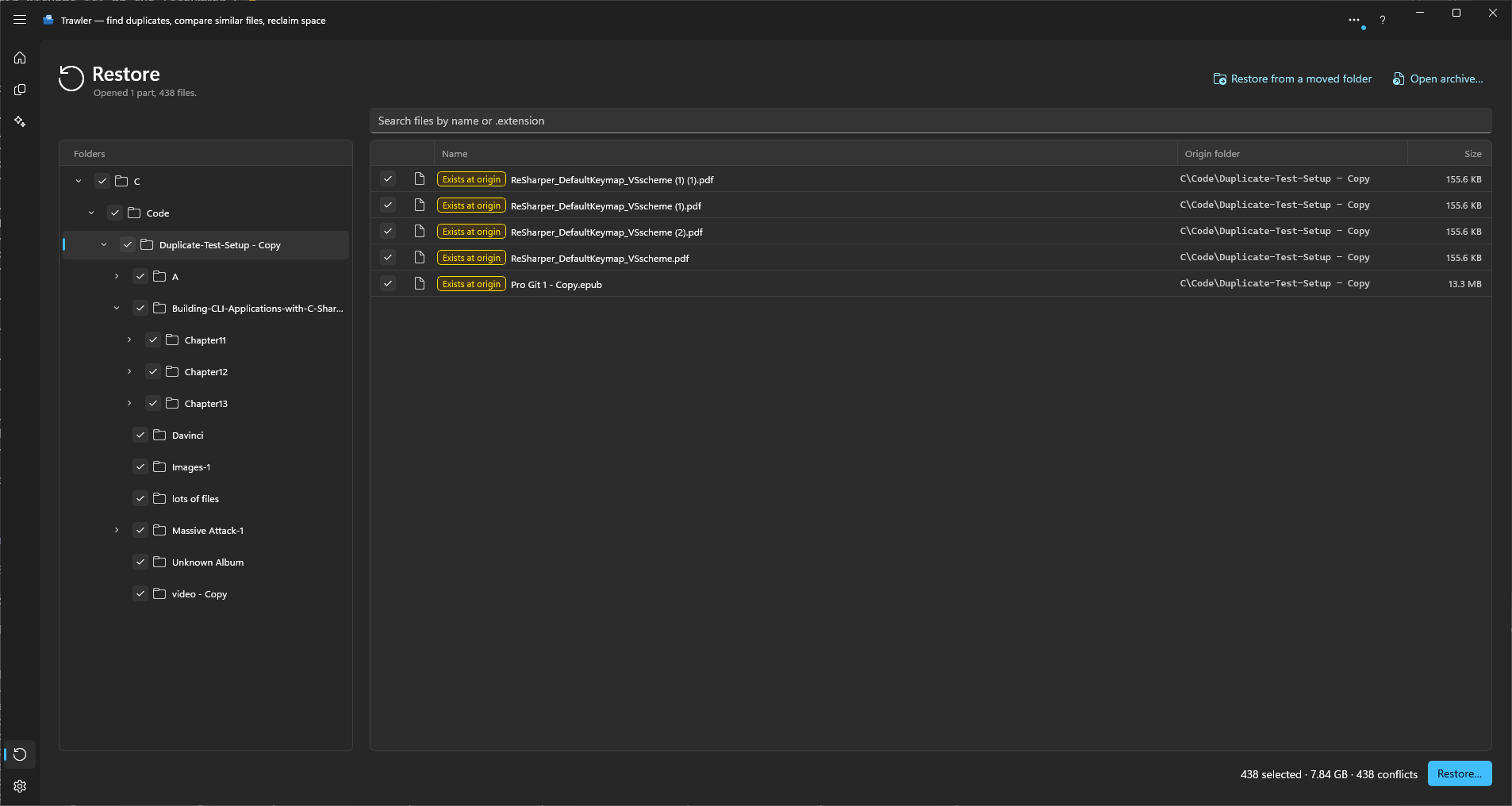
Then choose Restore….
The five steps
1 · Destination — "Where should these files go?"
- Original locations — put each file back exactly where it was archived from, across however many folders that turns out to be.
- A folder I choose — re-create the folder structure under a single destination instead. Useful when the original drive is gone, or when you want to look before you commit.
Trawler checks free space and tells you either "Enough space on all destination drives." or which drive falls short. This is information, not a barrier — a shortfall does not stop you continuing, so read it.
2 · Conflicts — "If a file already exists where it came from"
If nothing clashes, you will see No conflicts and can move on.
Otherwise, pick one:
- Rename the restored copy — keeps both. The restored file becomes
name (1).ext. - Skip these files — leaves the existing file untouched; the archived copy is not restored.
Existing files are never overwritten. That is not a setting.
Below the choices, tick Check every restored file to have Trawler read each file back after writing it and compare it with the archive. A file that does not match is removed and listed as an error; the archive is not changed, so you can try it again. It is the same check, and the same remembered tick, as Check every copy when you archive — see Checking every copy for what it can and cannot prove.
3 · Review
A summary of the plan: how many files, how much data, the destination, the folder structure, and what will happen to the conflicts. This is the last screen before anything is written.
4 · Restore
Files are written one at a time, with a live count, a write speed, and a feed showing each file as it lands.
You can Run in background and carry on using the app — the restore keeps going, and you can come back to it.
You can also Cancel. Cancelling stops between files: everything already restored stays restored, and nothing is half-written. The button changes to "Cancelling…" while it winds down. It waits for the file being written, so with one very large file in flight that can take as long as the file takes to restore. If the cancel lands while a file is being checked, that file is removed rather than kept unchecked.
5 · Done
Four counts — Restored, Renamed, Skipped, Errors — and an Open folder button.
If some files failed, the headline reads "Restored with errors" and the full per-file list is in Scan report → Actions.
If every selected file already existed at its destination, you will see "Every selected file already exists at its destination — nothing was overwritten." That is a successful outcome, not a failure.
Notes
- A single file failing does not stop the run. Trawler restores what it can and reports the rest.
- Restoring does not remove anything from the archive. You can restore the same files again.
- Restoring is a full-version feature; browsing an archive is not. See Free and Pro.
Related
- What can be undone, and what cannot
- Processing — how archives get created, and the two archive formats