 Trawler
What can be undone, and what cannot
Trawler's five actions differ enormously in how reversible they are. This page tells you which is which, so you can pick the right one before you run it rather than discover the answer afterwards.
The short version
| Action | Can you get the files back? |
|---|---|
| Archive to ZIP | Yes. Open the archive in Trawler and restore, or just extract it yourself. |
| Move to Recycle Bin | Yes, from the Windows Recycle Bin — until you empty it. |
| Move to another location | Yes. Trawler keeps a record in the destination folder and can send the files back. |
| Delete permanently | No. The files are gone. |
| Replace with hardlink | No — and not from the Recycle Bin either. |
Archive to ZIP is the default action, and it is the default for exactly this reason: it frees space and leaves you a way back, in one place you choose. It does remove the originals it has archived — the archive is where they are, so keep it.
What the Restore section covers
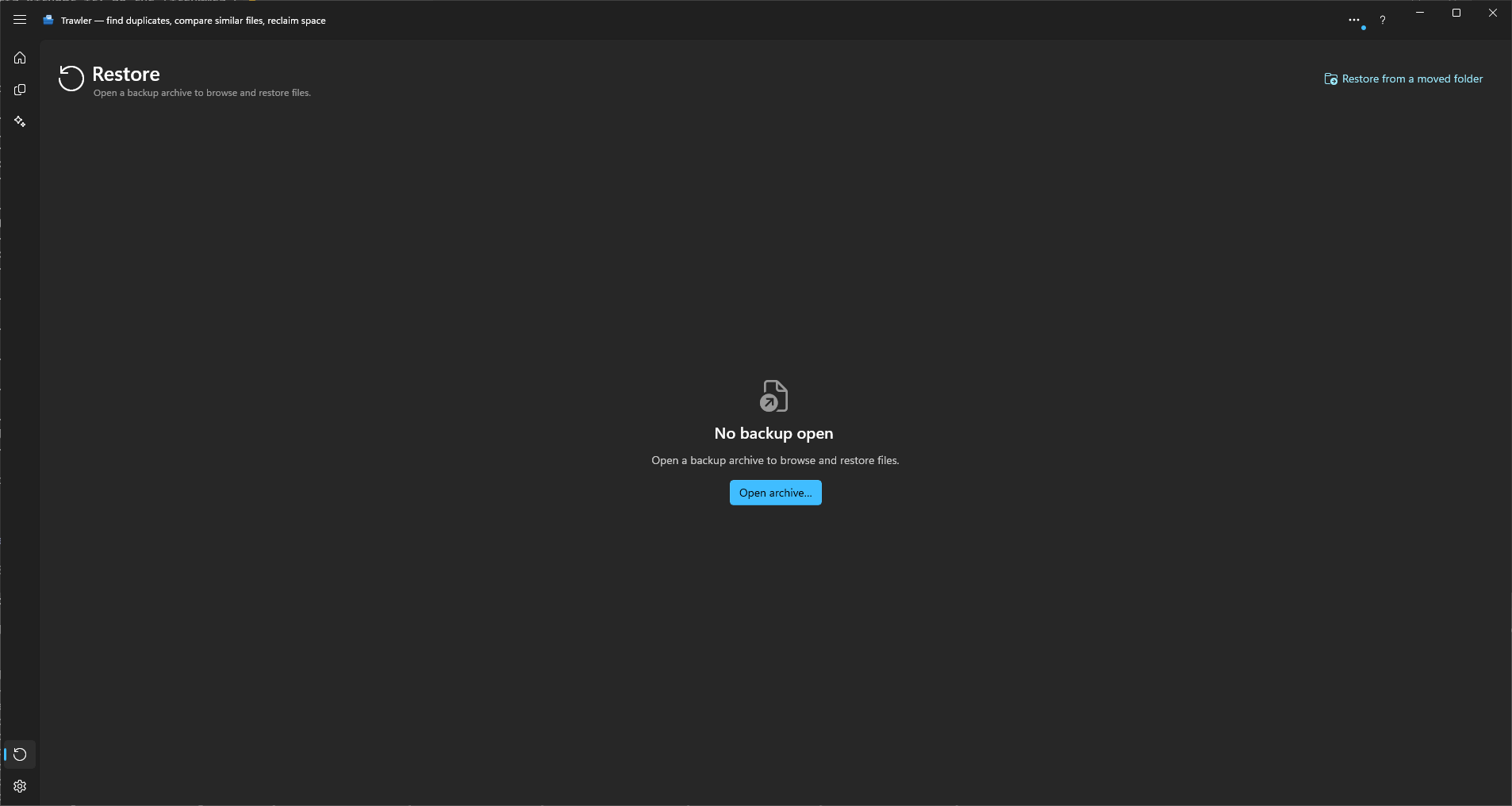
Restore handles two of those cases:
- Restoring from an archive — anything you archived.
- Restoring files that were moved — anything you moved to another folder or drive.
It does not cover recycled files — those live in the Windows Recycle Bin, and you get them back from there, not from Trawler.
It cannot cover deleted files or hardlinked files at all. There is nothing left to restore from.
Two rules that apply to every restore
Existing files are never overwritten. If a file already sits where the restored one wants to go, Trawler either renames the incoming copy or skips it — your choice, and you make it before anything is written. There is no third option, and no way to force an overwrite.
Restore is best-effort. The app says so on screen: "Restore is best-effort — if the record was deleted or files were moved by hand afterwards, some may not come back." Trawler restores everything it can still find and reports the rest. It does not fail the whole run because one file is missing.
Restoring needs the full version
You can open and browse an archive on the free version — the folder tree, the file list, the search, and the sizes all work, so you can check what is in a backup before you buy.
Starting the restore itself is a full-version feature. Selecting files and choosing Restore… prompts you to unlock rather than beginning the restore.
What happens if a restore goes wrong
Every restore ends on a results screen with four counts: Restored, Renamed, Skipped, and Errors.
If anything failed, the details are in Scan report → Actions — a per-file list of what could not be restored and why. It keeps the most recent 2,000 entries for as long as Trawler is open, so copy anything you need before you close it. Scan errors are saved with the session, and the log files are on disk.
Organize planning history
Undo and Redo in Organize change the plan before execution. They do not reverse completed actions. Cancelling stops further work and keeps what has already completed. See Organizing your files.
Related
- Processing — the five actions in full, and what each one does to your disk
- Restoring from an archive
- Restoring files that were moved
- Recovering an interrupted hardlink job