 Trawler
Finding similar videos, and setting up FFmpeg
The Videos tab needs FFmpeg installed on your machine. Trawler does not ship it. Until FFmpeg is there, the tab shows FFmpeg required and the match button will not run.
Each video card keeps its filename and actions below the preview. Tick Discard to mark the file, or untick it to Keep. Full screen, Compare, playback controls and the protection shield share the action row. The shield does not prevent you from explicitly discarding that file.
Setting up FFmpeg
When FFmpeg is missing, the Videos tab says:
"Video matching needs FFmpeg. Install ffmpeg and ffprobe, then add them to your PATH — or set the ffmpeg location in Settings → Scan performance."
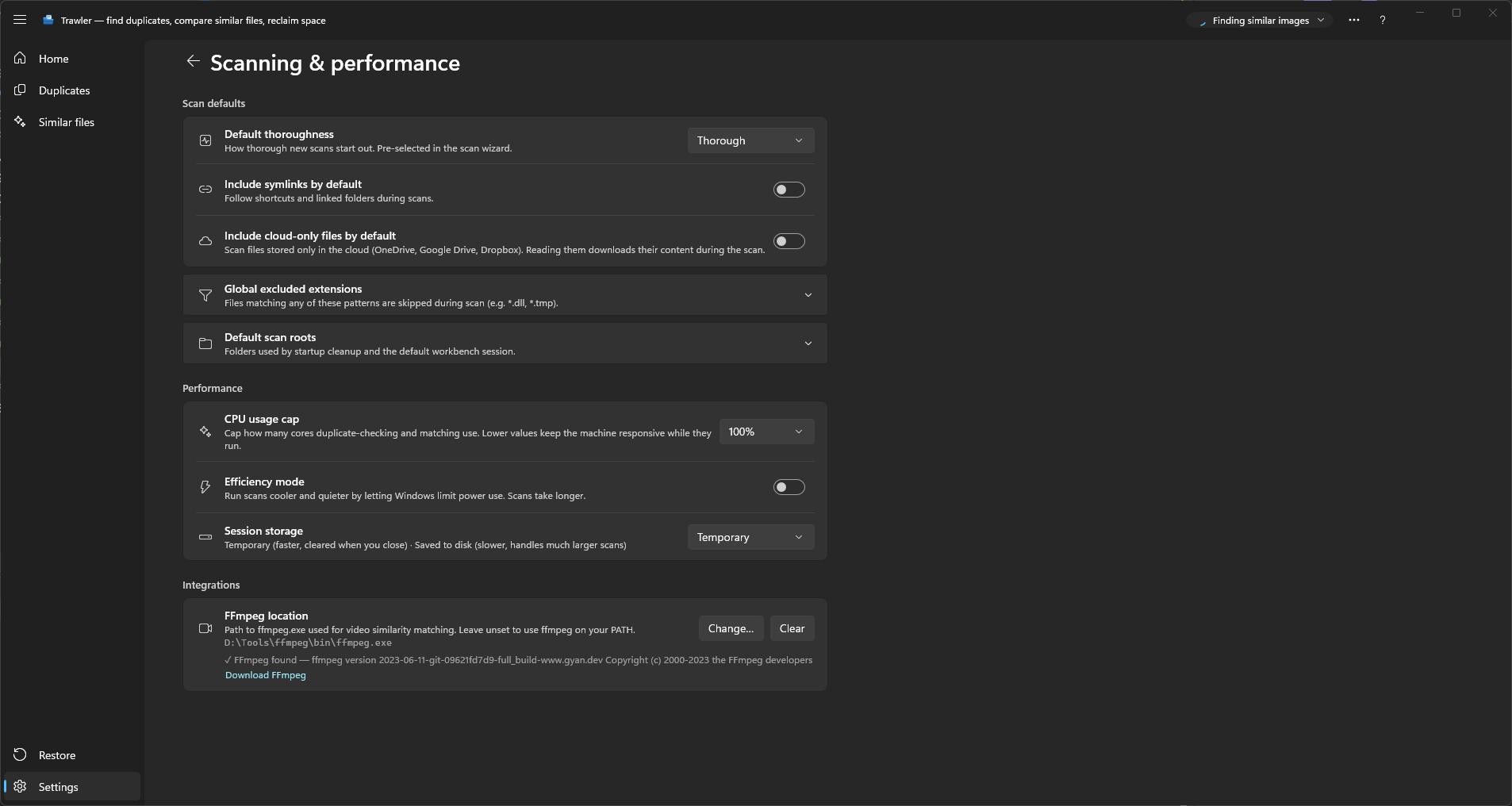
The settings page it means is Settings → Scanning & performance. There is also a Download FFmpeg link on that empty state, and an Open FFmpeg settings button that takes you straight there.
Trawler needs two programs, not one: ffmpeg.exe and ffprobe.exe. They ship together in
every normal FFmpeg download, so if you have one you almost certainly have the other — but if
only one is reachable, matching stays blocked.
Two ways to point Trawler at it
| Approach | What to do |
|---|---|
| On your PATH | Unzip FFmpeg somewhere permanent and add its bin folder to your Windows PATH. Leave the FFmpeg setting in Trawler empty. |
| A specific copy | Settings → Scanning & performance → FFmpeg location → Change… and pick ffmpeg.exe. |
If you pick a specific ffmpeg.exe, ffprobe.exe must sit in the same folder. Trawler looks
for it beside the file you chose and does not fall back to your PATH — that is deliberate, because
pointing at one build and silently using another build's ffprobe is worse than a clear failure.
Clear puts you back to "use whatever is on the PATH".
Checking it worked
Settings → Scanning & performance → FFmpeg location shows a status line under the path:
| Line | Meaning |
|---|---|
| ✓ FFmpeg found — … | Working. The rest of the line is the version FFmpeg reported. |
| ✓ FFmpeg found | Working, but it did not report a version. |
| ✗ ffmpeg not found / ✗ ffprobe not found / ✗ ffmpeg, ffprobe not found | Names exactly which of the two is missing. |
| ✗ FFmpeg not found | Neither could be checked. |
Trawler re-checks each time you open the Videos tab and each time you come back to the results view, so you do not have to restart it after changing the setting.
If you added FFmpeg to your PATH rather than setting a path in Trawler, restart Trawler before retrying — a running program does not see PATH edits made after it started.
What gets matched
Videos are compared by how they look, frame by frame, so a re-encode, a resize or a different container still matches the original. They are not exact copies — see Reviewing similar results.
By default these file types are considered: .mp4, .mkv, .avi, .mov, .wmv, .webm,
.m4v, .mpg, .mpeg, .flv.
Two things a video needs to be considered at all:
- It has to be in your scan results. Matching reads the files the scan already found, so if your filter excluded video types, or the folder was never scanned, nothing shows up here.
- It has to run 10 seconds or longer. Shorter clips are skipped quietly — they are not reported as errors.
- It has to have something in the picture. A clip that is blank all the way through — an all-black recording, a capture that never started — gives Trawler nothing to compare, so it is left out. These are counted on the status line while the match runs ("2 nearly blank videos left out of the match") rather than reported as errors, because there is nothing wrong with the file.
A video that takes longer than 60 seconds to read is abandoned and skipped, as is one FFmpeg cannot open. Both are recorded in Scan report → Scan errors under the type Video.
Running a match
Choose Similar → Videos in the title bar, and use Find similar videos.
Video matching is the slowest thing Trawler does — the empty state says so: "Scan videos to find near-duplicates. This can take a while." You can cancel; the work already finished is kept, so starting again does not redo it.
Above the results, Matching carries one control: a Similarity slider running from 50% to 100%, set to 90% by default. Lower it to catch heavier re-encodes; raise it if you are getting matches you disagree with. Hover the slider to read the current setting; while you drag, the figure follows the handle.
Moving the slider usually re-groups the existing results straight away. When a change needs the videos read again, a bar appears reading "Settings changed since the last video match." with Re-run and Revert.
Reading the results
Groups are listed on the left with a header line of the form "N files · size · ~size reclaimable", and you can order them by Reclaim, Best match first, or Count.
Each video in a group has Play for an inline preview, Open for full screen, and Keep / Discard. Compare sits on the group header, in the same place as it does on Images and Documents. If a video is playing on its tile when you open Compare, the comparison starts at that point and keeps playing, as it does going from Compare to full screen; the tile's own player stops.
While a preview plays, point at the picture to show Stop in the middle of it. Open the playing video full screen and it carries on from the same point, paused if you had paused it. When you leave full screen, the preview picks up where full screen left off. Open a different video and the preview stops, and the new video plays from the start.
Full screen has a toolbar along the bottom edge, in a row of its own under the video, so it never covers the video or its play controls. It is pinned to start with. Unpinned, it slides away 3 seconds after the pointer leaves it, the video grows to fill the space, and the pointer at the bottom edge brings it back. From left to right: Pin toolbar, Keep and Discard, Rotate 90° and Histogram (both greyed out for a video), Audio levels, Auto-advance after a decision, previous and next video in the group with the file's name and its place, Previous group and Next group, the zoom buttons (greyed out, because a video has no zoom), and close, always last. With auto-advance on, Keep or Discard moves to the next video, and after the last one to the next group. If you move to another video, the preview behind does not pick up from full screen when you leave. A video opened full screen from Files has the same toolbar without the group buttons; there, Discard ticks the file and Keep unticks it.
The arrow keys do the same from the keyboard: ← or ↑ for the previous video, → or ↓ for the next, and Ctrl+↑ / Ctrl+↓ for the previous and next group.
Tile size, at the bottom right, makes the cards Icons only, Small, Medium or Large, and
Ctrl+Plus / Ctrl+Minus step between them. It is the same size as on every other tile screen. See Lists and tiles.
If a preview will not play, you will see "Can't play this video. The format may be unsupported or the file is unavailable." That is Windows failing to play it, not a matching failure — the match itself used FFmpeg, which handles more formats than the built-in player does.
On the free version only the first 10 groups are shown, with a note saying how many more there are.
The side-by-side compare view
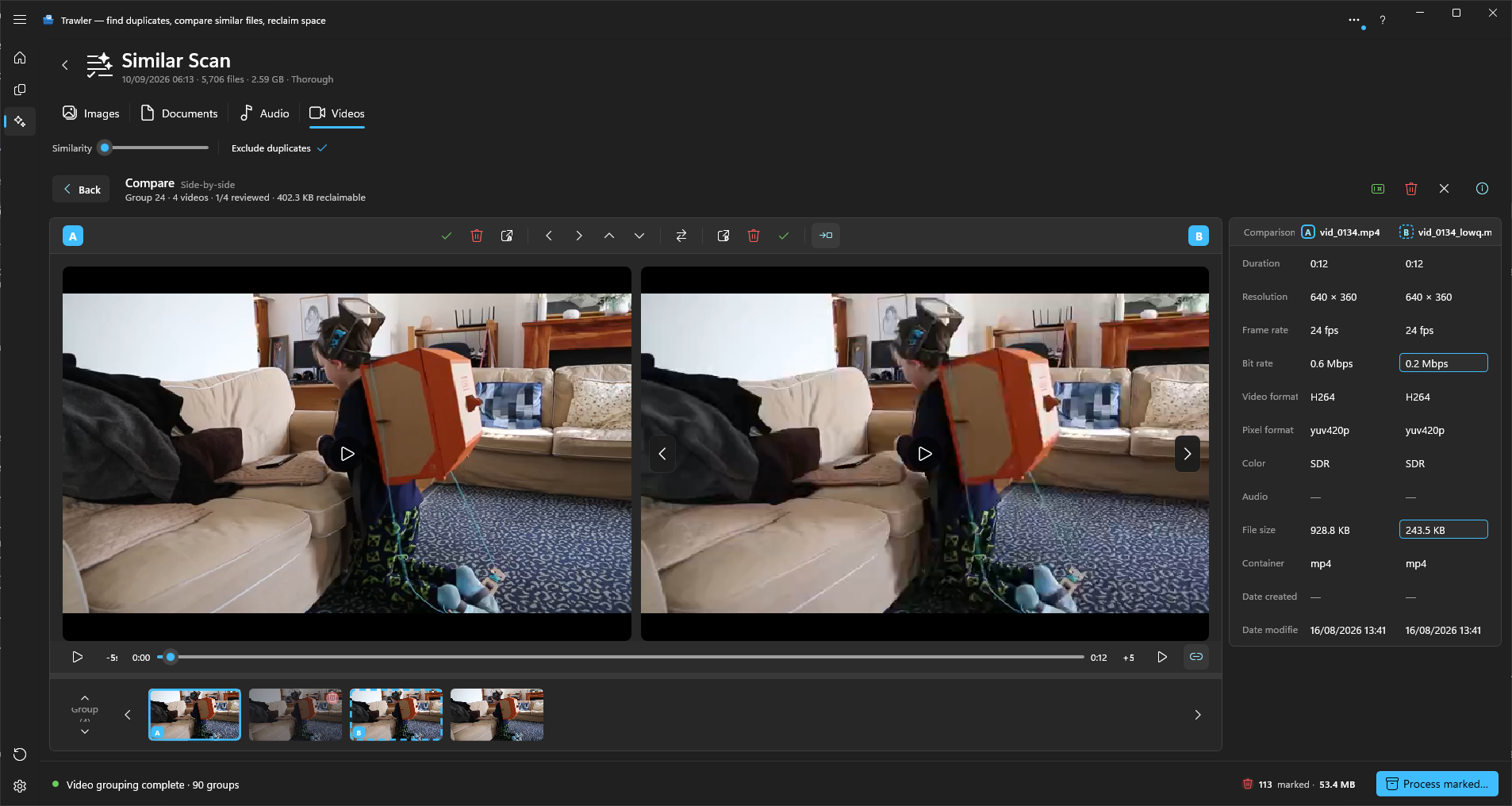
On a group header, choose Compare. The compare surface fills the panel: two video panes,
headed Compare · Side-by-side. Pressing C on a card opens it on that clip instead.
The left pane is A and the right is B. A is the one you would probably keep; B is the one
being compared against it. Back returns to the list, and so does Esc.
The Matching controls above disappear while the compare view is up, as they do on Images and Documents. Go back to the list to reach the Similarity slider again.
A filmstrip along the bottom holds the rest of the group. Click any clip to bring it into B.
The controls
| Control | What it does |
|---|---|
| Keep A / Discard A | Decide the left file. With Auto-advance after a decision on, Keep A brings on the next clip for comparison and Discard A hands the left side to the clip you were comparing it against. Either way, once there is nothing left to compare against you move on to the next group. |
| Keep B / Discard B | Decide the right file, then move to the next one if Auto-advance after a decision is on. |
| Previous / Next | Step through the other files in the group without deciding anything. |
| Previous group / Next group | Move to another group without going back to the list. |
| Switch A and B | Puts the right-hand file on the left. |
| Open A full screen / Open B full screen | Fills the window with that pane. Right-click the picture, in a pane or full screen, for Explore here, Copy path and Open (external). From full screen, Explore here and Open (external) close full screen first. Leaving it puts you back where you were, at the same position. Whether it carries on playing depends: it does if that was the pane you had selected, or if Play both at once is on — otherwise it comes back paused. |
| Keep A and discard the rest / Discard all / Clear all | The same three batch actions the group list has. |
| More controls | Appears only when the window is too narrow for the whole bar. The controls that no longer fit move into it, from the middle of the bar outwards — Keep and Discard never leave. |
Auto-advance moves you along; it never decides anything. Advancing is navigation, not a verdict.
Volume and mute
Video previews, the comparison strip and full screen all use the same volume and mute as audio. See Volume and mute in the Similar audio page.
Playing the two clips
The transport strip under the panes drives whichever pane is active:
| Control | What it does |
|---|---|
| Play or pause | K. |
| Back 5 seconds / Forward 5 seconds | J and L, marked -5s and +5s. |
| Position | Drag to scrub. |
| Move playback to the other video | N. Hands playback to the other pane at the same position, playing or paused as it was. If that video can't be played you will see "That video can't be played." and nothing moves. |
| Play both at once | Y. Plays both panes together with the second one muted, so you can watch them side by side. |
| Audio levels | Shows or hides a level meter in the bottom-right corner of each picture. It reads each file's own sound at the point being played, so it moves for the muted pane too. Right-click the picture and choose Show audio levels for the same switch; full screen has the same switch on its toolbar and in that menu. Off to begin with, and Trawler remembers your choice. |
The meter appears once Trawler has read the clip's sound, which takes a moment for a long video. It stays hidden for a clip with no sound, or one whose sound Trawler cannot read — some AVI, WMV, FLV and MPEG files, and some surround formats — even though the video itself plays.
The on-screen shortcut list (F1) currently labels Y and N with another screen's wording.
Both keys do what this table says while the compare view is open.
The Details panel
The Details panel sits beside the panes: two columns, A and B, for the files in the previewer. Show or hide it with Explore → Details in the ribbon; it starts open. The video rows are Duration, Resolution, Frame rate, Bit rate, Video codec, Pixel format, Color, Audio codec, Container, File size, Date created and Date modified, among many others. Rows where the files differ are in bold.
Color reads HDR10, HLG or Standard (SDR). A property a file doesn't report shows a dash.
These come from FFmpeg, so they need both ffmpeg.exe and ffprobe.exe. Without them a video's
column reads "FFmpeg required" in place of its values. See FFmpeg location.
If a pane will not play, it reads "Can't play this video. The format may be unsupported or the file is unavailable." The Details panel is separate from the player, so it can still show the file's properties.
Ribbon controls
Choose Matching settings to change the matching options or toggle Exclude duplicates. Open Similarity for the sliders. These settings are hidden while you review or compare files.
In a comparison, the Similar ribbon shows navigation and comparison tools. Playback controls sit beside the timeline at the bottom. Back, at the top of the comparison panel, returns to the group view; Details opens the information panel. Keep, discard and the tools for individual files remain beside the files.
Related
- Reviewing similar results — why nothing is ticked for you, and how to act on what you pick
- The Details panel — every property, and what each message under a file means
- Similar documents — the other slow matcher, and its compare view
- What can be undone, and what cannot — before you remove anything