 Trawler
Free and full versions
The free version finds everything. It stops at the point where files would change. You can scan, match, compare, tick, and total up what you would reclaim — you cannot delete, recycle, archive, move, hardlink, restore, save, export, or use Organize.
The full version is a one-time unlock bought through the Microsoft Store. There is no subscription, no trial clock, and no expiry. Settings → General → Unlock full version buys it; every blocked action also offers it in place.
Which version am I on?
Settings → About. The License row reads "Full version" or "Free version", and the Account row says where the unlock came from. A third reading, "Couldn't check", means Trawler could not reach the Store — see Settings, because it is not the same answer as "Free version".
Settings → General says the same thing in the same words, above the Unlock full version button, so it does not matter which you look at.
What you see when something is blocked
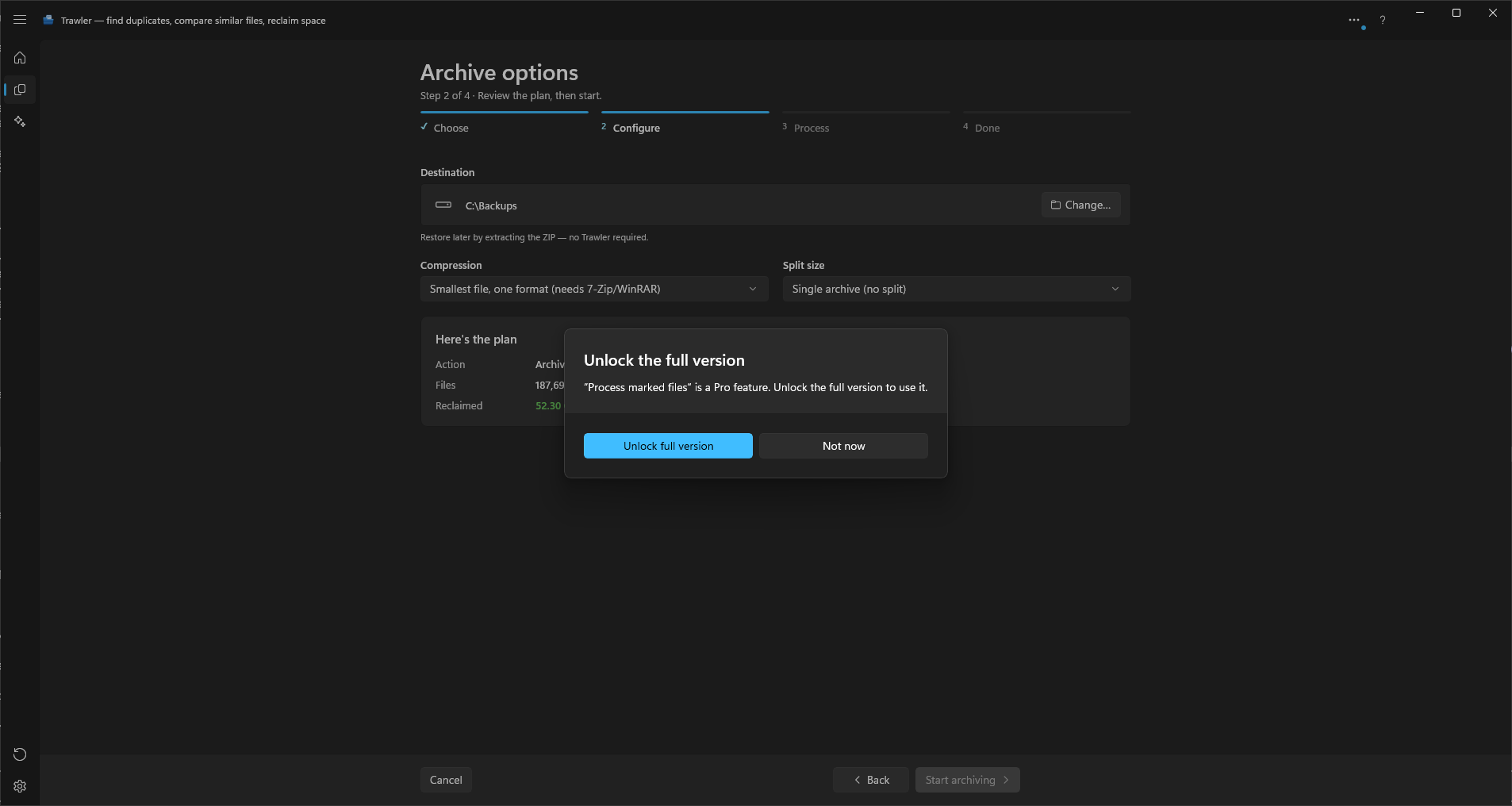
A dialog headed "Unlock the full version", saying:
"[name of the thing] is a Pro feature. Unlock the full version to use it."
Unlock full version takes you to the Store. Not now closes it and nothing happens — the action you tried is simply not performed. Nothing is half-done and nothing is written.
If you unlock while results are on screen, they refresh in place. Hidden groups appear immediately. Nothing is re-scanned and no matching is re-run.
Blocked actions
| What you were doing | What the dialog calls it |
|---|---|
| Process duplicates → Delete → Start | Process marked files |
| Process duplicates → Recycle → Start | Process marked files |
| Process duplicates → Archive to ZIP → Start | Process marked files |
| Process duplicates → Move → Start | Process marked files |
| Process duplicates → Replace with hardlink → Start | Process marked files |
| Restore… from an open archive, or Restore from a moved folder | Restore from archive |
| Save in the Scan ribbon (Ctrl+S) | Save session |
| Open session… (Ctrl+O), then Open or Rescan… on a row | Open saved session |
| Export CSV, from the duplicate results or from Scan report | Export to CSV |
| Right-click a file → Copy path | Copy path |
| Copying every listed path at once | Copy all paths |
| Copying every listed error reason at once | Copy all error reasons |
| Settings → Scanning & performance → Session storage → Saved to disk | Save session data to disk |
| Settings → General → Keep a copy of each scan's results automatically | Keep a copy of each scan's results automatically |
| Scanning any network location | Scanning a network location |
| Organize → Organize files, including its job and planning commands | Organizing your files |
One of those needs a word of explanation.
Copying every path or every error reason at once is the Copy button in the header of Settings → Scan report. It copies whichever list you are looking at — paths on the scan tab, error reasons on the general tab — so the button names itself accordingly.
Copying a single path by right-clicking a file is separate, and also asks.
The two numeric limits
Ten groups
The free version shows the first 10 groups in the Duplicates tab and in each of the four Similar tabs — Images, Documents, Audio, and Videos. Below the tenth, a line reads:
"[N] more groups — unlock the full version to view all results"
The totals are not capped. The group count and the reclaimable-space figure are always the real numbers for the whole scan, not for the ten you can see. So you can tell exactly how much the full version would save you before buying it.
The Files, Largest files, and Folder sizes tabs are not capped at all.
Network locations
The free version cannot scan any network location — anything starting \\, whether it is a
share root or a folder deep inside one, and any mapped network drive letter.
It is refused the moment you tick it in the wizard's "Where should we look?" step. The row unticks itself and you get the unlock dialog once, however many rows you ticked in one go. Add a network share refuses before it even asks for a path.
Local drives are not refused. The disks in the machine and anything plugged into it — a USB stick, an external disk, a card reader — can be scanned whole on the free version, and the group count and reclaimable figure you get are the real ones for the whole drive.
There is one consequence of that, and Trawler says it above the lists as soon as you tick a drive:
"The free version keeps scan results in memory. A very large drive can produce more results than memory can hold. The scan then stops before it finishes. The full version saves scan results to disk, so it handles much larger drives."
That is a size limit, not a version limit. A scan is never refused for its size, on any version. If it turns out to be too big to hold in memory it stops while it runs, with a message of its own, and picking a folder inside the drive gets you round it. See Why did the scan stop?.
Keeping results, and picking up after a crash
Keep a copy of each scan's results automatically (Settings → General) is off by default and only turns on with the full version. The switch itself works on the free version: turning it on asks to unlock, naming the switch by its own label, and it goes back to off if you close that. Underneath the title, the free version always shows "Keeping results is a Pro feature."
Picking up an interrupted scan is the one blocked thing that never asks. If Trawler is closed unexpectedly part-way through a scan, the full version offers the unfinished scan back on the next launch. The free version clears it instead — nothing is offered and nothing is kept. Both are covered in Sessions.
What the free version does in full
Everything up to the moment files change:
- Scanning any folder, as Index files or Find duplicates, with every filter and every saved preset.
- All four Similar tabs, including the side-by-side comparisons and the document text comparison. Running a match is never blocked.
- Totals — how many groups, how much space, how big every folder is.
- Ticking, auto-select, and protected paths. Choosing what you would remove is free; removing it is not.
- Walking the whole Process duplicates rail — choosing an action, picking a destination, reading the plan. Only Start is blocked.
- Opening and browsing an archive. The folder tree, the file list, the search, the sizes, the conflict flags — all of it. Only Restore… is blocked, so you can check a backup in full before buying.
- Right-click → Explore here and Open. Only Copy path is blocked.
- Scan report, all three tabs, with filtering. Only Export CSV is blocked.
- Every setting except Session storage → Saved to disk and Keep a copy of each scan's results automatically.
- Re-running a scan cheaply. A second run over the same folders reuses the first run's work on any version. See Big scans.
One thing that reads oddly
If a scan stops for running out of memory, the message suggests changing Session storage to Saved to disk — which is itself a full-version setting. On the free version that route is not open; scan a smaller folder, or unlock.
Related
- Settings — every setting, including Session storage
- What can be undone, and what cannot — why browsing an archive is free
- Processing — the five actions the free version stops at Start
- Big scans — memory, speed, and network locations