 Trawler
Processing
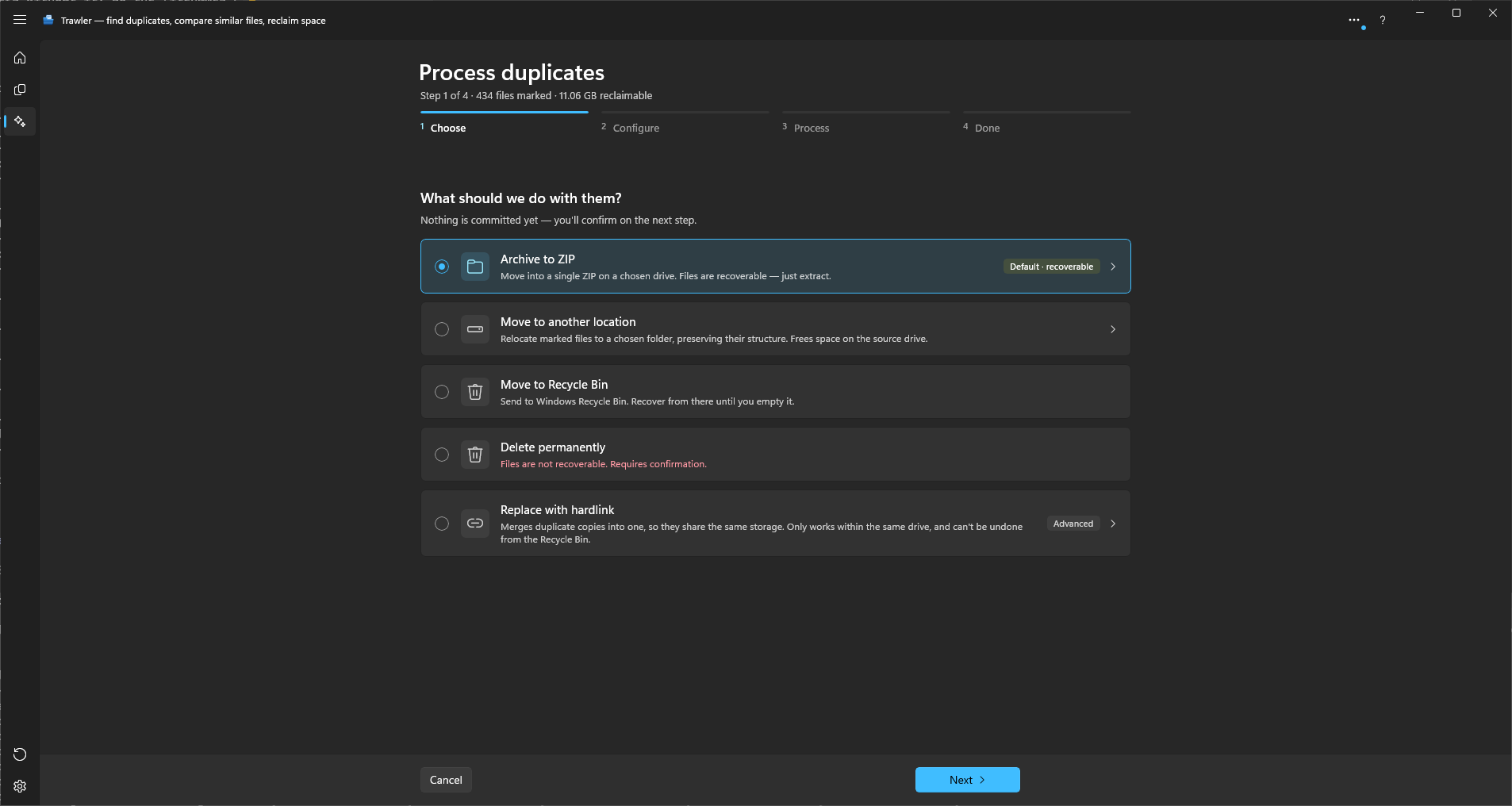
Process marked… opens the four-step screen that actually changes your disk: Choose → Configure → Process → Done. There are five actions and they differ enormously in what they leave you. Pick before you read the steps.
The five actions
| Action | What happens to the files | Afterwards |
|---|---|---|
| Archive to ZIP (Default · recoverable) | Written into one archive on a drive you choose, then the originals are permanently deleted — not recycled | Restore them, or just extract the archive |
| Move to another location | Relocated to a folder you choose, folder structure preserved. Nothing is deleted | Send them back — Trawler leaves a record in the destination |
| Move to Recycle Bin | Handed to the Windows Recycle Bin | Recover from the Recycle Bin until you empty it |
| Delete permanently | Removed from disk directly | Gone. Not in the Recycle Bin, and Trawler can't get them back |
| Replace with hardlink (Advanced) | Each ticked copy becomes a second name for the copy you kept | Not recoverable, and not from the Recycle Bin either |
Full detail on reversibility is in What can be undone, and what cannot.
Choose (step 1)
"What should we do with them?" — with the reassurance that "Nothing is committed yet — you'll confirm on the next step." The line above reads "Step 1 of 4 · N files marked · X reclaimable".
Two warnings can appear here:
- "Every copy of N files is marked" — you have ticked every copy of something, so continuing leaves you with none of it. Same wording as the warning on the Duplicates tab.
- "Includes N files you ticked inside protected folders — they will be removed too." A folder shield stops Trawler ticking files, not you.
Replace with hardlink is greyed out until you turn it on in Settings → Safety & protection ("Allow Replace with hardlink"). Enabling it takes effect the next time you open this screen — no restart.
Configure (step 2), per action
Archive to ZIP
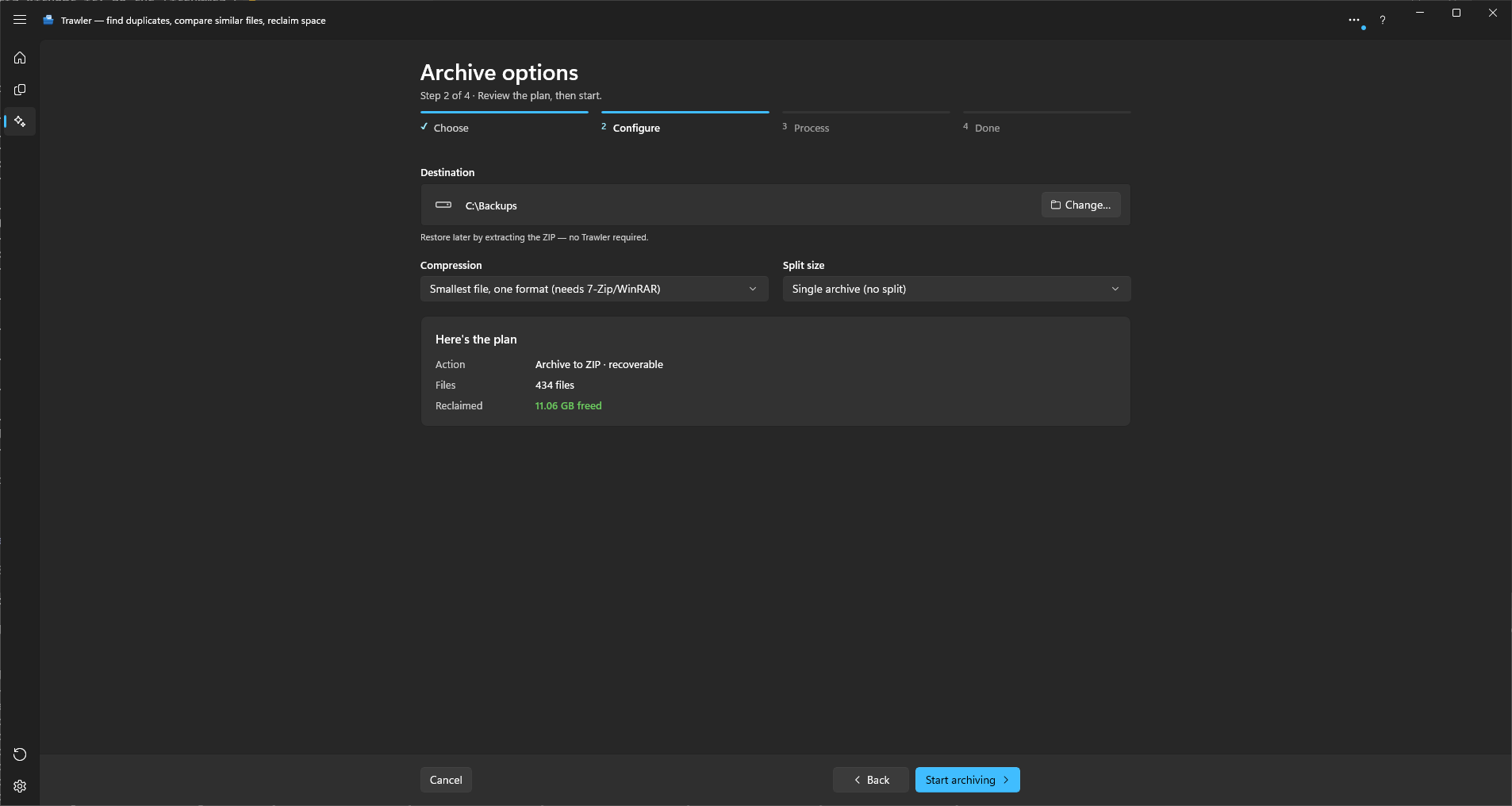
Pick a Destination folder with Change…, then a Compression:
| Choice | What you get |
|---|---|
| Standard ZIP (opens anywhere) | An ordinary .zip. The default. |
| Smaller file (needs 7-Zip or WinRAR to open) | Still a .zip, but Windows Explorer can't open it. |
| No compression (fastest, largest file) | A .zip that only bundles, never shrinks. |
| Smallest file, one format (needs 7-Zip/WinRAR) | The Solid format — a .tar.zst. Settings calls it "Solid (.tar.zst — stores duplicate copies once)". |
Solid stores each set of identical copies once, so it is dramatically smaller when you are archiving duplicates. The cost: double-clicking it will not open it. You need 7-Zip or WinRAR — or Trawler's own Restore, which reads both formats.
Split size splits the archive to fit removable media: Single archive (no split), CD (700 MB), DVD (4.7 GB), DVD-DL (8.5 GB), Blu-ray (25 GB), BD-DL (50 GB), BD-XL (100 GB), Custom…. Custom… has no size field and behaves as a single archive.
Archives are named for the moment they were written — archive-20260801-143512.zip — and split
parts add a number: archive-20260801-143512-(1).zip, -(2), and so on. The Solid format uses
.tar.zst in place of .zip.
Each part is written, flushed to disk, and only then are that part's originals deleted. If the flush fails, the originals stay.
Tick Check every copy before removing its original to have Trawler read each finished part back and compare every file in it with the original before deleting anything. The progress caption reads "Checking the archive" while it does. It is off by default, because every file is read twice. If a part does not match, Trawler deletes that part and keeps every original in it; each of those files is listed under File actions with "The copy did not match the original when checked, so the original was kept." See Checking every copy for what the check proves.
Settings → Archive defaults sets what this screen starts on — compression, split size and the folder to archive into. Change them here for one run without touching the defaults; the defaults are updated when a run starts, so the choice you actually used is the one that comes back next time.
Move to Recycle Bin
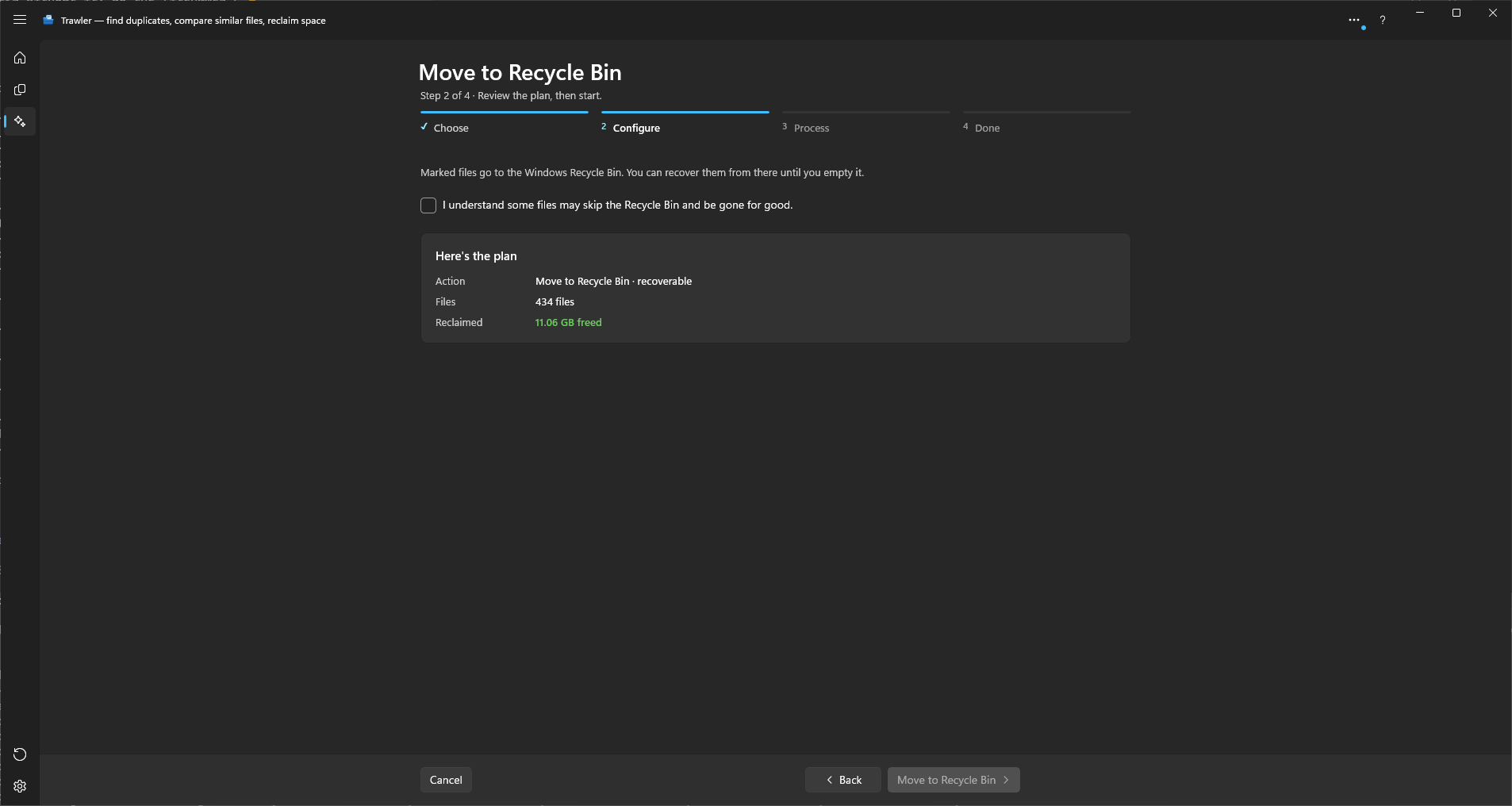
"Marked files go to the Windows Recycle Bin. You can recover them from there until you empty it."
You must tick "I understand some files may skip the Recycle Bin and be gone for good." before Start becomes available. Windows sends some files straight past the Recycle Bin — anything too large for it, and most files on network locations — so recycling is not a guarantee you can get them back. Turn the tick off for every action in Settings → Safety & protection.
Delete permanently
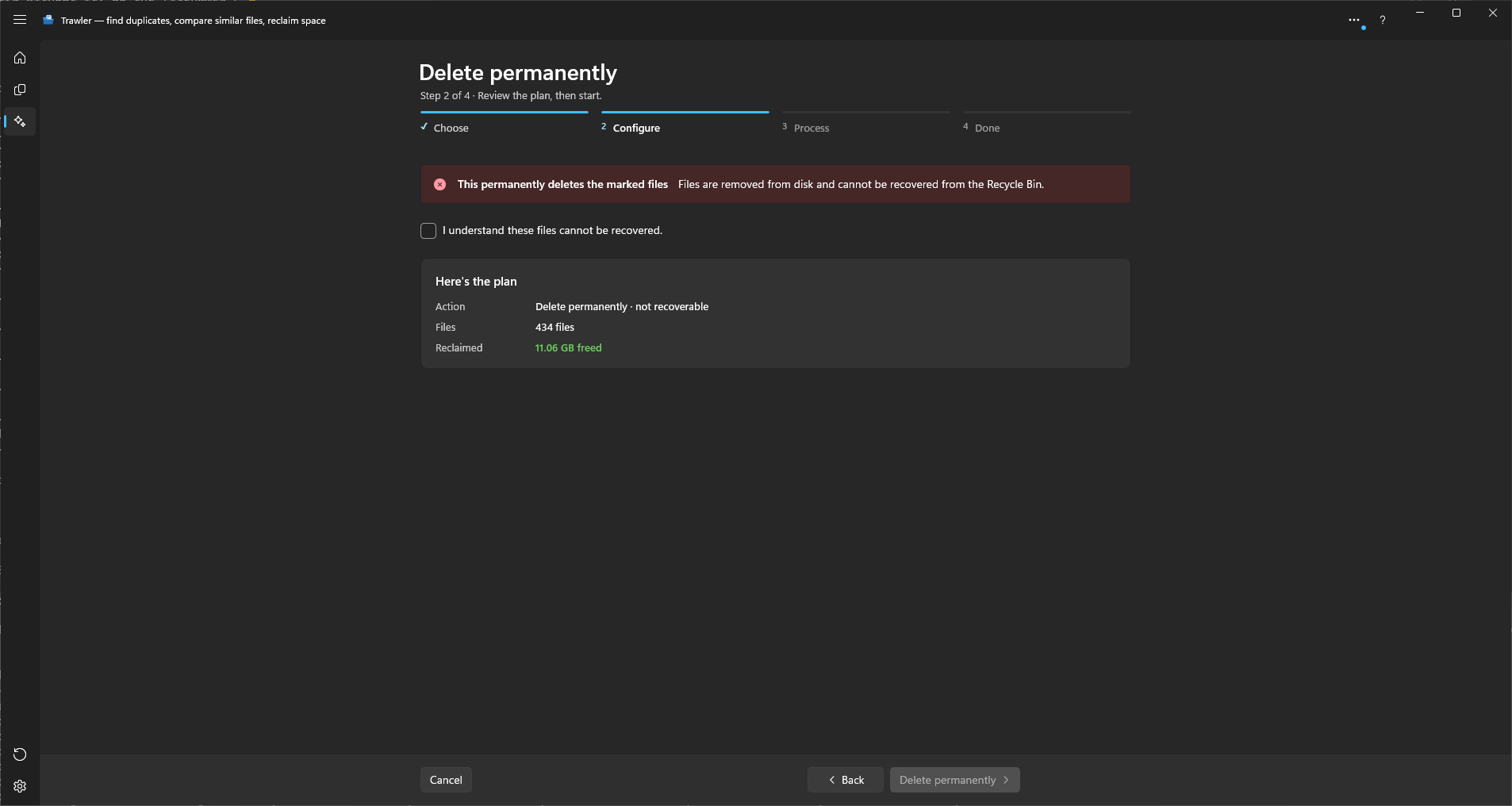
"This permanently deletes the marked files. Files are removed from disk and cannot be recovered from the Recycle Bin."
You must tick "I understand these files cannot be recovered." before Delete permanently becomes available. That confirmation comes from Confirm before destructive actions in Settings → Safety & protection, which is on by default. Move to Recycle Bin and Replace with hardlink ask too, each with wording that matches what it does; switching action clears the tick.
If your selection reaches into a protected path, all five actions say so before you start — and then run. See Choosing what to remove.
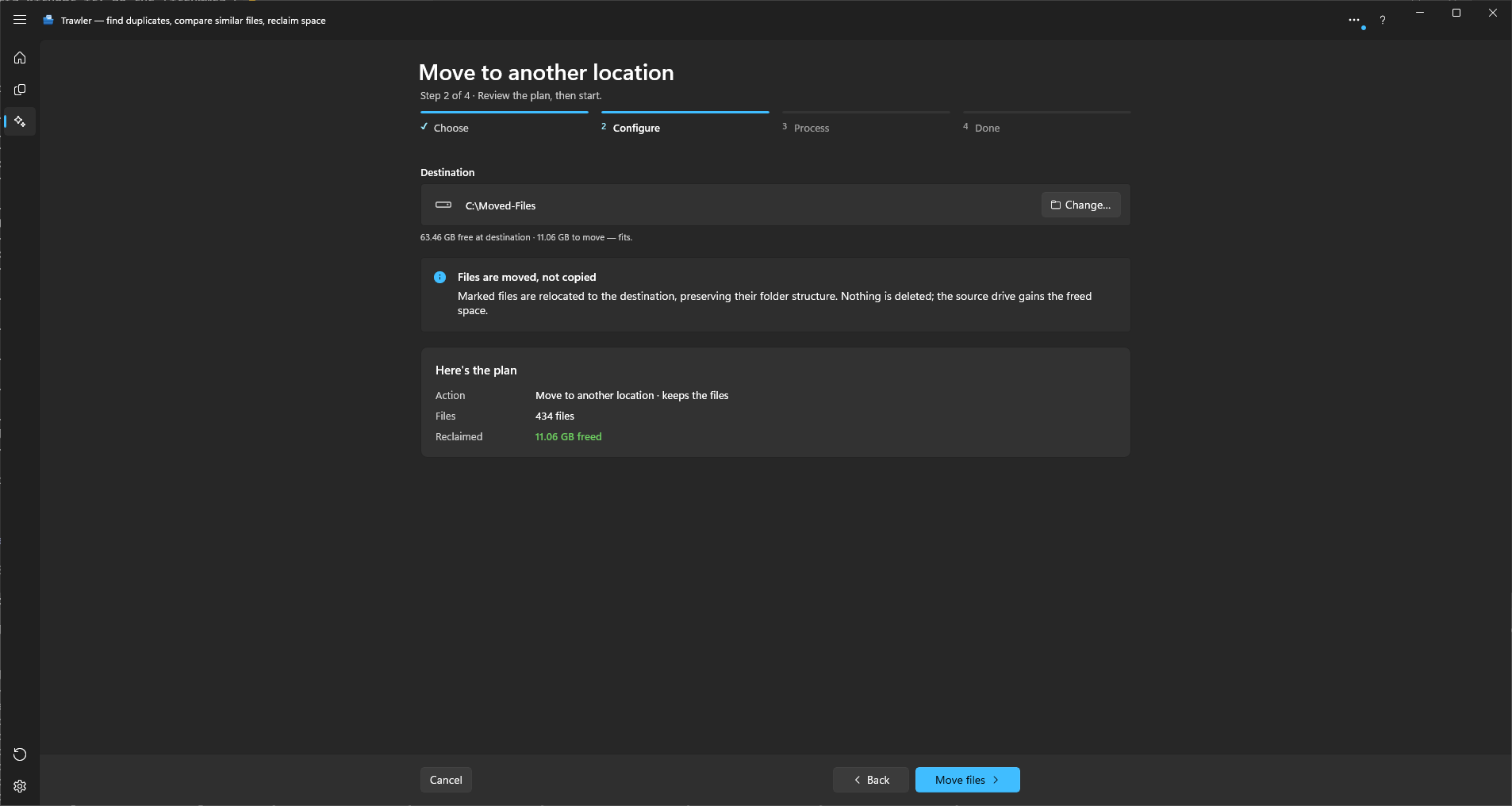
Move to another location
"Files are moved, not copied. Marked files are relocated to the destination, preserving their folder structure. Nothing is deleted; the source drive gains the freed space."
Structure is preserved beneath each folder you ticked: tick D:\Stuff\Pictures, move to
F:\Backup, and D:\Stuff\Pictures\2024\img.jpg lands at F:\Backup\Pictures\2024\img.jpg.
Trawler checks the destination has room and tells you either "…free at destination · … to move — fits." or "— may not fit." That is information, not a barrier — a shortfall does not stop you starting.
A move to a folder inside the area you scanned (or a scan of a folder inside the destination) is refused outright, before anything is touched.
Moving across drives is a copy followed by a delete of the original, so it takes as long as copying does. Moving within one drive is near-instant.
Tick Check every copy before removing its original to have Trawler read each copy back and compare it with the original before the original is removed. It applies only to moves across drives — within one drive nothing is copied. A copy that does not match is deleted, the original stays where it was, and the file is listed under File actions with "The copy did not match the original when checked, so the original was kept." See Checking every copy.
The record Trawler leaves behind is a file called .trawler-moves.json in the destination folder.
Keep it and Restore can send everything back; delete it and it can't.
Replace with hardlink
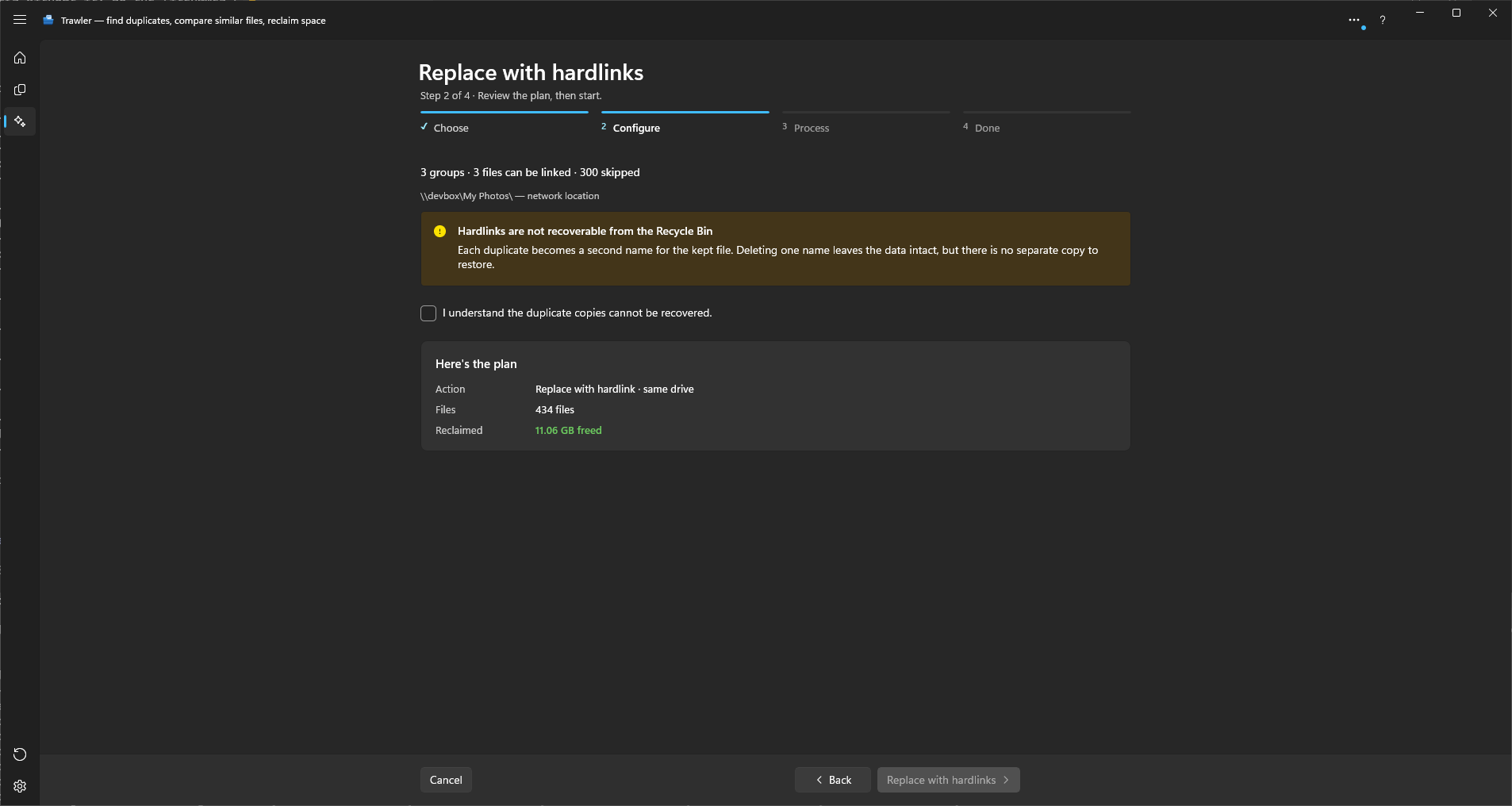
"Each duplicate becomes a second name for the kept file. Deleting one name leaves the data intact, but there is no separate copy to restore." Editing one edits all of them, because there is only one copy of the data.
Trawler checks eligibility first — "Checking which files can be linked…" — then reports "N group(s) · N file(s) can be linked · N skipped". Groups are skipped when:
- the copies sit on different drives — linking only works within one drive;
- the drive can't do it (not a local fixed NTFS drive — network shares and removable drives are out);
- every copy in the group is ticked, leaving nothing to link to;
- the copies were matched by name and size only, never confirmed as identical contents. Run Verify exact copies on the Duplicates tab first if you want those included.
A protected path is not one of these reasons. A copy you ticked inside one is linked like any other; you are told about it beforehand, on the screen where you choose the action.
Checking every copy
Wherever Trawler writes a copy of your file, it can read that copy back and compare it with what it copied, before it removes anything. The same rule applies to archiving, moving and both kinds of restore: nothing is removed until its copy has matched.
| Where | The tick box | If a copy does not match |
|---|---|---|
| Archive to ZIP | Check every copy before removing its original | The part is deleted, and every original in it stays. |
| Move to another location | Check every copy before removing its original | The copy is deleted, and the original stays where it was. |
| Restore from an archive | Check every restored file | The restored file is removed. The archive is not changed. |
| Restore from a moved folder | Check every restored file | The copy is removed, and the moved file stays in the folder. |
Each failure is listed under File actions with "The copy did not match the original when checked, so the original was kept."
A move or restore within one drive copies nothing, so there is nothing to check.
Trawler remembers the tick, and every one of these screens shares it. Tick it on the Process screen and the Restore wizard starts with it ticked too, and the other way round. It is off until you tick it, because every file is read twice.
What the check can and cannot tell you. It proves that the copy Windows hands back matches the original. Windows may answer that read from memory it is still holding, rather than reading the drive again — that is Windows' own file cache, and Trawler cannot bypass it. So the check catches a copy that was written wrong, such as a network or USB connection dropping data. It cannot prove that the drive itself will read the file back correctly later.
Process (step 3) and Done (step 4)
"Step 3 of 4 · You can keep working — this runs in the background." Run in background closes the screen and leaves the job running; come back to it any time.
Cancel stops between files. The button changes to "Cancelling…". Files already handled stay handled and the rest are untouched.
Because it stops between files, a cancel waits for the file being written. With one very large file in flight — a long video, a disk image — that can take as long as the file takes to copy. A check in progress is different: it stops at once, and the unchecked copy is treated as one that failed, so its original stays.
Cancelling an archive removes files from disk. Trawler finishes the file it is writing, closes the archive properly, and deletes the originals of every file already in it — exactly as if the run had ended there. Files it had not reached are left alone. The archive opens normally and restores like any other, split or not.
| When you cancel | What is left behind |
|---|---|
| Before any file was archived | Nothing. "You cancelled before any file was archived. None of your files were changed." |
| After some files were archived | Every part that holds them, their originals gone. "You cancelled before the archive finished. 3 parts were kept, and the files inside them were removed from disk. Files that had not been archived yet were left alone." |
| With Check every copy ticked | The part being written or checked when you cancelled is deleted, and every original in it stays — its check stops with the cancel, so nothing in it was proven. Parts already checked are kept, their originals gone. |
The "… reclaimed." figure on the Done screen counts only the parts that were kept. Get those files back the same way as any archive — see Restore from an archive.
Cancelling a move finishes or undoes the file in flight, so it is either fully at the destination or fully where it was. Files already moved stay moved and are in the record, so Restore can send them back.
One file failing does not stop the run. The Errors tile counts them and reads "see scan log"; the per-file list is in Scan report → Scan errors with the stage filter set to File actions. That record persists.
A file that was skipped is not a failure, and Done counts it separately. The Skipped tile covers marked files the action never touched, so processed, skipped and errors always add up to the number you marked — nothing marked goes unaccounted for. Of the five actions, only Replace with hardlink leaves anything skipped. Its reasons are listed underneath, counted in groups rather than files:
| Why a group was skipped |
|---|
| "…spread across more than one drive — files can only be joined on the same drive." |
| "…sits on a drive that cannot join files this way." |
| "…had every copy marked, so no file was left to keep." |
| "…was matched by name rather than contents, so its files were never confirmed to be exact copies." |
| "…changed after the check ran and was left alone." |
Near the end the progress bar goes indeterminate and the caption reads "Recalculating folder sizes. On a large drive this can take a moment." Nothing is wrong — this is the longest silent stretch of a big job.
Done reports how much was reclaimed, how many files, where the archive went if you made one, and a chart of where the space went.
Where the space went
The chart shows the space this job processed, in three rings standing on a tilted plate. The inner
ring splits it by type: Images, Video,
Audio, Documents, Archives, Apps and installers, System files and Other.
The middle ring splits each type by family, such as JPEG, PNG or Camera RAW, or by
extension (.jpg) where a type has no families, and the outer ring splits each family by extension.
A file with no extension is listed as No extension. Each slice stands as tall as its size against
the largest type, and the largest type is turned to the back.
- Point at a slice and the line under the chart shows where it sits, such as "Images › JPEG › .jpg", with its size and its share of the whole chart.
- Select a slice to keep it in that line. The slice, the slices it sits in and the slices inside it keep their colour, and everything else fades. Select it again, or select an empty part of the chart, to clear it. Selecting a slice also scrolls the list to its row.
- Drag across the chart, left or right, to turn the rings. Use it to bring a slice hidden behind a taller one round to the front.
- The list under the chart names every slice with its size and share, indented under the slice it sits in. Select a row to select its slice.
- Slices too small to draw are gathered into "N smaller items" (a paler shade of the slice it sits in); the list still names each of them. A slice's label is left off when it doesn't fit, or when a taller slice in front hides it. Inside Other, each extension has its own muted colour, the same every time; the Other slice itself stays grey.
A cancelled Archive to ZIP shows no breakdown. If the cancel landed while a part was being checked, Trawler can't tell which of that part's files were counted, so it shows none rather than a wrong one.
Clearing empty folders
After a successful Archive, Recycle, Delete or Move, Trawler sweeps up the folders that emptied — you'll see "Removing empty folders · N removed". Replace with hardlink doesn't trigger it, because it leaves every file where it was.
- Empty means empty — zero files, zero subfolders. A folder holding a single stray file stays.
- It walks upward: remove a folder and its parent is tested next, and so on.
- It never removes a folder you scanned, and never removes a protected path.
- A folder it can't remove stops that branch and is reported; the rest of the sweep continues.
On the free version
All five actions are Pro. You can choose an action and configure it, but pressing the final button raises "Unlock the full version" rather than starting — "Process marked files" is a Pro feature. Nothing is written first.
Related
- What can be undone, and what cannot — read this before Delete or hardlink
- Choosing what to remove — ticks and protected paths
- Restoring from an archive
- Recovering an interrupted hardlink job