 Trawler
Terms
Every word here appears somewhere in Trawler's own screens. Where a term is explained properly on another page, the entry says where.
Words on screen
| Term | What it means |
|---|---|
| Acoustic | Audio matched by how it sounds rather than by its tags. Shown on a result as "Acoustic · 87%". |
| Actions | The third tab of Scan report — errors from restore, move, archive and delete. Kept for the current run of the app only. |
| Also scanned | A marker on a row of the scan wizard's What kind of files? step. That file type is scanned anyway, because its category is ticked under Include similar items on Home. See What kind of files?. |
| Archive to ZIP | The default way to process files: move them into a single ZIP on a drive you choose. Badged "Default · recoverable", because extracting the ZIP gets them back. |
| Audio · tags | Audio matched on its stored artist, title and album, without listening to it. |
| Automatic (recommended) | The default for Session storage — Trawler picks between Temporary and Saved to disk for you. |
| Check every copy before removing its original | A tick box when you configure Archive to ZIP or Move to another location. Trawler reads each copy back and compares it with the original before removing the original; a copy that does not match is deleted and the original kept. Off until you tick it, then remembered — and shared with Check every restored file. Not the same as Verify exact copies, which re-checks duplicate results. See Checking every copy. |
| Check every restored file | The same check in the Restore wizard: each restored file is read back and compared with the archive or the moved file, and one that does not match is removed. Shares its remembered tick with Check every copy before removing its original. |
| Cloud-only files | Files OneDrive, Google Drive or Dropbox has moved off your disk, leaving a placeholder. Skipped by default, because reading one downloads it. |
| CPU usage cap | How many of your cores Trawler uses for comparing files — 25%, 50%, 75% or 100%. |
| Default scan roots | The folder list under Settings → Scanning & performance, described there as "Folders used by startup cleanup and the default workbench session." |
| Delete permanently | Removes files for good. Not the Recycle Bin, and Trawler cannot undo it. |
| Details panel | The panel opened with Explore → Details in the ribbon. It shows the file you clicked or moved to with the arrow keys, not the files you have ticked. On the compare views it shows the two files in the previewer. On Similar → Audio and Review it shows up to four files you are choosing between. One column per file, one row per property. See The Details panel. |
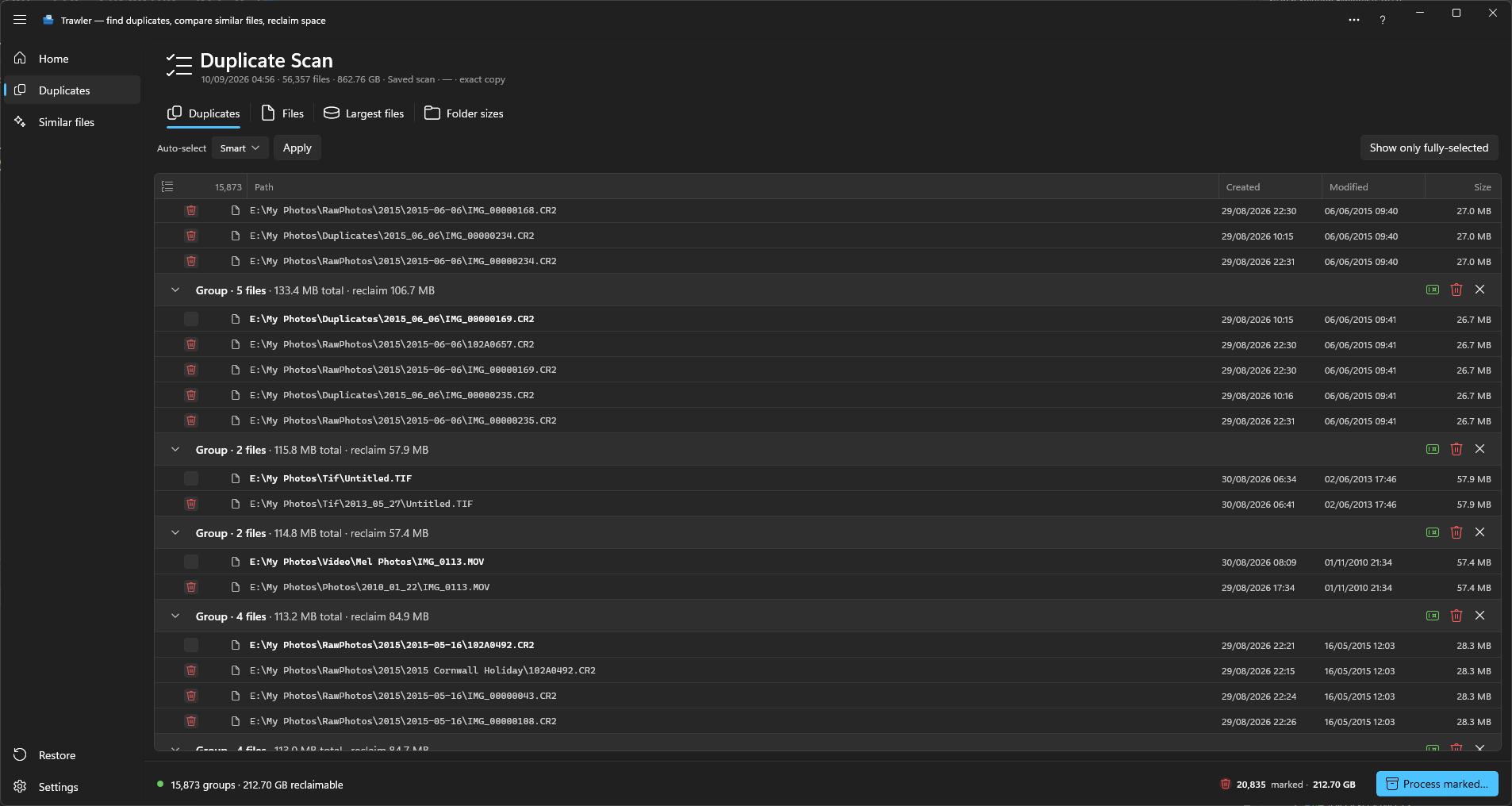
| Duplicates | The results tab for files matched on their contents. A Find duplicates scan proves them identical; see Verify exact copies for results that came from sampling instead. |
| Efficiency mode | Lets Windows limit Trawler's power use, so scans run cooler and quieter. Scans take longer. |
| Exclude duplicates | A toggle on the Similar tabs. On by default, hiding files you have already ticked for removal so they are not listed twice. |
| Exact copy | Two files with the same contents, byte for byte. What Duplicates looks for, and what Find duplicates proves. |
| FFmpeg | A separate program Trawler uses to compare video. Point at it under Settings → Scanning & performance → FFmpeg location, or leave it unset to use one already installed. |
| Files | The results tab listing every file in the selected folder, and the tab a finished scan lands on. |
| Filter presets | Saved scan filters — file type, patterns, size and date — that you can pick when starting a scan. |
| Find duplicates | The scan wizard's third step offered against Index files: "Index files and fully verify exact duplicates." Reads every byte of every possible match, so the groups it produces are exact copies. Pre-selected, and badged Recommended. |
| Folder sizes | The results tab that shows how much each folder holds, so large ones are visible at a glance. Shown as a table (List view) or as a 3D map of blocks sized by folder size (Tile view). |
| General errors | The second tab of Scan report: failures during an action that could not be tied to a scan. |
| Group | A set of files Trawler considers copies of one another. You keep one and mark the rest. |
| Index files | The scan wizard's third step offered against Find duplicates: "Browse files and folder sizes. Similar matching is available." Builds the file list and the folder sizes without comparing any contents, so the Duplicates tab stays empty until you run the check. |
| Keeper | The file in a group you are keeping. The others are the ones an action removes. |
| Largest files | The results tab listing your biggest files, largest first. |
| Marked | Ticked for processing. The count and the space it would take up are shown in the status bar as "N marked · size". |
| Move to another location | Relocates marked files to a folder you choose, keeping their structure. Nothing is deleted, and the source drive gains the space. |
| Move to Recycle Bin | Sends files to the Windows Recycle Bin, where you can get them back until you empty it. |
| Network share | A location on another machine, written \\server\share. Add one from the wizard with Add a network drive…. |
| Protected paths | Folders you list under Settings → Safety & protection. "Trawler warns you before it touches anything under these paths, and leaves them out of scans." Left out of the scan is the strong half — nothing there reaches your results. The warning covers the case where a file from one is ticked anyway; it tells you, then does what you asked. |
| Reclaimable | How much disk space you would get back by processing what is currently marked. |
| Replace with hardlink | Merges duplicate copies so they share one copy of the storage. Same drive only, cannot be undone, and off until you allow it under Settings → Safety & protection. Badged "Advanced". |
| Saved to disk | The Session storage option that keeps scan results in a file — slower, but it copes with far more results. Full version only. |
| Scan data folder | Where the results half of a saved session is written, set under Settings → General. Follows the Session folder until you point it somewhere else. |
| Scan errors | The first tab of Scan report: files skipped or unreadable during a scan or a match. |
| Scan report | The record of everything Trawler couldn't process, at Settings → Scan report. Three tabs. See When something goes wrong. |
| Session | One scan's results, plus the settings that produced them. Save one to reopen it later without scanning again. |
| Session folder | Where the settings half of a saved session is written, set under Settings → General. Documents\Trawler until you change it. |
| Session storage | Where a session's results are kept while you work — Temporary or Saved to disk. See Big scans. |
| Similarity | How close a near-match is, as a percentage. Shown on Similar results and used as the threshold you can drag. |
| Similar files | Files that resemble each other without being identical — images, videos, audio and documents. Advisory only: nothing is ever picked for you. |
| Solid (.tar.zst) | An archive format offered under Settings → Archive defaults, described as "stores duplicate copies once". Smaller than a ZIP, but it will not open by double-clicking. |
| Split size | Break an archive into parts that fit removable media — CD, DVD, Blu-ray — or keep it as a single archive. |
| Symlinks | Shortcuts and linked folders. Not followed during scans unless you turn on Include symlinks by default. |
| Temporary | The Session storage option that keeps scan results in memory. Faster, and cleared when you close. |
| Verify exact copies | A command on the Duplicates results that re-checks the remaining groups against the full file contents. Your ticks are kept. |
Related
- When something goes wrong — Scan report, and what the entries mean
- Big scans — Session storage, CPU usage cap, network shares
- What can be undone, and what cannot — the five actions, ranked by regret