 Trawler
What "similar" means
Similar files look, sound, or read like each other without being the same file — an image re-saved smaller, the same song at a different bitrate, a document exported twice. The Duplicates tab never shows these, because a duplicate check compares contents and these do not match. Similar is where they live.
The trade is exactness for reach. A duplicate is a fact. A similar match is an opinion, and Trawler treats it as one: it groups the candidates and then stops, leaving every decision to you.
Duplicates and Similar files answer different questions
| Duplicates | Similar files | |
|---|---|---|
| What it finds | Files with identical contents | Files that resemble each other |
| Certainty | Confirmed by a Find duplicates scan (or verified afterwards) | Advisory — you judge each one |
| Picked for you | Trawler can pre-pick copies to remove | Never. Nothing is ticked for you |
| Replace with hardlink | Applies | Does not apply — it only reaches files a duplicate check grouped |
It needs a finished scan first
Similar matching reads the results of a scan. It does not search your drives itself. Run a scan before you open Similar, or the match reports "No active session. Run a scan first."
That also means the scan's own filters apply. If the scan skipped a folder or a file type, nothing in it can appear here.
There are two ways in:
- Before the scan. On Home, under Include similar items, tick the categories you want — "Tap to add look-alike categories to this scan." The matching then runs as part of the same pass, and the results are waiting when it finishes. If the scan's file-type filter would leave those files out, the scan takes them in anyway, and the What kind of files? step marks each added row Also scanned — see What kind of files?.
- After the scan. Select Similar in the title bar, choose a view in the ribbon, and use its action — Find similar images, Find similar documents, Find similar audio, Find similar videos.
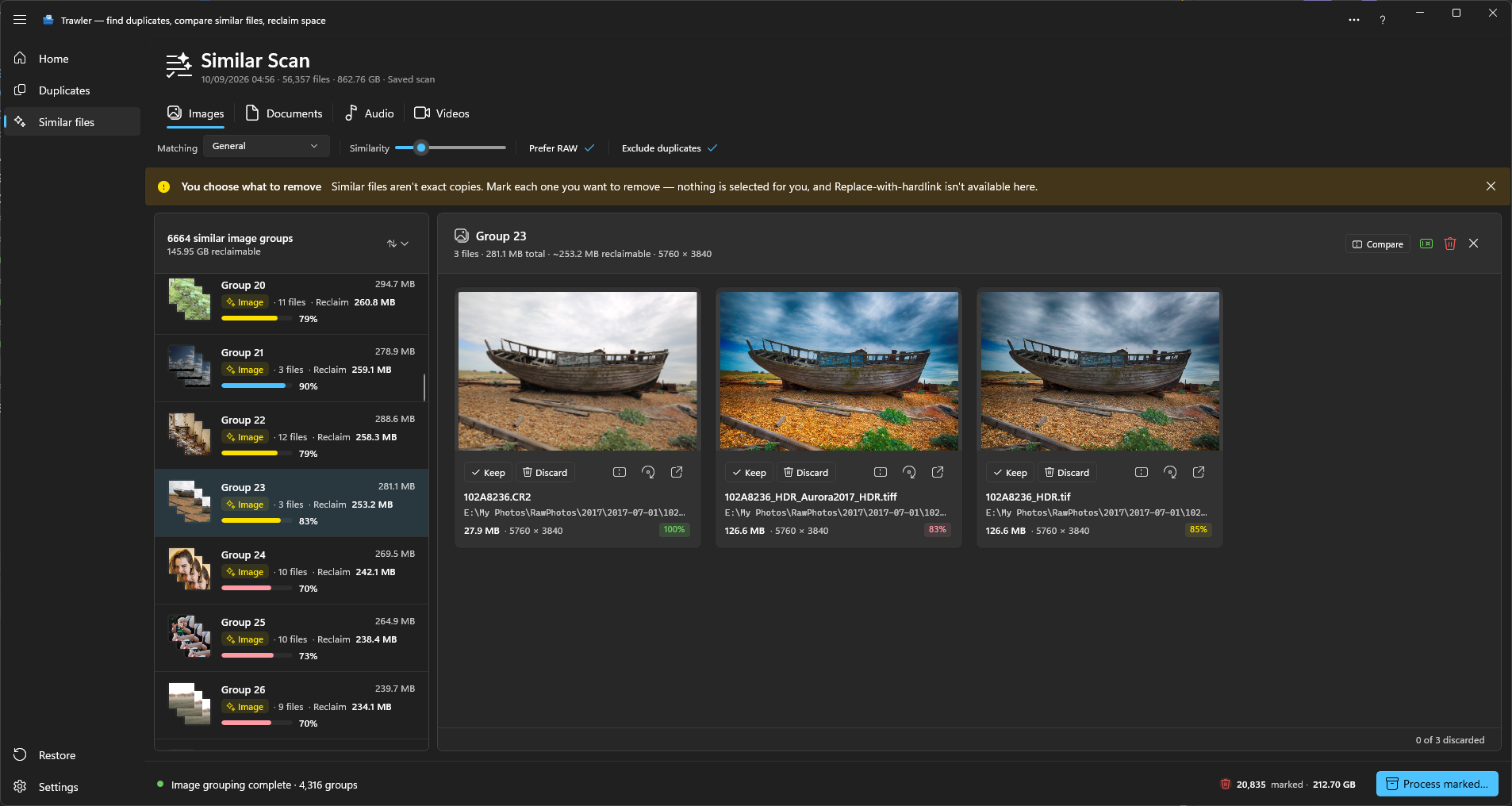
Four tabs
Images · Documents · Audio · Videos, in that order in the Similar ribbon. The Matching settings group holds the controls for the view you have open.
Audio is one tab that holds two different matching methods — by tags and by sound. Which one you want depends on your library, and picking the wrong one is the single most common reason a music search comes back empty. See Audio.
Videos needs FFmpeg installed before it can run. See Videos.
Nothing is selected for you
Every Similar tab carries the same notice, headed You choose what to remove:
"Similar files aren't exact copies. Mark each one you want to remove — nothing is selected for you, and Replace-with-hardlink isn't available here."
Dismissing it on one tab dismisses it on all four.
That is a rule, not a default. No auto-pick runs on Similar results, and marking one member of a group never marks the others.
Replace with hardlink does not apply to similar files, for a plain reason: it makes two files share one set of contents, which is only safe when the contents are already identical.
The option is still offered in the processing list — it is not hidden — and it acts on every file you have ticked, wherever you ticked it. It can only link files a duplicate check has already grouped by content, so a file that merely resembles another is skipped — but a file you ticked here that is in a duplicate group will be linked. Where you ticked it makes no difference. If what you have in front of you is a list of similar files, pick one of the other four actions instead.
Once you have ticked what you want gone, use Process marked… and continue exactly as you would for duplicates — Archive to ZIP, Move to Recycle Bin, Delete permanently and Move to another location all work the same way. See Processing.
Exclude duplicates
The Exclude duplicates tick under Matching settings is on by default:
"100% matches are already in the Duplicates pick list. Turn off to also show files you've already picked."
So a Similar tab hides files you have already ticked for removal — wherever you ticked them — rather than listing them twice. Turn it off when you want to see everything in one place.
The free version shows ten groups per tab
Above ten, the rest are counted but hidden: "N more groups — unlock the full version to view all results." The group count Trawler shows is the true total, not the visible one.
Related
- Reviewing similar results — why nothing is picked for you, and how to work through a list
- Images · Audio · Videos · Documents
- Processing — the five actions, and what each does to your disk