 Trawler
Finding similar documents, and comparing them
The Documents tab groups files whose text is largely the same — a draft and its revision, a report saved twice with a paragraph changed, the same spreadsheet exported by two people. It then lets you read the two side by side before you decide.
Nothing is ticked for you. See Reviewing similar results.
What can be read, and what cannot
| Supported | Not supported |
|---|---|
Word: .docx, .docm |
Old Word and PowerPoint: .doc, .ppt |
Excel: .xlsx, .xlsm, .xls |
Excel's binary workbook: .xlsb, and add-ins: .xlam |
PowerPoint: .pptx, .pptm |
Web pages and settings files: .html, .xml, .json, .yaml, .ini |
OpenDocument: .odt, .ods, .odp |
Anything else not in the left column |
Rich text: .rtf |
|
Plain text: .txt, .text, .csv, .tsv |
|
Markdown and similar: .md, .markdown, .mdown, .mkd, .rst, .adoc, .asciidoc, .org |
|
LaTeX: .tex |
Comics: .cbz |
Ebooks: .epub, .kepub, .fb2, .fbz, .mobi, .azw, .azw3, .prc, .kfx, .lit |
|
.pdf |
Files that can contain macros — .docm, .xlsm, .pptm — are read exactly like their ordinary
counterparts. Only the writing is compared; the macros themselves are ignored.
Old Word and PowerPoint files are excluded outright. They are not read, not matched, and not
reported — a .doc simply never appears on this tab. Re-save it as .docx if you need it
included. Old Excel workbooks are not in that group: .xls is read normally. Excel's binary
.xlsb format is, though — save it as .xlsx or .xlsm to have it compared.
Web pages and settings files are left out for a different reason: their tags and field names count as words. Two unrelated pages built from one template, or two settings files that differ only in a handful of values, would come out looking almost identical. Rather than report matches you would have to dismiss one by one, Trawler does not compare these at all. They are still found by the ordinary duplicate scan, so identical copies are still detected.
In a Rich Text file only the writing is compared. That includes headers, footers, footnotes and text boxes; it leaves out pictures and other embedded objects, and text that is hidden or deleted with tracked changes. A Rich Text file that can't be read — a damaged one, or one written in an old DOS character set — is skipped and recorded in Scan report → Scan errors under the type Documents.
Files over 100 MiB are skipped. PDFs are exempt from that limit and are read whatever their size.
Ebooks with copy protection
An ebook you bought from a shop that applies copy protection cannot be read — an .epub or a
Kindle book alike. Trawler does not guess at it: the book is skipped and recorded in
Scan report → Scan errors under the type Documents.
This is deliberate, and it is the safer of the two behaviours. A protected book's text is scrambled rather than absent, so reading it anyway would produce groups of unrelated titles that look like genuine matches — and that verdict would then stick. Books without copy protection are read normally, including ones that only scramble their embedded fonts.
Only a book's own writing is compared. The title each chapter carries behind the scenes is left
out, because every edition of a book repeats it. A book that is only
pictures has no text to compare; it is skipped and recorded under Documents with the reason
"no extractable text (the book is pictures only)". Comics (.cbz) are not compared at all.
As with every tab under Similar, only files your scan already found are considered. If the scan filtered out document types, or never covered the folder, there is nothing here to match.
Scanned PDFs
A PDF that is only page images — a scan, a photographed contract — has no text to read. Trawler does not guess: the file is skipped and recorded in Scan report → Scan errors under the type Documents, with the reason "no extractable text (scanned or image-only pdf)".
It is not retried on the next match. It is tried again once the file itself changes, or after a fresh scan.
Running a match
Choose Similar → Documents in the title bar, and use Find similar documents.
Under Similar → Similarity, this view has a slider from 30% to 100%, set to 70% by default. It runs lower than the other tabs on purpose — two revisions of the same report often share far less text than you would expect. Hover the slider to read the current setting; while you drag, the figure follows the handle.
Moving the slider normally re-groups what is already there. When a change means the documents have to be read again, a bar appears reading "Settings changed since the last document match." with Re-run and Revert.
Results list as "N documents · size reclaimable" per group, with Words and Match columns per file. On the free version only the first 10 groups are shown, with a note saying how many more there are.
Match is read against the file at the top of the group — the one Trawler suggests keeping — so that file always reads 100% and every other figure tells you how much of it that file contains. A file whose text is identical to the top one also reads 100%. Where a group was built through a chain of resemblances, a file near the bottom can read lower than the slider you set: it matched something in the group rather than the file being kept, which is worth a look before you discard it.
Reading a file full screen
Each file row has an Open full screen button at its right end. Press Enter on a focused row to do the same.
It opens the same full-screen window as Files → Review, on the file you picked, and Previous and Next walk the other files in that group. A file type with no preview opens full screen as hex, or as a "No preview" page with Open with default app on it. See Reviewing files for the toolbar and its keys.
Keep (A) clears the mark on the file and Discard (D) marks it. A file that is already in that state is left as it is. Auto-advance works as it does in Review. Esc closes the window and returns you to the tab, with your decisions shown on the rows.
The side-by-side compare view
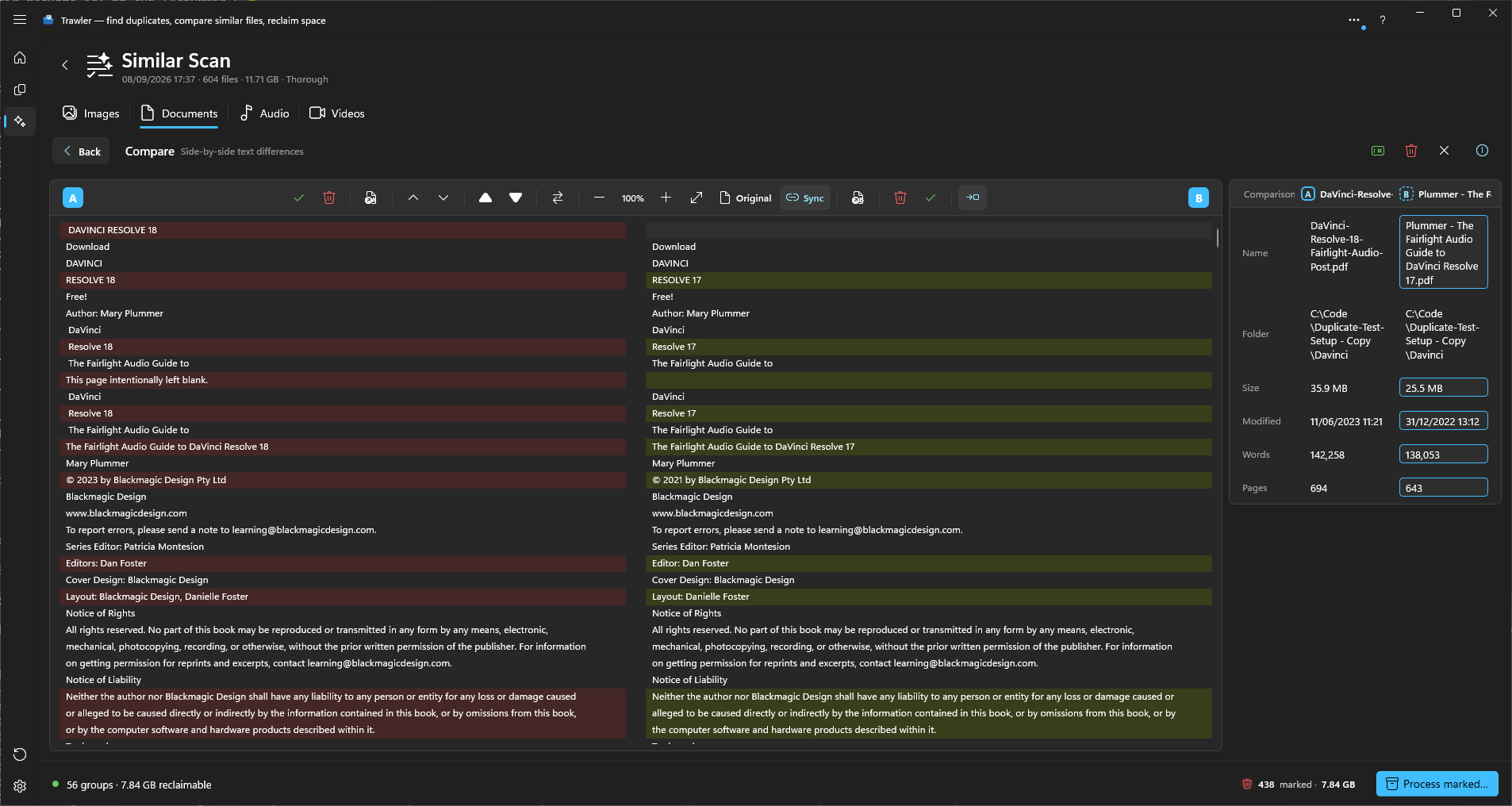
On a group header, choose Compare side-by-side. The compare surface fills the panel: two panes of text, differences highlighted, headed Compare · Side-by-side text differences.
The left pane is A and the right is B. By default A is the newer of the first two files — the one you would probably keep. Back returns to the list.
The two panes are line-aligned: where one side has a line the other does not, the other side gets a blank row, so line 40 always faces line 40.
A changed line is tinted, red on the left and green on the right. Where the two versions still share most of their words, the words that changed are marked more strongly inside the line, so a single edited word stands out from a sentence that is otherwise the same. A paragraph that only wraps at different places has its lines tinted but no words marked. Where a passage was rewritten almost entirely, the whole lines are tinted and no single word is picked out.
The controls
| Control | What it does |
|---|---|
| Keep A / Discard A | Decide the left file. With Auto-advance after a decision on, Keep A brings on the next file for comparison and Discard A hands the left side to the file you were comparing it against. Either way, once there is nothing left to compare against you move on to the next set. |
| Keep B / Discard B | Decide the right file, then move to the next one if Auto-advance after a decision is on. |
| Previous document / Next document | Step through the other files in the group without deciding anything. |
| Swap A and B | "promote B to the keeper side" — puts the right-hand file on the left. |
| Open A full screen / Open B full screen | Opens that file in the full-screen window, the same one as Reading a file full screen. A file type with no preview opens full screen as hex, or as a "No preview" page with Open with default app on it. Right-click a pane for Explore here, Copy path and Open (external), which opens the file in the app Windows uses for it. This menu also replaces the browser's own menu over a book or web page. |
| Zoom in / Zoom out / Reset zoom to 100% | Ctrl +, Ctrl -, Ctrl 0. Both panes together, 50% to 400%. |
| Sync scrolling | On by default. "Scroll both panes together (unlock, align, re-lock to set a page offset)" — unlock it, line the two up by hand, lock it again, and the offset sticks. |
| Previous page / Next page | Moves both panes a screenful. Page Up / Page Down do the same; Home and End jump to the ends. |
| Text / Original | The two views of the pair, side by side in the ribbon; the lit one is the view you are in. Text — "Compare the text of the files, with the differences marked". Original — "Show the files as they look instead of the text diff (PDF, Word, PowerPoint, Rich Text, Markdown and ebook files)", greyed for a pair that can't be shown that way. See Seeing the original pages. |
| Line up B on A | "Scroll B to the passage A is showing (PDF, Word, PowerPoint, Markdown and ebook files)". For the Original view when each file is a PDF, Word, PowerPoint, Markdown or ebook file; greyed everywhere else. See Changed words on the pages. |
| Show differences | "Mark the words that differ on the pages (PDF, Word, PowerPoint, Markdown and ebook files)". On by default; switch it off to read the pages without the marks. For the Original view when each file is a PDF, Word, PowerPoint, Markdown or ebook file; greyed everywhere else. |
| More controls | Appears only when the window is too narrow for the whole bar. The controls that no longer fit move into it, from the middle of the bar outwards — Keep and Discard never leave. |
F7 jumps to the next difference and Shift+F7 to the previous one, wrapping at the ends. That
works in the text view, and in the Original page view when each file is a PDF, Word, PowerPoint,
Markdown or ebook file — see Changed words on the pages — and when both files are spreadsheets
(Comparing two spreadsheets). Any other pair shown as Original has no markers to jump between.
The status bar at the bottom of the window counts the differences in the view you are in, for
example "1,488 differences" — the same stops F7 visits. The text view and the page view count
differently, because one works in lines and the other in words on a page, so the two numbers for
one pair rarely match.
Auto-advance moves you along; it never decides anything. Advancing is navigation, not a verdict.
Seeing the original pages
Original shows each file the way it looks instead of as lines of text. It works when each file
is a PDF, Word (.docx, .docm), PowerPoint (.pptx, .pptm), Rich Text (.rtf), Markdown
(.md, .markdown) or ebook file, in any mix — a PDF can face a Word document, and a Markdown file
or an ebook can face a PDF. The ebooks are the ones listed in
What can be read, and what cannot. It also works when both
files are spreadsheets — see Comparing two spreadsheets. For any
other pair the button is unavailable and you compare the text.
Your choice between Original and the text is remembered, here and the next time you open Trawler. A pair that can't be shown as Original opens as text, and the next pair that can goes back to Original.
PDF, Word and PowerPoint files are shown as pages. Word templates (.dotx, .dotm) and PowerPoint templates and shows (.potx, .potm, .ppsx, .ppsm) are shown the same way. A Rich Text file is shown as one formatted
document, and a Markdown file or an ebook as one long page, the way File Review shows it — none
of them has page breaks. A Markdown file is shown in the same viewer as an ebook, so everything
below about ebooks applies to it too. When either file is Rich Text, Markdown or an ebook:
- Previous page, Next page and the page counts are hidden.
Page Up/Page Downstill move both panes a screenful, andHomeandEndstill jump to the ends. Zoom works as usual; an ebook's text re-wraps to the new size and keeps your place. - The two panes may not line up. A page, a Rich Text document and a book are laid out differently, so the same paragraph can sit at a different height on each side. Turn off Sync scrolling, line the two up by hand, and turn it on again — the panes then move together from there.
- You can scroll an ebook directly, with the mouse wheel or its scroll bar, and with Sync scrolling on the other pane follows it.
- The Rich Text can't be selected. Right-click its pane and choose Open (external) to copy from it.
- If a Rich Text file or an ebook can't be shown, its reason appears in that pane — for example "This file is open in another app" or "This book is protected, so it can't be shown" — and the other file is still shown.
Changed words on the pages
When each file is a PDF, Word, PowerPoint, Markdown or ebook file, in any mix, Original marks the words that differ on the pages themselves: red on the left file for words the right one doesn't have, green on the right file for words the left one doesn't have. So a Word file can be checked against the PDF made from it, or an ebook against the PDF of the same book. The marks appear a moment after the pages do, because both files are read in full first. A Markdown file or an ebook blinks once as its marks arrive, and stays where you were reading.
- Only the words are compared. Text that simply wraps at a different place, or falls on a different page, is not marked. Neither are page numbers or the running headers and footers. Pictures are not compared.
F7andShift+F7step through the differences, as do Previous difference and Next difference on the bar. Each pane goes to its own side of the difference, so the two line up on the same passage even when it sits on a different page in each file. Sync scrolling keeps that alignment as you scroll on.- Line up B on A brings the right file to the passage the left one is showing. Scroll the left file to what you want to read and press it. The left file settles on the top of its page, and the right file moves to the same words wherever they sit in it. That is the top of a page too when the two files break their pages in the same place, and part-way down one when they don't. A Markdown file or an ebook has no pages, so it stays, or lands, exactly on the words. It switches Sync scrolling on, so the two stay together from there.
- The page counter takes you to a page. Click 3 / 501 on either side, type a page number and
press
Enter. With Sync scrolling on the other file moves with it. - Show differences switches the marks off and on. Stepping with
F7still works with the marks off. Your choice is remembered. - The marks are a guide, like everything on this tab. They change nothing and mark no file.
- If the differences can't be worked out, the pages are still shown, with "Couldn't show the differences on these pages" beneath them. That happens with a scanned PDF that holds no text, with one that needs a password, and with a comic book archive, which is all pictures.
A pair with a Rich Text file in it is shown without marks. Compare the text to see what changed.
A Word or PowerPoint file takes a moment the first time you open it this way. After that its pages come back straight away, until you close Trawler. If you move on to another pair while a file is still being prepared, Trawler stops preparing it.
The pages are Trawler's own rendering. They can differ from Word or PowerPoint in places: some older picture formats are left out, and text in some fonts can be missing. Rich Text is drawn by Windows' own rich-text display, which can also differ from Word. To see a file exactly as its own app shows it, right-click its pane and choose Open (external).
Something the preview can't draw is marked. When a preview cannot draw something in the file, such as an embedded object, it shows a hatched box in its place and the status bar says how many items could not be shown — "N items in these files can't be shown in the preview."
A file you edit after the scan keeps its first pages while Trawler stays open. Scan again, or restart Trawler, to see the change.
If a PDF, Word or PowerPoint file cannot be shown, both panes go back to the text comparison and the reason appears on the status bar:
Message What it means "… is open in another program, so its pages can't be shown. Close it there and try again." A Word or PowerPoint file is open in a program that won't let anything else read it. Close it there, then choose Original again. A file that is simply open in Word is still shown. "This file can't be previewed. It may be password-protected or saved in an older format" The file is password-protected, or is an old-format file saved under a newer name. Remove the password, or re-save it in the current format. "This file is too large to preview" The file is too big to draw. Use Open (external) on the pane's right-click menu. "This file couldn't be previewed" The file could not be drawn for another reason. Try Open (external). "Couldn't render PDF pages: …" Anything else, including a PDF that another program has locked. The end of the message is Windows' own reason. Try Open (external) on the pane's right-click menu.
Comparing two spreadsheets
When both files are Excel workbooks (.xlsx, .xlsm, .xltx, .xltm), CSV or tab-separated text
(.csv, .tsv), in any mix, Original shows each one as a grid of cells with a tab for each
sheet. The cells that differ are tinted in both grids, and the status bar counts them, for example
"12 differences". F7 and Shift+F7, like Next difference and Previous difference, move both grids to the next or previous one.
- Sync scrolling keeps the two grids together; switch it off to scroll them apart.
- Zoom in, Zoom out and Reset zoom to 100% size both grids.
- Previous page and Next page are hidden, and Line up B on A and Show differences are greyed: a spreadsheet has no pages.
- Click into a grid and the arrow keys move between its cells. Click outside it and they work as before.
A spreadsheet facing any other kind of file — a PDF, a Word document, a .txt file — is compared
as text only. If a spreadsheet can't be opened, both panes go back to the text comparison and the
reason appears on the status bar, for example "This file is open in another app".
The Details panel
The Details panel sits beside the panes: two columns, A and B, for the files you are comparing. Show or hide it with Explore → Details in the ribbon; it starts open. Besides Name, Folder, File size, Date modified and Words, it lists Pages and the author, dates and other properties a document carries. Rows where the files differ are in bold. A property a file doesn't carry shows a dash.
The match percentage is not in the panel, because it describes the pair rather than either file — you read it once, in the results list, against the file the group is keeping.
If you open the compare view on files that have not been matched yet, the panes read "Run the match to compare these files". That is a normal state, not an error.
Ribbon controls
Choose Matching settings to change the matching options or toggle Exclude duplicates. Open Similarity for the sliders. These settings are hidden while you review or compare files.
In a comparison, the Similar ribbon shows the controls for that type of file. Navigation moves between members or groups. Back returns to the group view; Details opens the information panel. Keep, discard and the tools for individual files remain beside the files.
Reading the text
Text uses the same reader as Review, with a separate control for each file. View lets you show line numbers, wrap long lines and switch difference backgrounds and word squiggles independently. F7 and Shift+F7 move between differences; F3 and Shift+F3 search within the active file.
CSV and tab-separated files use this reader in Text and the spreadsheet grid in Original. For converted documents, differences caused by converter spacing are ignored. Raw text keeps its spacing.
Related
- Reviewing similar results — Keep and Discard, and what happens next
- Reviewing files — the full-screen window these rows open
- The Details panel — every property, and what each message under a file means
- Similar videos — and the FFmpeg setup video matching needs
- What can be undone, and what cannot — before you remove anything