 Trawler
Big scans: speed, memory, and network locations
Scanning a whole drive is a different job from scanning a folder. This page covers what makes it slow, where Trawler keeps the results while it works, and why a network location behaves differently from a local disk.
How long it will take
The biggest lever is step 3 of the scan wizard, "How?":
| Option | What it does |
|---|---|
| Index files | "Browse files and folder sizes. Similar matching is available." Walks the locations and sizes the folders. Nothing is compared, so the time is the walk and little else. |
| Find duplicates | "Index files and fully verify exact duplicates. Similar matching is available." The walk, then the content comparison on top of it. |
On a large or slow location — a whole drive, an external disk, a network share — Index files is the way to see where the space has gone without waiting for the comparison. You can run the duplicate check afterwards, from the Duplicates tab, over the list you already have.
Where the comparison time goes is covered in Index files, or find duplicates: files with a unique size are never opened at all, and the ones that are get read in steps that each look only at what the step before could not separate.
Running the same scan again reuses what the last one did. Files that have not changed are not compared again, so a second run over the same folders is much quicker than the first. Adding a drive or folder to a scan you have already run is where this helps most — the folders you scanned before are not re-read from scratch.
Closing Trawler clears the working data, so the first run after a restart starts fresh. Saving the session is what carries it over: reopen the saved session and the work is still there, and scanning again from a reopened session reuses it too rather than starting over.
Where the results are kept
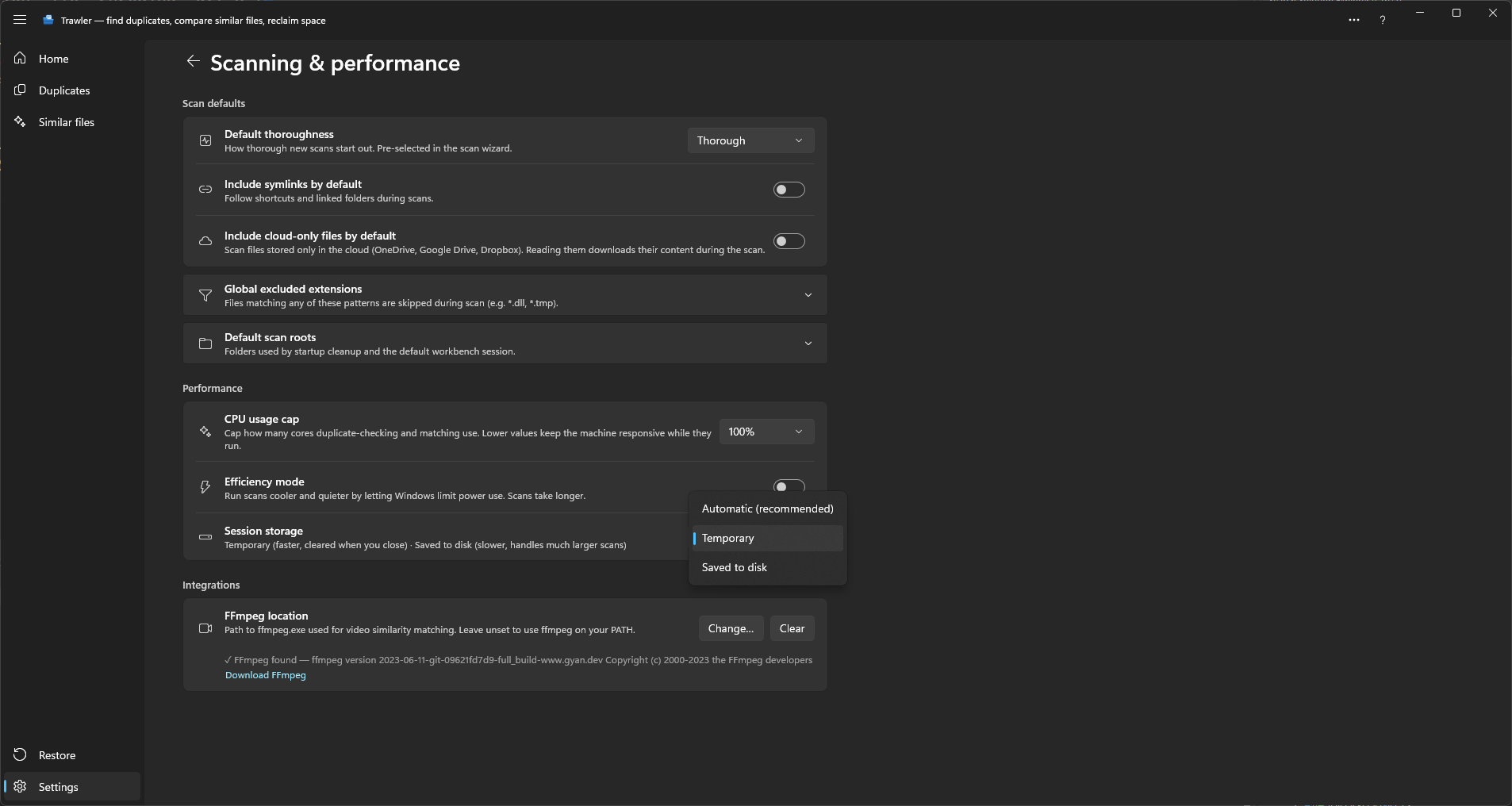
While Trawler works it has to keep the results somewhere, and there are only two places: in memory, or in a file on disk. Settings → Scanning & performance → Session storage decides:
| Setting | What it does |
|---|---|
| Automatic (recommended) | Trawler weighs the locations against your machine's free memory and picks. This is the default. |
| Temporary | Kept in memory. Faster, and cleared when you close. |
| Saved to disk | Kept in a file. Slower, but copes with far more results. Full version only. |
The settings page states the trade-off in one line: "Temporary (faster, cleared when you close) · Saved to disk (slower, handles much larger scans)."
Automatic picks Saved to disk when either of these is true:
- One of your locations is a whole drive (
D:\) or the top of a network share (\\server\share). That is true regardless of how much is actually on it. - The results look likely to be bigger than the memory allowance below.
Otherwise it stays in memory.
On the free version it always stays in memory. Saved to disk is a full-version option, and Automatic will not choose it for you on the free version either. So on the free version every target — a whole drive included — has to fit in the memory allowance below, and if it does not, the scan stops and says so rather than carrying on.
The memory allowance is half the memory free at the moment the scan starts, and never less than 256 MB. If a scan outgrows it, the scan stops with "The scan ran out of memory and stopped" — it does not take the machine down with it. If Trawler can't measure your free memory, it sets no limit at all rather than guessing one.
The free version cannot scan any network location. That is a limit of the free version itself, not a consequence of where the results are kept: it refuses the moment you tick one, rather than running for an hour and then failing.
A local drive is a different case. The free version will scan one whole, and says what that means when you tick it: the results are held in memory. A very large drive can produce more results than memory can hold, and the scan then stops before it finishes. Nothing is capped or guessed — the totals you get are the real ones. Picking a folder inside the drive keeps the run smaller, and the full version puts the results on disk instead.
Keeping the machine usable
Two settings on the same page, both aimed at long scans:
CPU usage cap — 25%, 50%, 75% or 100%. The default is 100%, which uses every core. A lower value uses that share of your cores (rounded, and never fewer than one) for comparing files — both duplicate checks and similar-file matching. The description is blunt about the point of it: "Lower values keep the machine responsive while they run."
Efficiency mode — off by default. Lets Windows throttle Trawler's power use so scans run cooler and quieter. It makes them slower, and says so.
Neither changes what a scan finds. They only change how long it takes and how much of the machine it borrows.
Network locations
Add one from the wizard with Add a network drive…, then enter the location in the form
\\server\share.
Network shares fail in ways local disks don't — a share that runs out of handles, a path that drops for a second, a file locked by another machine. Trawler handles that without telling you:
- A failed read is retried up to 5 times, waiting about 50 ms, then 100, 200 and 400 ms, each with a little randomness so parallel work doesn't retry in lockstep.
- Trawler tracks how many files it has open on each drive or share separately. When a share starts refusing, it halves how many it opens at once there, and only eases back after 256 reads in a row have succeeded. A healthy local disk in the same scan is unaffected.
- If a share keeps failing — 64 failures in a row at the lowest setting — Trawler stops retrying that location and lets the remaining failures through to Scan report.
None of this is shown on screen. The only symptom of a struggling share is that the scan is slow, and then that rows appear in Scan report → Scan errors reading "The file could not be read." If a network scan is crawling, that is where to look.
Two more things are true of network locations specifically. Every network location needs the full
version — a folder deep inside a share as much as the share root, and a mapped network drive
letter as much as a typed \\server\share — and scanning the top of a share always puts the
results on disk. And a share that disconnects mid-scan
produces errors rather than a wrong answer — the files it couldn't read are recorded as skipped,
not silently treated as unique.
What a scan never looks at
Some of a big drive is skipped whatever you ask for:
| Skipped | Why |
|---|---|
$RECYCLE.BIN and System Volume Information |
Windows' own, never yours. |
| Cloud-only files | Reading one downloads it. See troubleshooting. |
| Anything under your Protected paths | Excluded from the walk entirely. Your own list — remove an entry and the next scan looks there. |
| Anything matching Global excluded extensions | Your own list, under the same settings page. |
| Files whose name is over 255 characters | Longer than Windows itself allows. |
And four folder names start out listed and counted towards folder sizes but never compared for
duplicates: node_modules, .git, site-packages, .venv. They are full of files that are
meant to be identical copies, so matching them is noise — but they are a starting point you can
edit, under Folder names to skip, wherever they appear in the filter editor.
Trimming what you scan beats every setting on this page. A scan of the three folders your files actually live in finishes while you are still reading this.
Related
- When something goes wrong — the scan report and common errors
- Terms — Session storage, protected paths, and the rest
- Recovering an interrupted hardlink job — if a long run was cut short