 Trawler
Where should we look?
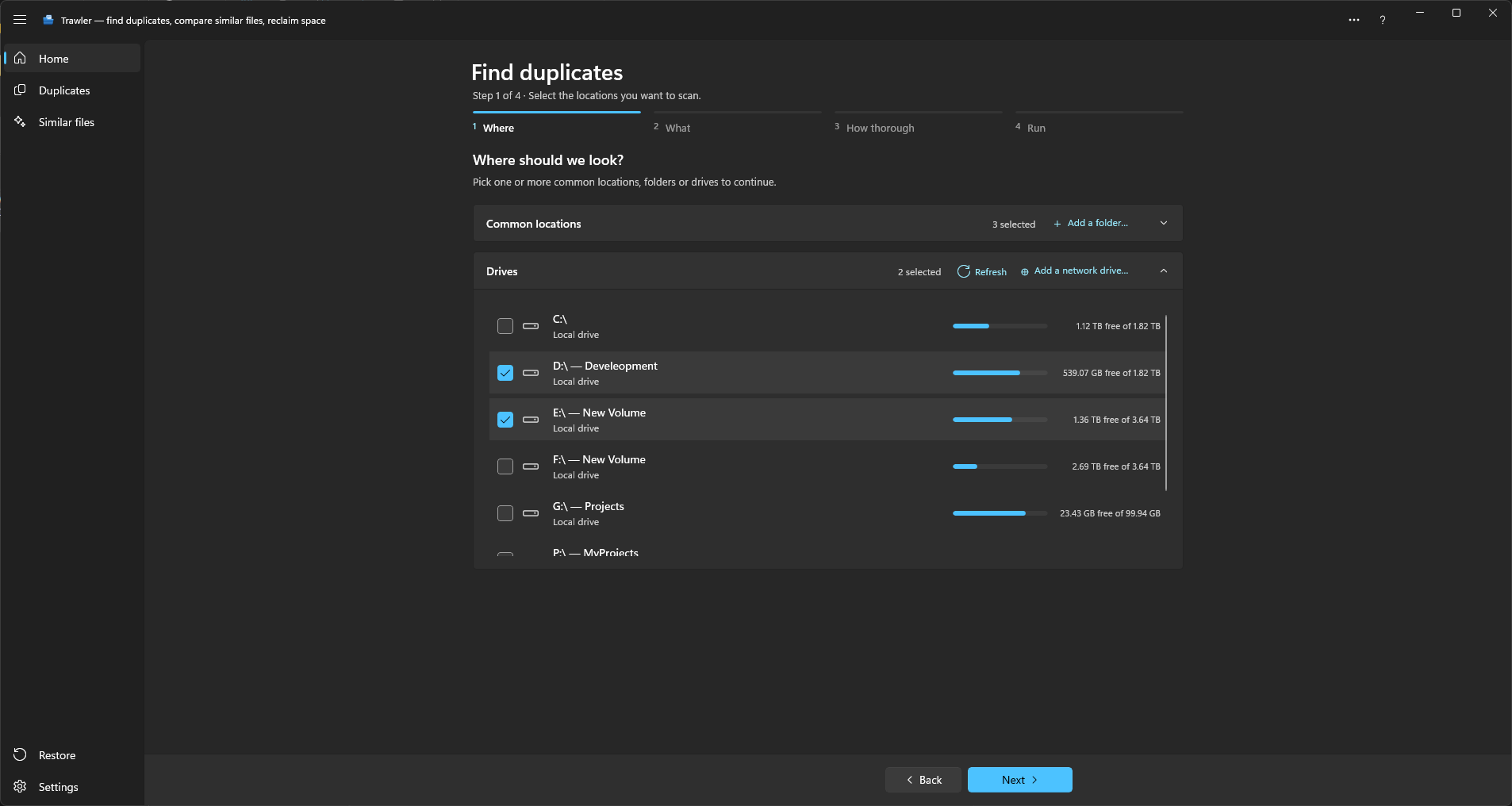
Step 1 of the scan wizard. You pick one or more places to search — "Pick one or more common locations, folders or drives to continue." — and Next stays disabled until you do. Nothing is ticked for you.
You can tick as many as you like, from both lists, in one scan.
The two lists
Common locations is open first. It holds the folders you almost certainly mean: Downloads, Documents, Pictures, Music, Videos and Desktop. Each row shows the path it actually resolves to, which matters when Documents or Pictures have been redirected into OneDrive — the row tells you where it is really pointing.
Drives is collapsed below it, and holds every fixed drive plus any mapped network drive that is currently connected. Each row shows how much is free out of the total, and whether it is a Local drive or a Network drive.
Only one section is open at a time. Opening one closes the other; the header of each keeps a running "N selected" count, so a collapsed section still tells you what is ticked inside it.
Adding something that isn't listed
Add a folder… sits in the Common locations header. It opens a folder picker, and the folder you choose is added to that list and ticked for you.
Refresh also sits in the Drives header. It looks again for drives that have appeared since you opened the wizard — a USB stick you plugged in a moment ago, or a mapped drive that has just come back. It says what it found: "N drives added", "No new drives found", or "Could not read the drive list". A refresh that is waiting on a network drive which is no longer there takes a few seconds before it gives up.
Add a network drive… sits in the Drives header. It asks for the path outright:
Add network share — "Enter the network location (e.g.
\\server\share):"
Three rules, and the dialog tells you which one you broke rather than closing on you:
- The path has to start with
\\. A drive letter is not accepted here — use Drives for a mapped network drive. - It has to be reachable right now. Trawler checks before it adds the row.
- Over 260 characters, it has to be written in the long form, prefixed with
\\?\.
Anything added this way stays in the list until you close Trawler, so a second scan of the same folder is one tick away.
Network locations need the full version
On the free version, ticking a mapped network drive or any network location unticks itself and prompts you to unlock:
Unlock the full version — "“Scanning a network location” is a Pro feature. Unlock the full version to use it."
Add a network drive… refuses at the click for the same reason, before it asks for a path.
A local drive is not gated. Both the fixed disks in the machine and anything plugged in — a USB stick, a card reader — can be scanned whole on any version.
Scanning a whole drive on the free version
You can, and the totals you get are the real ones. There is one thing to know first, and Trawler says it above the lists as soon as you tick a drive:
"The free version keeps scan results in memory. A very large drive can produce more results than memory can hold. The scan then stops before it finishes. The full version saves scan results to disk, so it handles much larger drives."
Nothing is capped or approximated because of it. What can happen on a very large drive is that the scan stops before it finishes and says so — see Why did the scan stop?. Picking a folder inside the drive avoids it, and so does the full version.
What is skipped no matter what you pick
Some things never come back in a scan, and it is worth knowing so their absence doesn't look like a bug:
| Skipped | Why |
|---|---|
$RECYCLE.BIN and System Volume Information |
Windows' own bookkeeping. Never scanned. |
| Anything under Protected paths | Set in Settings → Safety & protection. Not walked at all, so nothing there reaches your results. |
| Symlinks and linked folders | Off unless you turn on Include symlinks by default in Settings → Scanning & performance. |
| Cloud-only files | Off by default. Turning on Include cloud-only files by default means reading them, which downloads their content during the scan. |
| Patterns in Global excluded extensions | Also in Settings → Scanning & performance — e.g. *.dll, *.tmp. |
On first run, Trawler seeds Protected paths with four Windows system folders — C:\Windows,
both Program Files folders, and ProgramData. If you have since cleared that list, Add default
protected folders puts them back. Your AppData folders are not seeded: that is where a lot
of duplicated clutter collects, so it is searched like anywhere else.
Files that are listed but never compared
A separate, quieter rule. Some files are counted and sized so folder totals stay honest, but are never compared against anything, so they can't appear as duplicates:
- Folder names under Folder names to skip, wherever they appear —
node_modules,.git,site-packagesand.venvto begin with, matched at any depth on any drive. These are a starting point, not a fixed list: remove one and its contents are compared again, and Restore the usual folder names puts the defaults back without losing any you added. - Anything you add yourself under Exclude from matching, which accepts a folder or a pattern
like
*\dist\*. The filter editor is explicit about the difference: "Files here are still listed, but never compared for duplicates."
The difference between the two lists is what they match: a bare folder name wherever it turns up, versus a specific path or pattern.
Permission errors
Scanning a system location will produce entries you can't read. They don't stop the scan and don't affect the results; they are collected in Scan report, which says what to do:
"Permission-denied entries are usually system files that Windows itself protects. Run as administrator to scan more, or add a path to Settings → Protected paths to skip it on purpose."
Related
- What kind of files — the next step, and the per-filter Ignore paths list
- Your first scan, end to end
- Settings — protected paths, default scan locations, excluded extensions
- Troubleshooting — reading the scan report