 Trawler
Choosing what to remove
Nothing is removed until you run an action. Everything before that is ticking: a tick means Discard, no tick means keep. This page covers what Trawler ticks for you, how to change it, and how protected folders stop you removing something you shouldn't.
Trawler ticks first, you correct it
When a duplicate scan finishes it has already ticked the copies it believes you don't need, leaving one file in each group unticked — that is the copy it plans to keep. The status line reports the outcome — "Auto-marked N files · X reclaimable".
It decides like this, in order:
- A group you have already touched is left alone. If any copy in a group is ticked, Trawler does not overrule you.
- Groups whose copies are already hardlinks are skipped — they share one copy of the data, so removing one of them frees nothing.
- A file in a protected folder becomes the keeper, and every unprotected copy is ticked. A protected file is never ticked for you.
- The keeper is the least derivative-looking name. A name that another copy's name plus a dot
is a prefix of loses (
abc.txtbeatsabc.txt.old); a file type Windows can open beats one it can't; a name without a(2),- Copyorcopy 2suffix beats one with it. - Ties break on date. Where the contents were confirmed identical, the oldest copy is kept — it was the original. Where only the names matched, the newest is kept.
Then it looks at whole folders. Two folders that share at least two duplicates and overlap by 80% or more are treated as a copied pair, and the copies in the losing folder are ticked. The folder with the non-copy name wins; failing that, the shallower path, then the newer one.
If the scan looked inside archives, a copy inside a .zip or .7z is never ticked. Whether it
counts as the copy you keep is your choice for that scan: A copy inside an archive is enough
on the wizard's "How?" step. With it ticked, every unprotected loose copy is ticked and the
archive copy is the keeper. With it cleared, one loose copy is always kept. Auto-select follows
the same choice, unless you have ticked the archive itself.
See Index files, or find duplicates.
Groups where every copy is zero bytes are left alone unless that folder-pair test decided them — otherwise a scan would propose deleting thousands of empty placeholder files that reclaim nothing.
Changing the ticks
Click any file's tick and it sticks. A file-level click always wins, in both directions — you can untick one file inside a folder you ticked wholesale without unticking the folder first.
| Where | What it does |
|---|---|
| A file's tick, anywhere | Discards that one file |
| Files tab header tick | "Discard all files in this folder" — the files listed, never subfolders. Once anything is ticked it becomes "Clear all marks in this folder". |
| A folder's tick in the tree | "Discard all files in this folder" — this time including everything beneath it |
| Right-click a folder → Clear folder & subfolders | Clears every tick under it. Protection is left alone. |
| A group's own buttons | "Keep the first, discard the rest", "Discard all in this group", "Clear all" |
Part-ticked folders
A folder in the tree shows one of four states: unticked, part-ticked (some of what's inside is ticked, some isn't), fully ticked, or protected. Part-ticked is the normal state after a scan — Trawler ticked the surplus copies inside, not the folder.
Auto-select
The Auto-select dropdown under Explore → Selection re-picks the keeper across every group at once:
- Smart — the same reasoning the scan used, re-run against the folders you have since protected
- Keep newest by modified
- Keep oldest by modified
- Keep shortest path
- Clear all — removes every tick and picks nothing
Your choice is remembered, except Clear all, which is a one-off. The same rule is available per group, so you can re-pick one group without disturbing the rest.
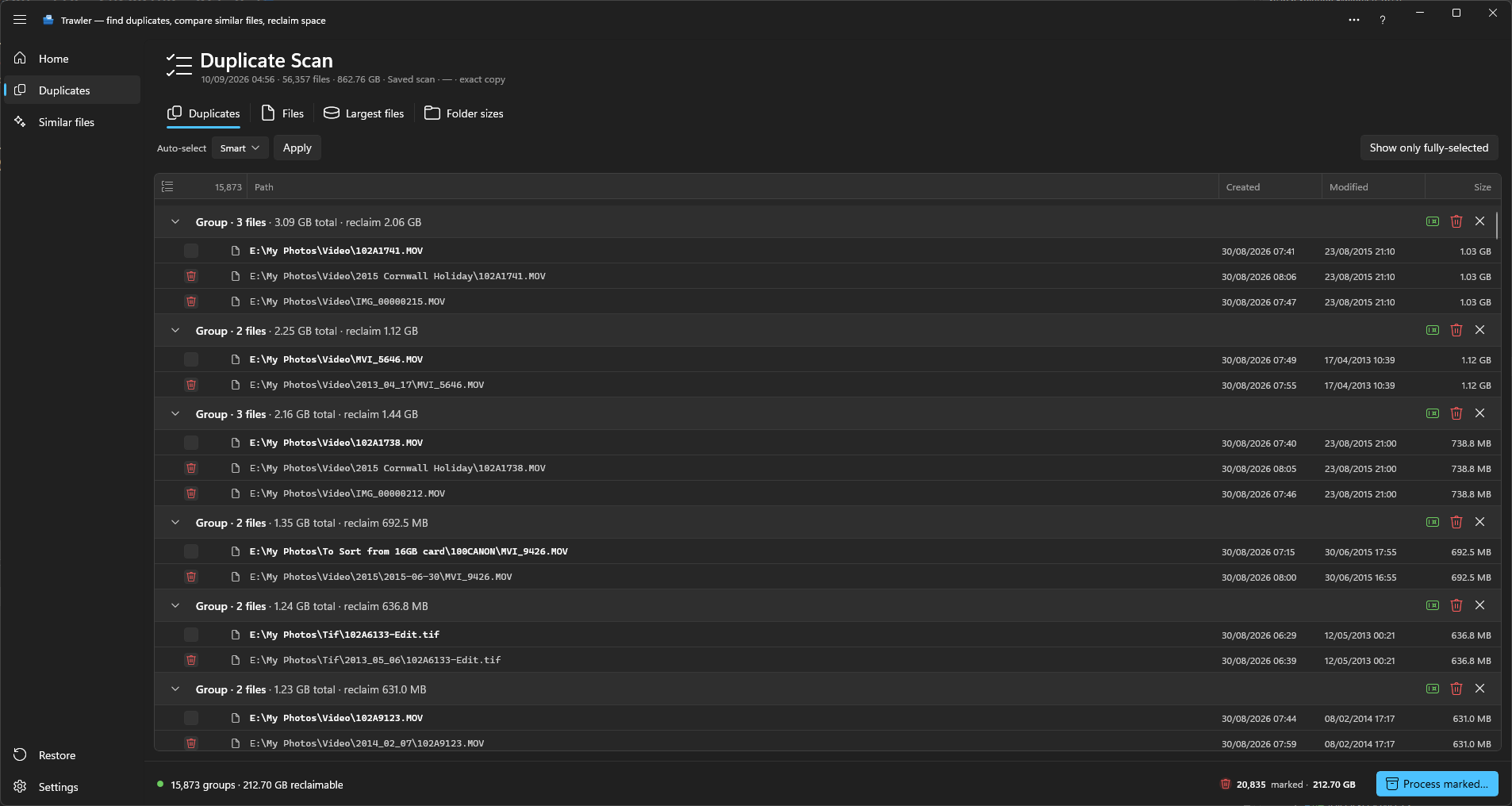
When a group loses every copy
Tick every copy in a group and Trawler warns you: "Every copy of N files is marked", with "Processing now would leave no copy of these files. Switch the group list to "Only fully-marked groups" to review, or unmark a copy to keep one." That view is on the button at the right of the group list, and it narrows the list to exactly those groups.
The warning counts files, not groups — one group about to lose its last copy is one file you would no longer have. It therefore counts a few things the list beside it does not show: where several names point at the same file on disk, marking all of them still loses that file, so it is counted here even though those groups are hidden from the list by default.
The warning counts loose files only. With A copy inside an archive is enough ticked, a group whose loose copies are all ticked is counted even though its archive copy remains. Check those groups before you continue.
The same warning follows you into the action screen, worded identically. It is a warning, not a block — Trawler will do it if you continue.
Protected folders and protected paths
There are two different protections, and they behave differently.
The shield on a folder in the tree ("Protect this folder from selection") tells the picker to keep files there. Files under it are never ticked automatically, and a copy inside it is chosen as the keeper ahead of copies elsewhere. Your own tick still overrides it — which is why the action screen warns "Includes N files you ticked inside protected folders — they will be removed too."
Protected paths in Settings → Safety & protection work the same way, from the other end:
"Trawler warns you before it touches anything under these paths, and leaves them out of scans."
The warning appears on the action screen, before you start, and it does not stop you — if you
ticked a file there, it goes. The match is by path prefix at a folder boundary, so C:\Keep covers
C:\Keep\photos but not C:\Keepsakes.
A warning about files you do not remember ticking is worth stopping for. It means something was ticked that you did not tick.
Add default protected folders seeds the list with four Windows system folders: the Windows folder, both Program Files folders, and ProgramData. It runs once; if you clear the list afterwards it is not re-seeded.
What you see when you hit one
The same thing for every action, on the screen where you choose it: "Some of the files you picked are in a protected location. They will be processed anyway."
That is a heads-up, not a refusal. Start stays available and the action does exactly what you asked. Trawler will not overrule you about your own files — if you ticked it, you meant it.
The reason to read the warning is the case where you did not mean it. Because a protected folder is left out of scans, files from one should not normally be in your selection at all, so a warning you were not expecting is worth stopping for.
Related
- Reading your results — where the tabs and the folder tree come from
- Processing — what happens once you have finished ticking
- What can be undone, and what cannot