 Trawler
Images
The Images tab groups images that look alike — the same shot re-saved, resized, watermarked, turned on its side or upside down, or kept as both a RAW and a JPEG. They are not identical files, so nothing is ticked for you and Replace with hardlink is not offered.
Cropping is the exception, and it is worth knowing before you start. Trawler compares the whole picture at once, so trimming even a narrow border shifts everything it looks at and the two pictures stop resembling each other. A cropped copy will usually not appear in a group, and no Similarity setting brings it back — lowering the slider finds unrelated pictures long before it finds the crop. Cropped copies are a job for your eyes.
Run a scan first. The match reads the scan results; it does not go looking through your drives.
What it reads
.bmp, .gif, .heic, .heif, .ico, .jpg, .jpeg, .png, .tif, .tiff, .webp — plus
camera RAW files when Prefer RAW applies, below.
Images are read by content, not by name, so an image saved with the wrong extension still matches.
iPhone images. HEIC and HEIF are matched using the HEIF support built into Windows, which most PCs already have. If yours does not, those images are left out of the match and Trawler says so once in the status line with a count — they are not listed one by one as errors. Installing HEIF Image Extensions from the Microsoft Store adds the support, and the next match picks them up.
A HEIC holding a burst or a live photo is matched on its main picture, the one Windows shows.
The image cards keep the picture clear, with the filename and actions below it. Tick the checkbox to Discard, or untick it to Keep. Full screen, Compare, Rotate and the protection shield share the action row. You can still explicitly discard a protected image. Compare and Rotate remain below the picture.
Images that were turned
An image turned on its side or upside down still matches the one it came from, and they land in the same group.
It makes no difference how the turn was made. Windows' own Rotate usually leaves the picture untouched and just attaches a note saying which way up it goes, while an editor that exports a turned copy writes the picture out the new way round. Both are found, and an image turned one way matches one turned the other.
This works in every matching style, on every image, with nothing to switch on.
The two matching styles
The first dropdown under Similar → Matching settings decides how two images are compared.
| Choice | On screen | Use it for |
|---|---|---|
| General | "Copies that were resized, re-saved or edited" | The default, and the one to leave it on. It finds the same image again after it has been scaled, saved at a lower quality, or lightly edited. |
| Outlines | "Matches shapes and edges — fussier about composition" | A second opinion. It compares shapes and edges rather than tones, so it is stricter about how the picture is framed. |
Switching the dropdown empties the list. Each style is worked out separately, so the first time you pick a new one there is nothing to show and you have to run Find similar images again. Once a style has been run, switching back to it is instant.
Similarity
The Similarity dropdown contains a slider from 70% to 100% and starts at 96%. Hover it to read the current setting; while you drag, the figure follows the handle.
Lower it and you get more groups, including ones you will disagree with. Raise it and you get fewer, tighter groups. 100% means the images looked the same to the comparison — it does not mean the files are identical, which is what the Duplicates tab is for. It also means far fewer matches: the top of the slider hides a great many pairs most people would call the same image, which is why the starting point sits a little below it.
The matching style and the slider are not remembered between sessions. Every time you open Trawler the Images tab starts at General, 96% — the setting that puts the most trustworthy groups in front of you first. Prefer RAW and the compare-pane layout are remembered.
Moving the slider re-groups the images already read, so it normally takes effect straight away. If the new setting needs images that were not read the first time, Trawler keeps the current results and shows "Settings changed since the last image match." with Re-run and Revert instead.
Prefer RAW
Prefer RAW is on by default:
"Rank sharp RAW files ahead of JPEG/PNG in each group, so the best-quality RAW is the one kept."
With it on, a RAW file leads its group and is the one presented as the keeper. Turn it off and members order by how well they matched, then by sharpness, with no format preference.
It is a display and ranking setting. It never marks or removes anything.
RAW files are compared using the preview image the camera embedded in them, not the full sensor data. A RAW file with no embedded preview is skipped and recorded in Scan report → Scan errors.
These extensions are treated as RAW:
3fr ari arw bay cap cr2 cr3 crw dcr dcs dng drf eip erf fff gpr
iiq k25 kdc mdc mef mos mrw nef nrw obm orf pef ptx pxn r3d raf
raw rw2 rwl rwz sr2 srf srw x3f
If RAW support cannot start on your machine, RAW files are left out of the match entirely. Trawler notes it once in the status line rather than reporting every RAW file as an error.
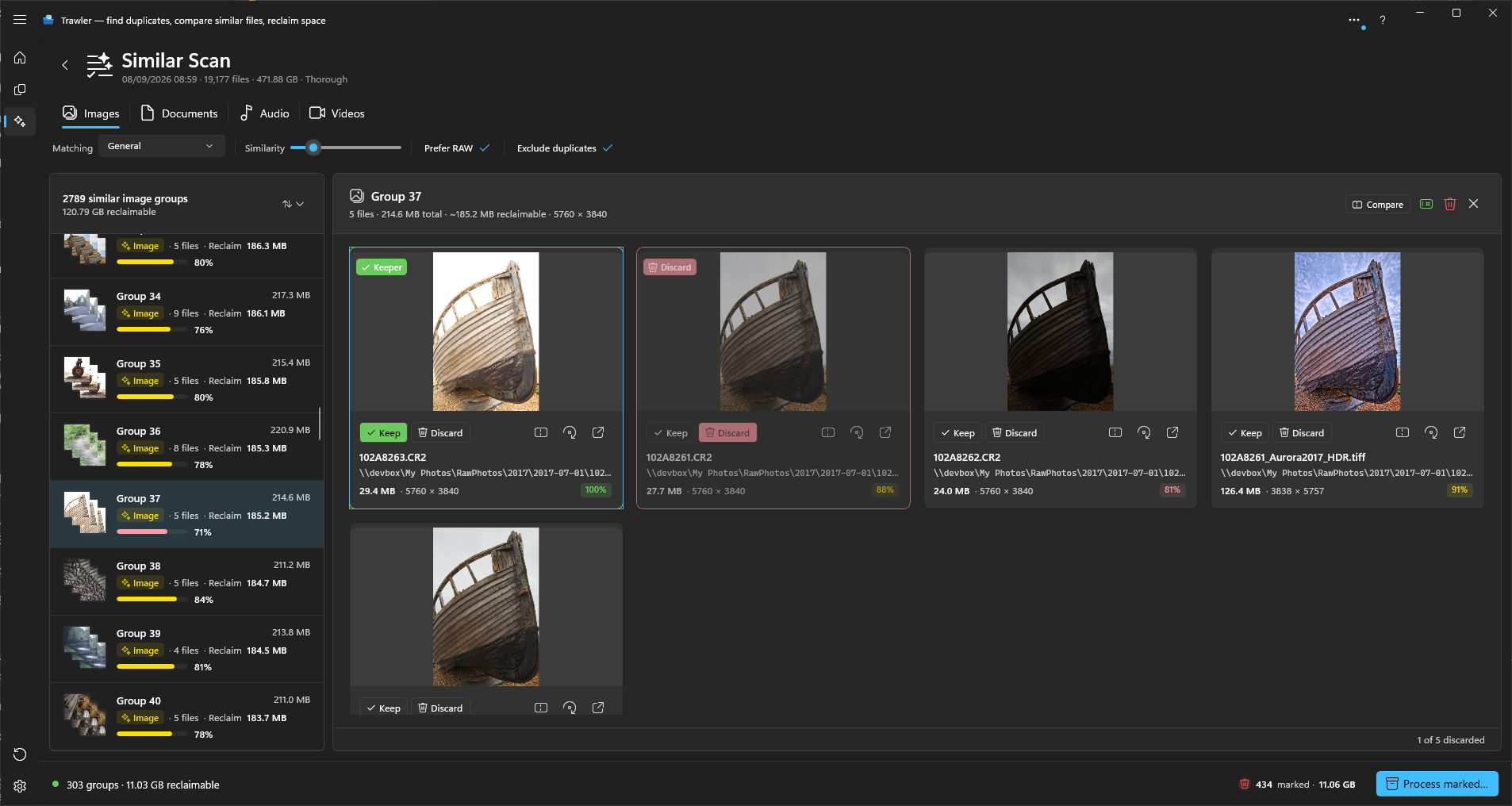
How RAW files look on screen
Thumbnails show the preview the camera embedded in each RAW file. Full screen, the compare pane and Review show that same preview, with one exception.
Some cameras, phones especially, store only a small preview in a dng file. When a dng file's
preview is less than 4096 pixels on its long side, or it has none, those three views build the
picture from the full sensor data instead. That takes a few seconds per picture. The result is shown
up to 4096 pixels on its long side, using the white balance the camera recorded, so its colours can
differ slightly from the camera's own preview.
Every other RAW file, and any dng file with a large preview, shows its embedded preview. Matching
always uses the embedded preview, so this changes what you see, not which images are grouped.
Images that never appear
- Blank or near-blank images — a solid colour or an almost-featureless frame is skipped, because every one of them would match every other one.
- Very large images — anything wider or taller than 65,535 pixels is refused, as is any image that would need more than half your PC's memory to open. Both guard against a file claiming a size no real picture has.
- Images that failed to open — recorded once in Scan report → Scan errors and not retried until the file changes.
- Files you have already ticked on the Duplicates tab, while Exclude duplicates is on.
Sorting the groups
Three pills next to Sort: Reclaim (biggest space saving first), Best match first (tightest matches first), and Count (largest groups first).
Tile size
Tile size, at the bottom right, makes the cards Icons only, Small, Medium or Large.
Ctrl+Plus and Ctrl+Minus step between them. The size is remembered, and every other tile
screen uses the same one. See Lists and tiles.
Comparing two images
Pick a group and two of its images sit in the compare pane: A on the left, B on the right. A stays put — it is the one you are measuring against — and moving through the group changes B.
Four buttons above the pictures decide how the pair is shown:
| Button | What you see |
|---|---|
| Side by side | The two pictures in their own panes. |
| Wipe | One picture area, split by a divider you drag across. A on the left of it, B on the right. |
| Blend | One picture area with B faded over A. A slider above the picture sets how much of each you see. |
| Flip | One picture area, switching between A and B every 0.6 seconds. |
Wipe, Blend and Flip are for differences too small to spot with your eyes travelling between two panes — a retouch, a watermark added later, a re-save that softened one corner. Flip is the one that finds a change you cannot describe: anything that moves is a difference.
Ctrl+← and Ctrl+→ move the wipe or the blend without touching the mouse. ← and → still move
to the next image in the group.
Your choice is remembered between sessions, and the compare pane and full screen share it — set Blend in one and it is already Blend in the other.
Narrow the window and the controls that no longer fit collapse into a More controls button, from the middle of the bar outwards. Keep and Discard never leave.
The Details panel
The Details panel sits beside the pictures. Show or hide it with Explore → Details in the ribbon; it starts open. It lists two columns, A and B, for the images in the previewer, with rows such as Resolution, Megapixels, File size, File type, Date taken, Camera and Location, and many more where the picture carries them. Rows where the images differ are in bold. A property an image doesn't carry shows a dash.
Lining up a pair that does not match
Sync is on to begin with, and both pictures zoom and pan together.
Turn Sync off and dragging moves B alone, so you can line it up against A — the right control when the two do not sit squarely on top of each other. The view stops panning while it is off: you are moving one picture against the other, not moving both around the screen. Holding Shift while you drag does the same thing without turning Sync off.
Where you put B stays put. It survives switching between Wipe, Blend and Flip, and it survives moving to the next image in the group — a run of shots from one camera position needs lining up once, not once per picture. It is not kept between sessions.
Changing mode fits both pictures to the pane again and re-centres the wipe or blend.
Lining up and finding differences automatically
Two buttons sit just before the mode buttons. Line up B on A does the lining up for you, and Show differences rings the places where the two pictures differ. Both stay on as you move through the group, so every new pair is lined up — and ringed — without another click. They are remembered the next time you open Trawler too; the lining up itself is worked out again for each pair.
Line up B on A works out how far B is shifted and scaled against A, moves B to match, and turns Sync on. It handles a cropped copy, a resized copy and a re-framed copy. It does not handle a rotated picture, a change of perspective, or two different shots of the same scene. It says nothing when it works. When it cannot line a pair up, it says so in the status bar at the bottom of the window and leaves the pair as it was:
| Message | What it means |
|---|---|
| "These two images don't line up closely enough to compare" | The pictures are too different, or not the same scene. |
| "These images have too little detail to line up" | One picture is nearly blank — very dark, or one flat colour. |
| "Couldn't read one of these images to compare them" | One of the files could not be opened. |
Show differences lines the pair up first, then draws a ring around each place the pictures differ, and a message says how many it found. A change in brightness or colour across the whole picture is not counted, because a re-saved or re-exported copy often has one. More than 10 differences draws no rings: the message says "Too many differences to point out" with the count, because at that point the two are different pictures rather than one picture with edits.
Turning Show differences on turns Line up B on A on with it. Turning Line up B on A off turns the rings off too, since rings on a pair that no longer lines up would point at the wrong places.
The histogram
Histogram, beside Show differences in the ribbon, puts a histogram in the outer bottom corner of each pane: A's at the bottom left, B's at the bottom right. In Wipe, Blend and Flip they stay in those two corners of the one picture area. Use it to see which of two copies has lost detail in the shadows or the highlights, or was re-saved with different colours.
It reads the way it does in a photo editor:
- Left is black, right is white. Faint lines mark the quarter, half and three-quarter points.
- Red, green and blue are drawn over each other. Where all three overlap you see grey; where two overlap you see yellow, cyan or magenta.
- The triangle at the top left lights up when part of the picture is pure black, and the one at the top right when part of it is pure white. Each is lit in the colour of the channels affected, and white when all three are. A dim triangle means nothing is lost at that end.
Each colour is counted in 256 levels, the scale photo editors use. A fully see-through part of a picture
is not counted. For a camera RAW file, the histogram measures the preview the camera embedded in it.
That is the picture you see, except for a dng file Trawler builds from its sensor data — see
How RAW files look on screen. A file that cannot be read shows no
histogram.
Histogram is off to begin with. It is one switch for the compare pane, full screen, and Review and its full screen, and Trawler remembers your choice.
Full screen
The full-screen toolbar runs along the bottom edge in a row of its own, so it never covers the picture. It is pinned to start with; the same Pin toolbar setting applies to every full-screen window. See Reviewing files for its buttons.
Open A full screen and Open B full screen give one picture the whole window. The same four buttons are there, with Single in place of Side by side, and they work the same way. In Wipe, Blend or Flip the counter and the Previous/Next buttons move B, leaving A as the one you are comparing against.
Line up B on A and Show differences are there too, and share their state with the compare pane — a pair lined up in one is lined up in the other. Full screen has no status bar, so their messages appear at the top of the screen instead. Both are greyed out in Single, which shows one picture and has nothing to line it up with.
Histogram is on the full-screen toolbar too, and turning it on or off there does the same in the compare pane. Full screen shows one histogram, for the picture you are on. In Wipe, Blend or Flip, that picture is B.
Right-click the picture, in the compare pane or full screen, for Explore here, Copy path and Open (external). From full screen, Explore here and Open (external) close full screen first.
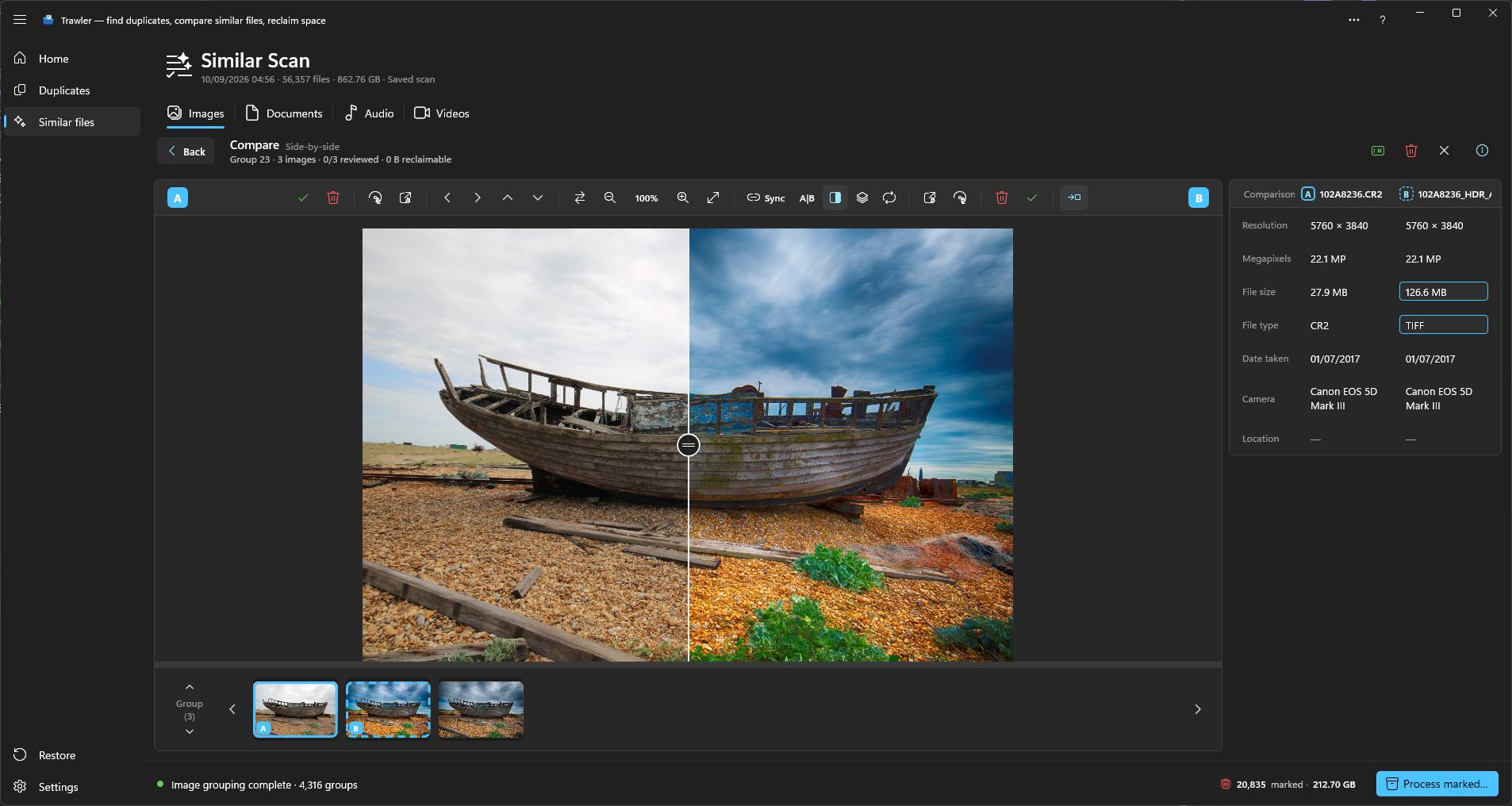
Ribbon controls
Choose Matching settings to change the matching options or toggle Exclude duplicates. Open Similarity for the sliders. These settings are hidden while you review or compare files.
In a comparison, the Similar ribbon shows the controls for that type of file. Navigation moves between members or groups. Back returns to the group view; Details opens the information panel. Keep, discard and the tools for individual files remain beside the files.
Related
- What "similar" means — how Similar differs from Duplicates
- Reviewing similar results — Keep and Discard, and working through a list
- The Details panel — every property, and what each message under a file means
- Audio — the same idea for music, with two methods to choose between
- Processing — what happens to the images you tick