 Trawler
Trawler user manual
Trawler finds files you don't need — exact copies, near-copies, and whatever is quietly eating your drive — and helps you get rid of them safely.
New here? Read Your first scan. Something not working? Try the FAQ or When something goes wrong.
The sixty-second version
- Scan. Pick where to look, what kind of files, and whether to Index files or also Find duplicates. Trawler walks the folders, and compares what it finds if you asked it to.
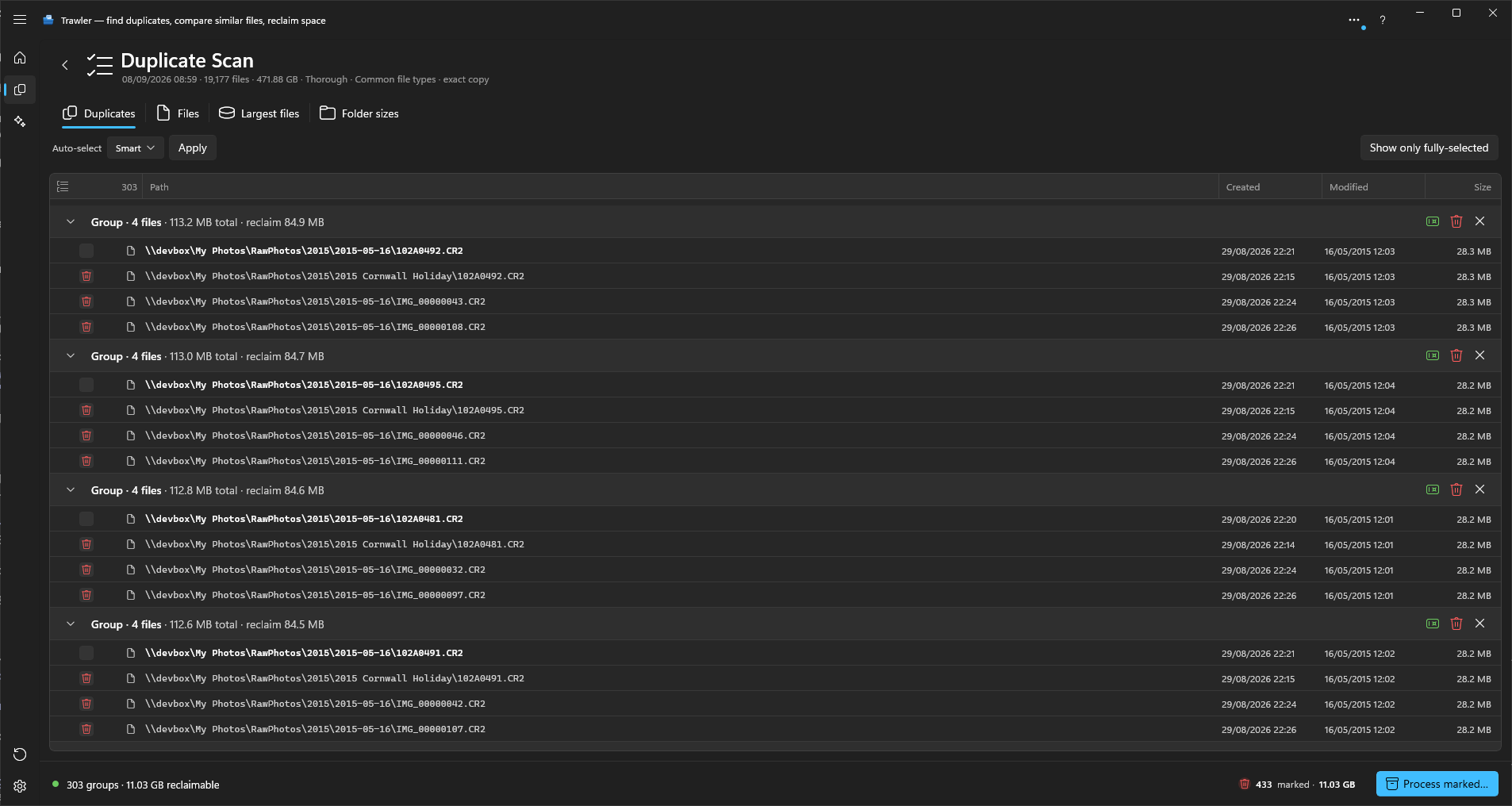
- Review. Results arrive in tabs: your Files, your largest files, exact Duplicates and folder sizes, so you can see where the space went. Similar files is separate — images, music, videos and documents that resemble each other without being identical.
- Tick what you don't want. Nothing is ever removed because Trawler thinks it should be.
- Process. Choose what happens: archive, recycle, delete, move to another drive, or merge duplicate copies into one. Most of these can be undone.
After cleanup, use Organize to put the remaining scanned files in their intended places. See Organizing your files.
The default processing action is Archive to ZIP, because it frees the space and leaves you a way back.
Choose Scan, Explore, Similar, Organize, Compare, Restore, Settings or Help in the title bar to reveal its ribbon. See Using the ribbon for pinning it and changing its layout.
Start here
| If you want to… | Read |
|---|---|
| Run your first scan | Your first scan |
| Understand the results | Reading results |
| Go through a folder file by file | Reviewing files one at a time |
| Free up space on a full drive | Processing |
| Find duplicate images | Similar images |
| Find duplicate music | Similar audio |
| Put the remaining files in their intended folders | Organizing your files |
| Undo something | What can be undone |
| Know what the free version limits | Free and full versions |
Everything else
Setting up a scan — Your first scan · Where to look · What kind of files · Index files, or find duplicates · While it's running
Similar files — Overview · Images · Audio · Video · Documents · Reviewing results · Details panel
Results and processing — Reading results · Filtering your results · Reviewing files one at a time · Choosing what to remove · Processing · Sessions · Organizing your files · Comparing two files or two folders
Undoing — What can be undone · From an archive · Files that were moved · An interrupted hardlink job
Reference — Settings · Free and full versions · Big scans · When something goes wrong · Glossary
Three things worth knowing before you start
Nothing is removed without you. Trawler never deletes, moves or archives anything on its own. You choose what goes and confirm the action. Organize has its own assignment queue and confirmation.
Similar files are advice, not verdicts. Two images that look alike are not the same image. Trawler will never pre-tick them for you. See Reviewing similar results.
Protected paths keep folders out of scans. Nothing on that list is looked at, so nothing there can be ticked by accident. Windows and Program Files are protected out of the box, and the list is yours to change. See Settings.