 Trawler
Reading your results
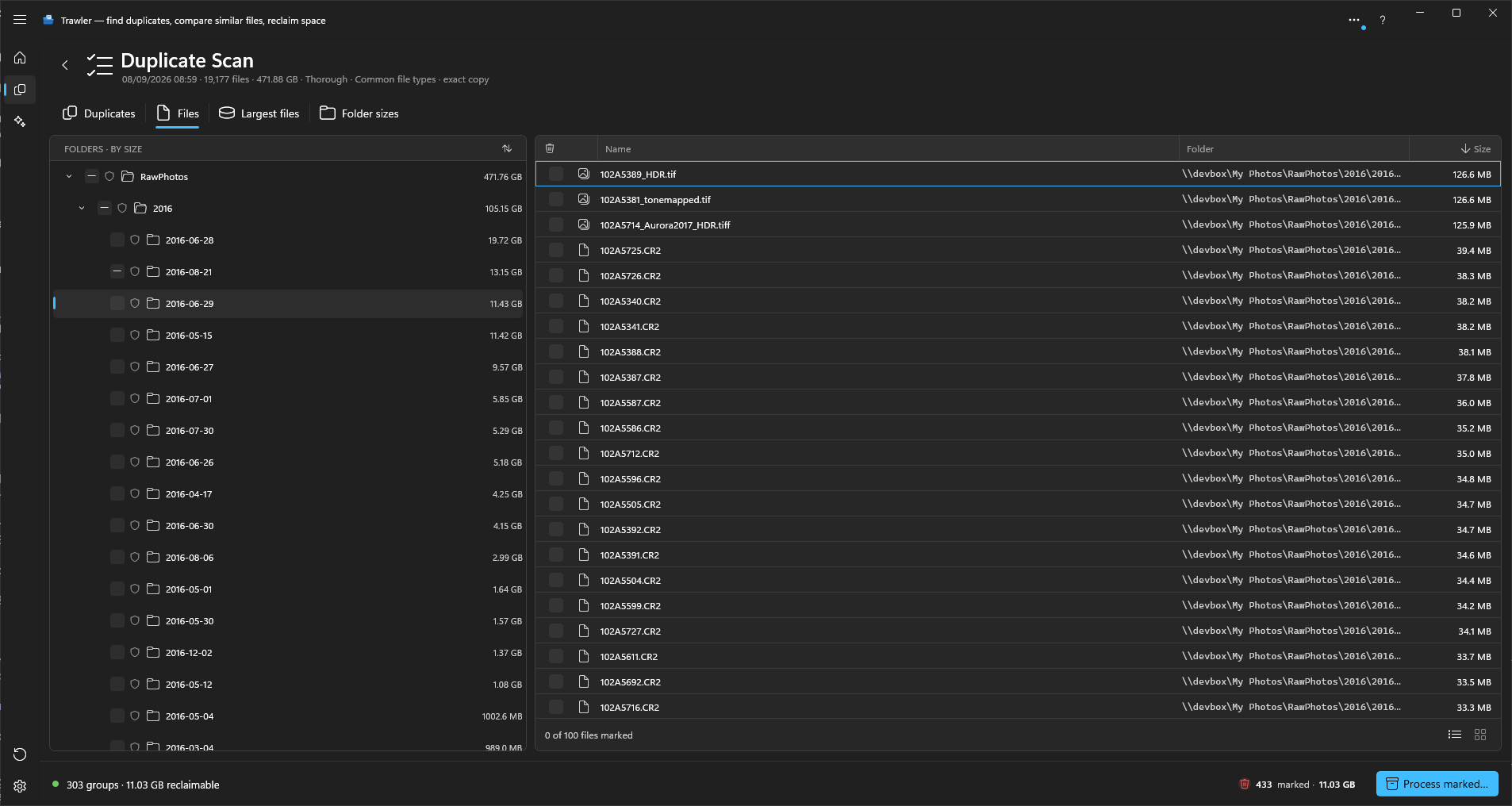
A finished scan leaves you on one screen: four tabs of results, a summary of the scan you just ran along the bottom, and a folder tree down the left beside three of those tabs. You choose a tab from Explore in the title bar — Files, Largest files, Duplicates or Folder sizes — or press 1 to 4. Ctrl+Tab steps to the next one. The centre of the title bar says which view is showing.
You land on Files, which always has something to show — a scan run as Index files has no duplicate results at all. Duplicates takes the full width and has no tree, because groups already say which folders they span. This page says what each part shows and which one to look at.
Using the ribbon
The title bar offers Scan, Explore, Similar, Organize, Restore, Settings and Help. Select one to reveal its commands below the title bar. This does not leave the page you are using; choose a command to change views or take an action.
| Select | What you find |
|---|---|
| Scan | New guided scan…, Open session…, Save, Refresh, export, scan steps and Results |
| Explore | Files, Largest files, Duplicates, Folder sizes, Auto-select, Review, Filter results and Details |
| Similar | Images, Documents, Audio, Videos and the current view's Matching settings |
| Restore | Open archive… and Open folder… |
| Settings | Settings pages, Ribbon layout and Appearance |
| Help | Keyboard shortcuts, Help and learning, Privacy policy and About Trawler |
Opening Similar while you are using Explore shows only the four Similar view choices. Choose one to open it and reveal its tools. If you return to the Explore ribbon without choosing a Similar view, your current results, selection and tools are still there. The same applies in the other direction.
The Selected file group offers Review, Full screen and, in Similar views, Compare when your selection supports them. Each viewer has its own Back button at the top of its panel. Details is available in both ribbons. Filter results opens the filter directly in either ribbon layout.
Process marked is the last group in Scan and in the ribbon for your current Explore or Similar view. Each opens the same processing screen. Save becomes available once you have scan results. The guided scan steps become available as you reach them. The Results group appears once results are available; it contains the scan summary and its result destinations.
Scan → Refresh, after Save, reruns the current session’s folders and filters against disk, then repeats duplicate finding and the enabled Similar checks. It is unavailable before a scan or while another action is running.
The ribbon starts pinned. Unpin ribbon, at its right edge, hides it and gives that space to your results. Select a title-bar item to reveal it over the results. An ordinary command, a click outside, Esc, or switching to another window hides it again. Pin ribbon keeps it open.
Choose Settings → Simplified ribbon for a shorter ribbon with less-used commands in its overflow. Settings → Classic ribbon restores the larger layout. Your current filter query stays with the results when you change layouts.
Coloured details in command icons follow your Windows accent colour. The rest of each icon follows your light or dark theme. Unavailable commands appear muted. Status icons keep their existing colours.
Image and video thumbnails keep their filename below the picture. Discard, Full screen and the protection shield sit below it, leaving the picture clear. The Discard checkbox carries its own label, and a ticked tile is dimmed. On Files, Full screen opens any file the viewer can show, documents and text included, not only pictures and videos.
Settings → Light uses a cool-grey ribbon and page background, with paler result panels.
The status bar
One status bar runs along the bottom of every screen. It has five areas, always in this order, left to right. An area with nothing to say stays empty and keeps its place, so nothing shifts when you move between screens.
| Area | What it shows |
|---|---|
| Where | On the results screens, the scan summary: Files Scan or Similar Scan, then the scan date, how many files it covered and how much they add up to, what the scan did, which filter it used, and how the matches were made — exact copy or sampled match. Other screens show their own place, such as the folder you are looking at. |
| Activity | The job that is running: its percentage, "Started" and the time, the time left, and "Total" with the time so far. When the job ends, this shows how it ended — "Completed", "Cancelled", "Stopped" or "Failed" — and "Total" becomes "Took". The ⋯ button lists the jobs that are running. |
| View | A count for the list in front of you, such as "12 items". Empty when the list is empty. |
| Collected | What you have marked: "N marked · size". Use Process marked in the ribbon to act on them. |
| Problems | How many problems the scan reported, such as "3 problems", or a failure Trawler just reported. Select it to open the Scan log. Empty when there is nothing to report, and then it does nothing when you select it. |
If the window is too narrow, Where is the area that gives way. Hover over any area to read it in full. Nothing in the status bar cancels a job: each job is cancelled from its own screen, or from its row in the ⋯ list. A screen that already shows its own job's progress — the scan wizard, Process, Restore and Organize — leaves that job out of the ⋯ list.
The date in Where is when that scan finished, not when you opened it, so a session you saved last week still says last week.
Sampled match means Trawler compared parts of each file rather than every byte. It is fast and nearly always right, but it is not a guarantee. Verify exact copies on the Duplicates tab re-checks the remaining groups against the full contents; your ticks are kept.
Exporting is in the Scan ribbon. Export CSV is available there while the Duplicates tab is showing and contains results, and writes the duplicate groups to a file you choose. It needs the full version. You can't start one while a scan or an action is running; once it is going, the same command cancels it. Export stays disabled for empty grids and views that do not support it.
To scan something else, choose Scan → New guided scan….
The folder tree
Folders, largest first. The button above the list toggles between size order and A–Z.
Where a folder has exactly one subfolder that accounts for all of its bytes, Trawler starts the
tree at the subfolder rather than the drive letter — so a scan of D:\Photos\2024 opens at
2024, not at D:.
A folder with a lot of subfolders opens with the first 100. A Load more row at the bottom says how many are left; click it, or press Enter on it, for the next 100.
Selecting a folder scopes three of the four tabs to it. Each folder row also carries two controls: a tick ("Discard all files in this folder") and a shield ("Protect this folder from selection"). Right-click adds Exclude this folder from future scans, Stop excluding this folder and Clear folder & subfolders. Ticks and protection are covered in Choosing what to remove.
Looking inside a .zip or .7z
Every .zip and .7z file shows in the folder tree as well, below its folder's subfolders, with an
arrow that opens the folders inside it. So does every Solid archive Trawler made — the .tar.zst it
writes when you archive with "Smallest file, one format". A .tar.zst from another program, or from
a version of Trawler before this one, shows as an ordinary file. Select the archive, or a folder inside it, and
the tab you are on shows what it holds in place of its usual list. The Files tab lists its files:
| Column | Shows |
|---|---|
| Name | The file's name. A padlock means it is password-protected ("Password-protected — can't be opened here"). |
| Folder | Where the file sits inside the archive. |
| Size | The file's size once unpacked. |
| Modified | The date stored in the archive. |
| Also on disk | How many copies of the file the scan found outside archives. Blank unless the scan looked inside archives. |
The line at the bottom gives the number of files and their total size. The X at the top ("Back to the folder's files") returns to the folder's own files, and so does selecting any folder in the tree.
Largest files shows the same list, biggest first. Folder sizes lists the folders inside it instead, biggest first, with Share of space, Count and Total; when there are no folders at that level it says "There are no folders here, only files." Inside an archive every size is the unpacked size. Outside it, in the folder's own totals and on the Largest files list, the archive counts once, at its size on disk.
Nothing inside an archive can be ticked, and Trawler never changes an archive. The tick on the archive's own row ("Discard this whole archive") marks the whole file, like any other file. Folders inside an archive have no tick.
A Solid archive opens without being unpacked, because Trawler reads the record it keeps of its files. Viewing a file near the end of a large one takes longer than one near the start, because Trawler unpacks everything before it to reach it.
Double-click a file to view it full screen. Trawler unpacks a temporary copy to show you; it is deleted when you close the viewer, and anything left behind is deleted when Trawler next closes or starts. Keep and Discard are greyed out there, because the copy is not one of your files.
Opening an archive in Review shows the same list. In Review's full screen, a double-click does not open a file.
When an archive can't be listed, the reason shows in place of the list:
| Message | What it means |
|---|---|
| "This archive can't be read. It may be damaged or incomplete." | The file is damaged, was cut short while copying, or isn't really a .zip, .7z or .tar.zst. |
| "This archive is password-protected, so its contents can't be listed." | The archive hides even its file names behind a password. |
When a double-clicked file can't be opened, the line at the bottom says so instead:
| Message | What it means |
|---|---|
| "… is password-protected and can't be opened." | The file has a padlock. Trawler doesn't ask for passwords. |
| "The archive has changed, so … can't be opened. Pick the archive again to refresh the list." | The archive was changed after the list was read. Select it again in the tree. |
| "… couldn't be opened from the archive." | That one file is damaged inside the archive. |
The four tabs
| Tab | Shows | Scope |
|---|---|---|
| Files | Every file in the selected folder — Name, Folder, Size | That folder only. Subfolders are not included. |
| Largest files | The biggest files, in size order | The selected folder and everything under it |
| Duplicates | Groups of files with identical contents | The whole scan |
| Folder sizes | Path, Share of space, Selected, Count, Total per subfolder — or a 3D map (see below) | Children of the selected folder |
That Files-vs-Largest-files difference is the one worth remembering: Files answers "what is in this folder", Largest files answers "what is eating this folder's space, wherever it sits".
Files sorts by Name or Size — click a column header, click again to reverse it. Largest files has a fixed order (size, then name, then folder) and is not sortable. On Folder sizes, click Path, Selected, Count or Total to sort; click again to reverse the order.
Lists and tiles
Files, Largest files, Duplicates, Folder sizes, the Audio and Documents tabs,
Organize, Images and Videos can show their files as a list or as a grid of tiles. In the Images and Videos lists the column headers do not sort yet; the matches stay in the order Trawler found them.
List view and Tile view are at the bottom right. Tile view shows the grid at the size
you last chose; the arrow beside it offers Icons only, Small tiles, Medium tiles and Large tiles,
and picking one also switches to the grid. Ctrl+Plus and Ctrl+Minus make the tiles bigger or
smaller while the grid is showing. The size is remembered after you close Trawler, and it is one
size for every screen. Each screen remembers its own choice of list or tiles. Largest files, Duplicates, Audio, Documents, Images and Videos open on Tile view the first
time; Files, Folder sizes and Organize open on their list. Settings → Reset to
defaults puts every screen back to those choices, including tabs that are already open.
A tile has three parts. The tick box, its label and the screen's buttons all sit on one line at the bottom. The picture is on top, the file's name and one line of details are under it, and the options are at the bottom: the tick box with its label, then the screen's own buttons. The tick box is labelled Discard on the duplicate and similar screens and Selected in Organize. Clicking the word ticks the box, exactly as clicking the box does. A ticked tile is dimmed. Every tile has a card colour that stands out from the page, and the same thin border, in Light and in Dark, with a little space inside it so the picture never touches it. On Images and Videos the border turns green for a file you keep and red for one you discard; un-ticking a discard clears it back to the plain border.
Icons only is the smallest size. (It is a little wider than before so the tick, the shield, Compare and Full screen fit on one line.) Each tile is a small card with the file's own Windows icon,
its name and the tick box, and no picture or video frame is loaded at all, which makes it the
quickest way to scan a long list of files. The details line, the word beside the tick box and a screen's other buttons (Rotate, Play) are hidden at this size; the tick box, the protection shield, Compare and Full screen stay as small icon buttons. Choose a larger size to see the rest. Ctrl+Minus reaches it from Small.
| Screen | The picture is |
|---|---|
| Images, Videos | The image, or a frame from the video |
| Files | The picture for photos and videos, the file's icon for other files, a music note for audio with no cover |
| Documents | The file's icon. Trawler does not draw a first page |
| Audio | The album art when the file has it, otherwise a music note |
| Largest files, Duplicates | A picture, album art or the file's icon, whichever suits the file |
| Organize | The same, with a folder tile for each folder |
Pictures are shown whole: never cropped and never enlarged past their own size. A video that Windows cannot play shows a grey "no preview" mark, not an error. A thin bar runs along the top while a screen loads its pictures; screens that show only icons never show it. Tiles are the size you chose and do not stretch to fill the row, so the last row can end short of the right edge. Folder sizes is the exception: its tiles are the 3D map below, and the size choice does not apply to it.
Folder sizes as a 3D map
Folder sizes can show its folders as a 3D map of blocks instead of a table. Each block is a child folder of the folder you are looking at, and the files sitting directly in it appear together as one block called Files in this folder. A block's footprint is its share of the size, and its height is its size, so the biggest folders are both the widest and the tallest. The two buttons at the bottom right switch between List view and Tile view. Trawler remembers which one you chose, including after you close it. Each block carries an icon for what it mostly holds.
Above the map, a bar shows where you are: All scanned folders (when more than one folder was scanned), then each folder down to the one on screen. Click any part of the path to go straight there. Up one folder sits beside it.
Each block's name, icon and size sit on a small rounded panel, dark in the dark theme and light in the light theme, so the text reads on any block colour.
The camera controls are in two places. While Folder sizes is in Tile view, the toolbar's Explore tab shows a View group:
| Control | What it does |
|---|---|
| Top down | Looks straight down at the map |
| 3D angle | Returns to the default angled view |
The group appears only on Folder sizes in Tile view. The rest are in the footer, to the left of the List view and Tile view buttons, and also appear only in Tile view:
| Control | What it does |
|---|---|
| Pan left, Pan right, Pan up, Pan down (arrows) | Slide the map one step |
| Zoom out, Zoom in and the Zoom slider | Shrink or magnify the map; the figure beside the slider is the zoom |
| Fit | Resets zoom and panning so the whole map fits, and keeps the angle |
There are no tilt or rotation sliders. Right-drag the map to rotate and tilt it, and use Top down or 3D angle to reset the angle.
On Folder sizes, the toolbar does not offer Review: it applies to files, not folders.
You can also use the mouse:
| Do this | To get this |
|---|---|
| Click a block | Select it |
| Double-click a folder block | Open it |
| Left-drag | Pan |
| Right-drag | Rotate and tilt |
| Mouse wheel | Zoom in or out at the pointer |
| Right-click, or touch and hold | Open the menu for the block |
Click a block to select it. Double-click a folder to open it. The Details panel follows the selection: the folder's path, its total size, the size and number of the files directly in it, how many subfolders it has, and its size by file type, biggest first with Other last. When you open a folder its children fill the map, the folder tree follows to the same folder, and nothing is selected, so the panel shows the folder you opened. The camera resets when you move to another folder. It does not reset when the same folder reloads, so your angle and zoom survive a refresh.
Up one folder goes back, and so do Backspace and Esc (outside full screen). Clicking the map puts it in focus, and so does Tab. With the map in focus, the arrow keys move between blocks and Enter opens the selected one. Press F1 to see these keys and the mouse actions listed under This screen.
Full screen
Choose Full screen on the toolbar while the map is showing to fill the screen with the map alone, with its path bar and footer. Everything else is hidden: the toolbar, the folder tree, the Details panel and the status bars. Your angle, zoom and selection stay as they were. While the map is full screen, Top down and 3D angle sit in the footer, because the toolbar is hidden. Esc, or Close (the × at the right end of the path bar), leaves full screen and does nothing else; Backspace still goes up a folder. Changing screen also restores the window.
With no block selected, the panel shows the folder the map is showing. At All scanned folders it shows nothing until you select a block. In List view the panel shows the row you select, or the folder the list is showing when no row is selected.
When only one folder was scanned, the chart opens on that folder and Up one folder stops there: there is no All scanned folders level above it to go back to. With several scanned folders, going back far enough reaches All scanned folders as before.
A folder that has files but no subfolders shows a single Files in this folder block. A folder with nothing in it shows one grey block that reads No files; if its only files are empty, the block gives their count and 0 bytes instead. Up one folder and the folder's path stay above either, so you can go back from there. When the text filter matches nothing in a folder, the chart shows the message with its Clear filter button in place of the blocks.
Not every block is a folder:
| Block | What it stands for |
|---|---|
| Files in this folder | The files sitting directly in the folder, not in a subfolder |
| N more folders | Folders too small to draw, grouped together |
These two never open. Selecting Files in this folder shows the folder it sits in, in the Details panel; selecting N more folders shows nothing there, because it stands for many folders. Only Files in this folder has a right-click menu.
Hover over Files in this folder or N more folders, or double-click it, and Trawler tells you
where to look instead, in a tooltip and on the status bar: the Files tab lists the files, and
List view lists every folder, however small. A folder with thousands of small subfolders, such as
C:\Windows\WinSxS, is mostly one N more folders block for this reason. The map shows where the
space goes; the list shows every folder.
Colour shows what a folder mostly holds. When a folder's largest known file type is at least 40% of it, the block takes that type's colour, even if Other is bigger, and the colour is paler when that type is a smaller share of the folder. System files counts as a known type. Every other block that has data gets a soft, muted colour of its own, taken from the folder's path. The same folder always gets the same colour however you reached it, subfolders sit near their parent's colour, and neighbouring blocks alternate lighter and darker so they stay apart. When one of those blocks has no winning type (Files in this folder and the N more folders block), it takes its parent folder's colour at the opposite lightness; when it does have one, it takes that type's colour like any other block. A block with no data stays uncoloured. A session saved before Trawler recorded file types has no breakdown, so its blocks have no type colour. A folder you have protected shows a shield beside its name.
Right-click a folder block, or Files in this folder, for Explore here, Copy path and Open (external). The text filter narrows the blocks as it does the table. Nothing on this view ticks a file, so selecting or opening a block, or a right-click, never changes what you have marked.
On Files, Largest files and Duplicates, selecting a row and ticking a file are separate actions. Select a row to look at it. Use the tick to mark the file for removal. Drag the edge of a resizable column header to give its values more room.
An audio file in Files has a play button on its row in the list. In tile view each audio tile has its own small player along the bottom of the picture: play or pause, and a position bar you can drag once the file is playing. Starting another file stops the one that was playing.
Explore → Review opens the files listed one at a time over the Files tab, so you can look at each and keep or discard it. See Reviewing files one at a time.
Duplicates splits into two panes: the groups on the left, and the copies in whichever group you pick on the right — Path, Created, Modified, Size. Each group on the left is named after its first copy, without the extension, and starts with that file's picture — the photo, a frame of the video, the album art — or its file-type icon when it has none. The group's total size is at the right of the name; the line below gives the extension in capitals (PDF, ZIP, JPG), the number of files and the space the group would free. A warning sign in front of the name means every copy in it is ticked. Auto-select and Verify exact copies are under Explore → Selection in the ribbon. The button at the right of the group list chooses between All groups and Only fully-marked groups.
If the scan looked inside archives, a group with copies inside a .zip or .7z adds
"· plus N copies inside archives" to its line. The copies pane lists them under
"Also inside archives (shown only — Trawler never changes an archive):", each as the archive's
path followed by the file's path inside it. They are not rows and cannot be ticked. A group can
show here with only one loose file when its other copy is in an archive.
See Index files, or find duplicates.
Some files have no modification date. Copying and unzipping tools often leave one out, and Windows Explorer shows nothing for those files either. Modified is blank for them, which is why Created sits beside it — for a copy whose modification date was lost, the creation date is the only date there is. Auto-select treats a file with no modification date as the oldest in its group, so Keep newest keeps the copy that still has a real one.
Loading and empty results
Text lists use alternating row shading to help you follow each value. The selected row has a blue marker at its left edge, without an outline around the row.
Lists load in pages as you scroll — 100 rows at a time on Files, Largest files and Duplicates, 200 on Folder sizes. A thin bar across the top of a list means more rows are on the way.
An empty list tells you which kind of empty it is. No duplicates found / "Every file in this scan is unique." is a result. No scan run yet is not. No matching files means a filter is on — see Filtering your results.
Narrowing a list
Filter, under Explore → Filter results, narrows what any of these four tabs shows — by what you type, by file type, or both. It changes the view only; nothing it hides is unticked, and nothing it shows is ticked for you. See Filtering your results.
On the free version
The Duplicates tab shows the first 10 groups in full detail. The rest are counted but not listed — "N more groups — unlock the full version to view all results". The totals in the scan summary and the reclaimable figure are never capped, so the number you see is the real one.
Related
Organizing your files — put the remaining files in their intended places
Filtering your results — narrowing a tab by text or file type
Reviewing files one at a time — looking at each file and deciding
Choosing what to remove — ticks, auto-select and protected folders
Processing — the five actions and what each does to your disk
Sessions — saving these results and reopening them later