 Trawler
Restoring files that were moved
When you move files with Trawler — say, shifting a large folder off a full drive — it leaves a record in the destination folder saying where each file came from. This page covers sending them back.
This is a shorter flow than restoring from an archive: three steps, not five.
Before you start
Point Trawler at the folder you moved files into, not the one they came from. That folder holds the record; the source folder holds nothing.
The record is a file called .trawler-moves.json, sitting in the destination folder alongside what
you moved. If you have since deleted it, or moved the files again by hand, Trawler has no way to
know where they belong — see When it can't find things below.
Step 1 · Pick the folder
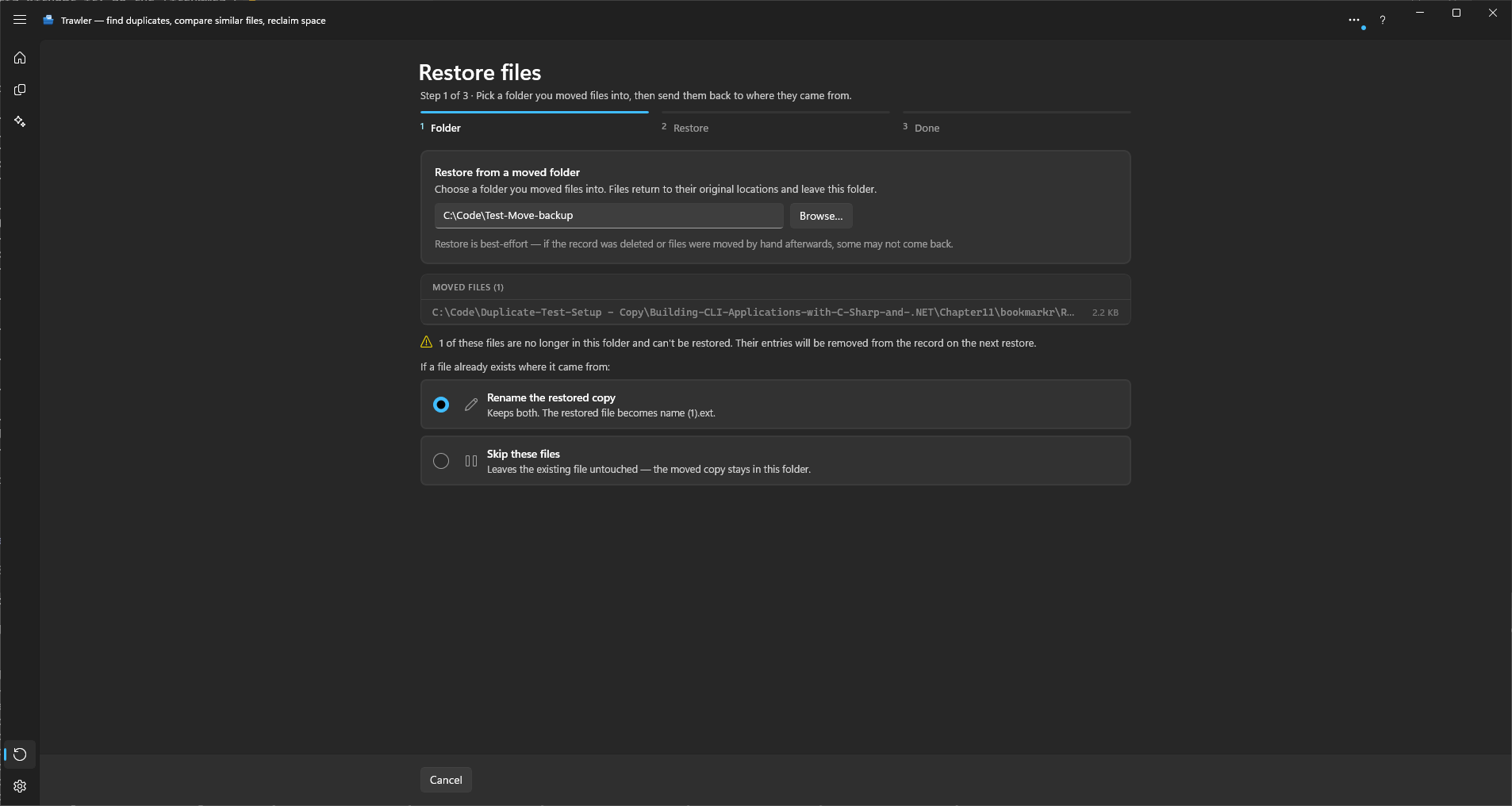
Select Restore in the title bar, then choose Open folder… in the ribbon. On the Restore page, Restore from a moved folder does the same.
"Choose a folder you moved files into. Files return to their original locations and leave this folder."
Browse… to the folder. Trawler reads the record and lists what it can send back.
If there is no record, you will see No move record found in this folder. — either it is the wrong folder, or the files were not moved by Trawler.
If a file already exists where it came from
Same choice as an archive restore, made here on the first step:
- Rename the restored copy — keeps both; the returned file becomes
name (1).ext. - Skip these files — leaves the existing file untouched, and the moved copy stays where it is.
There is a difference worth knowing between the two, because it decides whether you can try again later:
- Skip leaves that file's entry in the record. The file is still sitting in the folder, and you can come back and restore it another time.
- Rename returns the file and clears its entry. There is nothing left to retry.
Existing files are never overwritten, whichever you pick.
Checking each file
Tick Check every restored file to have Trawler read back each file it copies to another drive and compare it with the moved file before removing that one from the folder. A copy that does not match is removed, and the moved file stays in the folder, still in the record, so you can try again. A file going back to the same drive is not copied, so there is nothing to check. It is the same check, and the same remembered tick, as Check every copy when you move — see Checking every copy for what it can and cannot prove.
Double-click a file in the list to open it where it now sits, full screen, to check it before you restore. You cannot keep or discard anything from there. A dimmed row is a file that is no longer in the folder, and it does not open.
Then choose Restore N files.
Step 2 · The files go back
Each file is moved out of the folder and back to its original location, with a live count and a write speed.
You can Run in background and keep working, or Cancel. Cancelling stops between files — everything already returned stays returned, and the rest simply stay where they are. It waits for the file being moved, so one very large file going to another drive finishes first. If the cancel lands while a file is being checked, that copy is removed and the moved file stays in the folder.
Step 3 · Done
Counts for Restored, Renamed, Skipped and Errors, and an Open folder button.
If nothing came back, the headline reads "Nothing was restored" and the detail explains why — usually "The recorded files are no longer in the chosen folder, or could not be moved back". The per-file detail is in Scan report → Actions.
When it can't find things
If some of the recorded files are no longer in the folder, Trawler tells you before you start:
N of these files are no longer in this folder and can't be restored. Their entries will be removed from the record on the next restore.
That is Trawler tidying up after itself. The entries point at files that are not there — usually because they were moved or deleted by hand afterwards — so it drops them rather than reporting the same failure every time.
The rest of the files still restore normally. A missing file does not stop the run.
This is what the app means by best-effort: "Restore is best-effort — if the record was deleted or files were moved by hand afterwards, some may not come back."
Notes
- Restoring is a full-version feature. See Free and Pro.
- Once every file in a folder has been returned, the record has nothing left to describe.
- Moving files back is a move, not a copy — it frees the space again on the drive you moved them to.
Related
- What can be undone, and what cannot
- Restoring from an archive
- Processing — how moving works in the first place